
Extract Text FromKindle Cloud Reader
Step-by-step text extraction from read.amazon.com. TextMuncher automates page capture and OCR so you don't have to do it manually.
Local-First Processing
Works with Kindle Cloud Reader
No Desktop Software
How Do You Get Text Out of Kindle Cloud Reader?
Kindle Cloud Reader renders pages as canvas images - standard copy-paste fails. But a screenshot-based OCR workflow gets the text out.
Kindle Cloud Reader (read.amazon.com) renders book pages as images to prevent text selection. To extract text, capture those page images and run OCR on them. TextMuncher automates page turning and screenshot capture in Cloud Reader. Upload the captures to textmuncher.com for OCR; larger batches and slower page rendering take longer to process.
Pages Render as Images
Cloud Reader displays book content as canvas images. There is no text layer to select. Ctrl+C copies nothing.
Manual Screenshots Don't Scale
Taking individual screenshots of 200 pages is a multi-hour project. The process needs automation to be useful.
DevTools and Extensions Don't Help
Browser extensions that select text on web pages fail in Cloud Reader because there is no text to select, just canvas images.
Automated Capture and OCR for Cloud Reader
Automated Page Turning
TextMuncher turns Cloud Reader pages and captures screenshots hands-free. Large capture ranges may need more than one run.
High-Accuracy OCR
Upload captured screenshots to textmuncher.com. Four OCR workers process page images in parallel for throughput.
No DRM Removal
TextMuncher captures rendered pages you can already view and uses OCR to turn the screenshots into text. It does not decrypt ebook files.
How It Works
Three steps. No technical knowledge required.
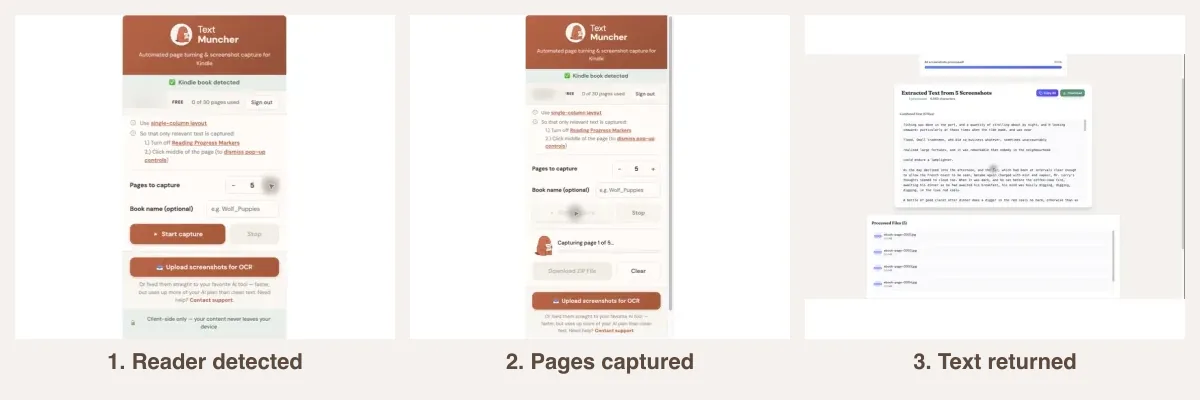
1. Install the Extension
Add TextMuncher to Chrome. Free for your first 30 pages.
2. Open Your Book
Go to read.amazon.com and open any Kindle book. Click the TextMuncher icon and hit Start.
3. Run OCR and Copy
The extension captures all pages automatically. Upload screenshots to textmuncher.com for OCR and copy the extracted text.
how to copy text from Kindle Cloud Reader why text beats screenshots for AI tools
Related Resources
Single-Column Layout for Clean Capture Turn Off Reading Progress Markers Dismiss Kindle Pop-Up Controls The published OCR benchmark eBook Extraction on Chromebook Kindle for PC Text Extraction Kindle for Mac Text Extraction Kindle Text Extraction ToolFrequently Asked Questions
How is this different from the Kindle Cloud Reader Text page?
Both help you extract text from Cloud Reader. The other page explains why Cloud Reader blocks copying. This page covers the full extraction workflow step by step, including how to set up, run, and use the output.
Does this work on every Kindle book in Cloud Reader?
Yes. TextMuncher works with any book open in Kindle Cloud Reader, including purchased books, Kindle Unlimited titles, and free samples. If you can open it in Cloud Reader, TextMuncher can capture it.
How long does it take to extract a full book?
Capture and OCR time vary with page count, page rendering, internet speed, and device performance. Long capture runs can stop early and may need restarting.
Does it work with Kindle books in other browsers?
TextMuncher works in desktop Chrome and Firefox. Chrome users can install it from the Chrome Web Store, and Firefox users can install it from Mozilla Add-ons. Safari and mobile browser extensions are not supported today, though you can still manually upload screenshots to textmuncher.com for OCR.
Can I use the extracted text with AI tools?
Yes. Paste the text into ChatGPT, Claude, Gemini, or any AI tool. Plain text works much better with AI than pasting screenshots, which most AI tools cannot process or process poorly.
Ready to Extract From Cloud Reader?
Get TextMuncher Free30 free pages • No credit card • Cancel anytime