
Screenshot Your Kindle BookAutomatically
Stop screenshotting one page at a time. TextMuncher captures every page hands-free while you do something else.
Local-First Processing
Works with Kindle Cloud Reader
No Desktop Software
Why Is Manual Screenshotting So Tedious?
Taking screenshots one page at a time is the only built-in option, and it takes forever.
To automatically screenshot a Kindle book, install the TextMuncher browser extension and open your book in Kindle Cloud Reader. Click Start and the extension turns pages, waits for them to render, and captures screenshots hands-free. Longer captures may stop before the requested range finishes, so check the result and restart if needed. Download the screenshots as a zip file when the run finishes.
One Page at a Time
Without automation, you press Print Screen, save the file, turn the page, and repeat. For a 300-page book, that is 900 clicks and 5+ hours of work.
You Have to Watch It
Manual screenshots require you to sit at your computer the entire time. You cannot walk away because you need to turn each page.
Inconsistent Captures
Manual screenshots have different crops, resolutions, and page positions. Some pages get missed. The result is a messy set of images.
How Automated Capture Works
Hands-Free Capture
Click Start and TextMuncher turns pages and captures screenshots hands-free. For longer ranges, review the saved pages and restart capture if the run ends early.
Consistent Quality
Every screenshot comes out at the same resolution and crop, and pages don't get skipped or duplicated along the way.
Download as Zip
When capture finishes, download all screenshots as a single zip file. Upload to textmuncher.com for OCR or keep the images.
How It Works
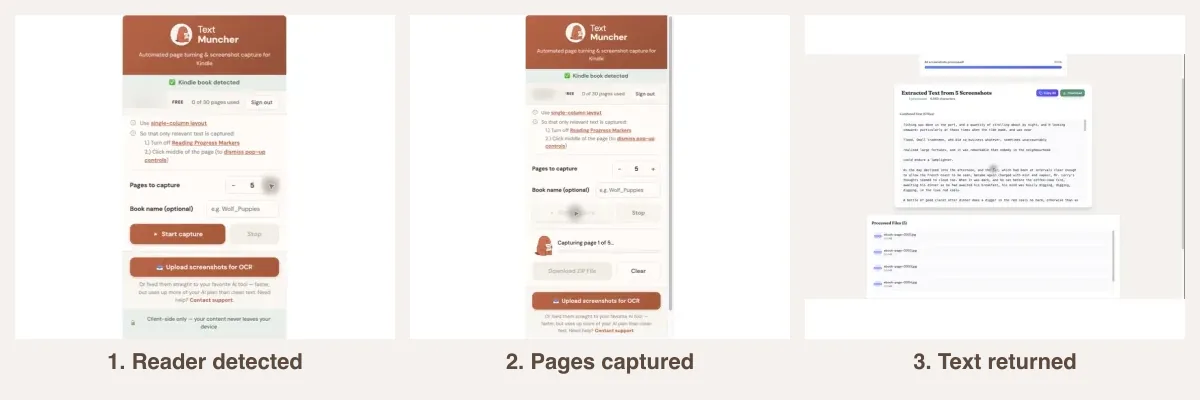
Three steps. No technical knowledge required.
1. Open Your Book
Go to read.amazon.com and open any Kindle book. Go to the first page you want to capture.
2. Start Capture
Click the TextMuncher icon and hit Start. The extension begins turning pages and capturing screenshots.
3. Download Results
When finished, download your screenshots. Optionally upload them to textmuncher.com for OCR text extraction.
screenshots vs text for AI analysis
Related Resources
OCR Book Screenshots How to Copy Kindle Text OCR eBook Screenshots Tool Kindle to PDF How to Save Kindle as PDFFrequently Asked Questions
How fast does the automated capture work?
Capture time varies with page count, page complexity, and internet speed. TextMuncher waits for each page to render before capturing. For longer ranges, review the saved pages and restart capture if the run ends early.
Can I capture just part of a book?
Yes. Go to the starting page before clicking Start, and click Stop whenever you want. Capture as many or as few pages as you need.
What format are the screenshots?
Screenshots are saved as PNG images at the resolution of your browser window. For best quality, maximize your browser window before starting capture.
Does the extension work on other ebook readers?
The automated page-turning feature is built for Kindle Cloud Reader (read.amazon.com). For other platforms, you can use the OCR web app at textmuncher.com with manually captured screenshots.
Do my screenshots get uploaded anywhere?
The capture happens in your browser and the images download straight to your computer as a zip file; nothing is sent to a server during capture. If you later run OCR at textmuncher.com, Speed mode keeps the page images in your browser. Optional Pro Quality mode sends hard-to-read pages for a cloud second pass. Only your account and billing details are otherwise handled remotely.
How do I turn the screenshots into copyable text?
Open textmuncher.com, upload the zip of screenshots, and let the local OCR read the captured pages. You get plain text you can copy to the clipboard or download as a file. Use it for search and drafting, and verify quotations against the source.
Is it okay to automatically screenshot a book I bought?
TextMuncher captures what is already on your screen in your own Kindle library, the same thing you could do by hand one page at a time. It does not remove DRM, decrypt files, or download the book from Amazon. Keep the output for your personal reading, study, and note-taking rather than redistribution. Read our copyright and fair-use guide.
Ready to Automate Your Screenshots?
Get TextMuncher Free30 free pages • No credit card • Cancel anytime