
Stop OCR-ing EbookScreenshots One by One
TextMuncher automates both the screenshot capture and OCR processing. 2 hours of manual work done in 2 minutes, hands-free.
Local-First Processing
Works with Kindle Cloud Reader
No Desktop Software
Why Is Manual Screenshot OCR So Painful?
Every step of the DIY workflow is tedious. There's a better way.
TextMuncher automates the DIY screenshot-then-OCR workflow that ebook readers use when copy-paste is blocked. Instead of taking 300 manual screenshots and uploading them one by one to an OCR service, TextMuncher's browser extension captures Kindle Cloud Reader pages automatically while parallel OCR processes them in real time. Screenshots from other readers can be uploaded in batches at textmuncher.com. The result is clean, extracted text in a fraction of the time.
Manual Screenshots Take Hours
Screenshotting every page of an ebook by hand takes 1-2 hours for a standard book - before you've done any OCR.
OCR Tools Process One Image at a Time
Most online OCR services require uploading images one by one. Batch processing tools often have strict file limits.
Generic OCR Gets Book Text Wrong
Generic OCR tools aren't optimized for book typography. Errors accumulate across hundreds of pages.
Automated Capture + Parallel OCR in One Tool
Automated Screenshot Capture
The browser extension turns pages and captures screenshots automatically - you never click through pages or worry about missing one.
Parallel OCR Processing
TextMuncher runs 4 OCR workers simultaneously. Processing time drops by 75% compared to sequential tools.
High Accuracy on Book Text
Optimized for the fonts and layouts used in web-based ebook readers - not generic document scanning.
How It Works
Three steps. No technical knowledge required.
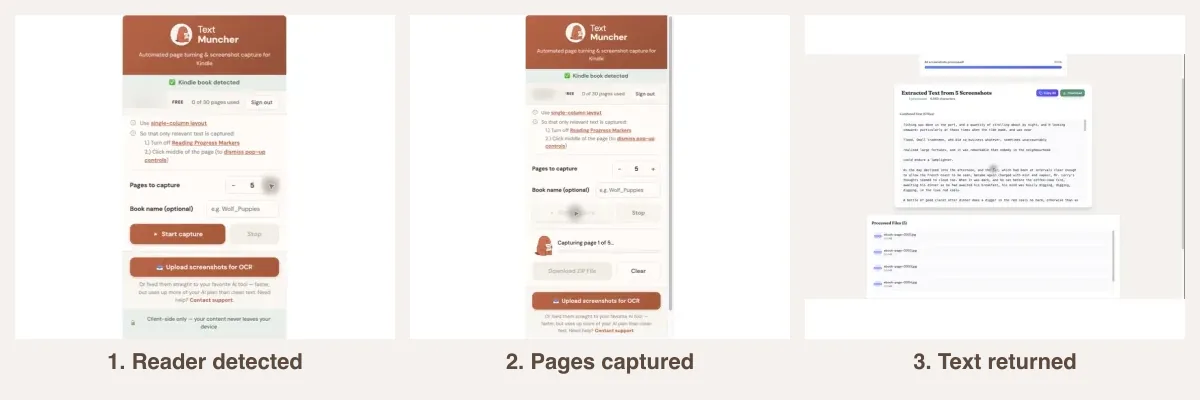
1. Install TextMuncher
Add to Chrome for automated Kindle Cloud Reader capture.
2. Start Automated Capture
Open your book in Kindle Cloud Reader and click Start. TextMuncher turns pages and captures automatically.
3. Copy Extracted Text
OCR runs in parallel as pages are captured. Copy the full text when done.
why text beats screenshots for AI extracting text from Cloud Reader
Related Resources
The published OCR benchmark Kindle Text Extraction How to OCR Book Screenshots Scanned Book OCR Screenshot Kindle AutomaticallyFrequently Asked Questions
Can I also upload screenshots I've already taken?
Yes. The TextMuncher website (textmuncher.com/extract) accepts image uploads from any source - phone screenshots, desktop captures, or tablet photos. Upload batches for free, unlimited use.
How fast is the OCR?
TextMuncher runs four OCR workers in parallel for throughput. Capture is hands-free in Kindle Cloud Reader, and page count, rendering speed, and device performance determine how long the job takes.
What ebook platforms does the automated capture work with?
The automated capture is built and validated for Kindle Cloud Reader. For other readers like Google Play Books, Libby, VitalSource, or Scribd, take screenshots manually and upload them to textmuncher.com - the OCR works the same either way.
What's the OCR accuracy like?
TextMuncher achieves high-accuracy OCR on standard ebook typography. Complex layouts, footnotes, and unusual fonts may be slightly lower.
Is there a free tier?
The browser extension automation is free for 30 pages. Manual image uploads on the website are always free and unlimited.
Ready to Automate Your Ebook Screenshot OCR?
Get TextMuncher Free30 free pages • No credit card • Cancel anytime