
Turn Book Screenshotsinto Editable Text
Already have screenshots of book pages? Upload them for OCR and get copy-ready text.
Local-First Processing
Works with Kindle Cloud Reader
No Desktop Software
Why Is Manual Transcription So Painful?
Screenshots are useful but the text trapped inside them is not searchable, copyable, or usable.
To convert book page screenshots into text, go to textmuncher.com/extract and upload your images. Speed mode runs OCR locally in your browser using four parallel workers, converting each page to text with high accuracy. Optional Pro Quality mode sends hard-to-read pages for a cloud second pass. You can upload hundreds of screenshots at once and copy the combined text output.
Trapped in Images
Screenshot text cannot be searched, copied, or pasted. Every page is just a picture with no usable text content.
Retyping Takes Forever
Manually transcribing even 20 pages of a book from screenshots would take hours. That is time you could spend studying or working.
Cloud OCR Has Privacy Risks
Most OCR services upload your images to remote servers. Book content you send to Google or Adobe is processed and potentially stored on their infrastructure.
How TextMuncher OCR Works
Runs in Your Browser
Speed mode runs OCR locally on your computer by default. Optional Pro Quality mode sends hard-to-read pages for a cloud second pass.
4 Parallel OCR Workers
TextMuncher splits captured pages across four Tesseract.js workers for parallel processing. The total time depends on batch size, page rendering, and device performance.
Batch Upload
Drag and drop hundreds of screenshots at once. Pages are processed in order and combined into a single text output.
How It Works
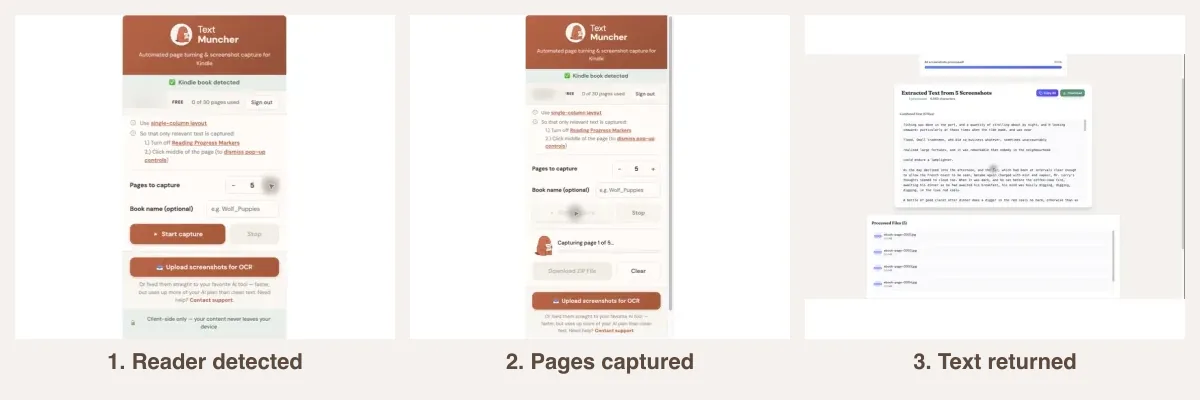
Three steps. No technical knowledge required.
1. Go to TextMuncher
Open textmuncher.com/extract in your browser. No installation needed for the OCR web app.
2. Upload Screenshots
Drag and drop your book page screenshots or click to browse. Upload as many as you need.
3. Copy the Text
OCR processes each image and displays the extracted text. Copy it all or page by page.
why text beats screenshots for AI tools
Related Resources
The published OCR benchmark OCR eBook Screenshots Tool How to Copy Kindle Text Screenshot Kindle Automatically Extract eBook TextFrequently Asked Questions
What image formats does the OCR accept?
TextMuncher accepts PNG, JPG, and WebP images. For best OCR accuracy, use PNG screenshots at full resolution. Avoid compressed or blurry images.
How accurate is the OCR on book pages?
TextMuncher achieves high accuracy on standard printed book text. Accuracy drops on handwritten text, decorative fonts, or very small print. Standard paperback and textbook layouts work well.
Is there a limit on how many screenshots I can process?
Free accounts can process 30 pages. Paid plans offer unlimited OCR processing for $9.99/month or $48/year.
Can I use this for scanned physical books?
Yes. If you photograph or scan physical book pages, the OCR works the same way. Make sure the image is well-lit, flat, and in focus for best results.
Do my screenshots need to be in reading order?
It helps a lot. TextMuncher processes the images in the order they are uploaded and stitches the results into one continuous text output, so naming your files in sequence, like 001, 002, 003, keeps the final text in the right order. If a couple of pages land out of place, you can reorder them before combining or fix the joins afterward in your editor.
Can I OCR screenshots I took on my phone?
Yes. Photos and screenshots from a phone work as long as they are clear and reasonably straight. Move the images to the computer where you run the OCR, then upload them like any other batch. For phone photos of paper pages, good lighting and a flat, square-on angle make the biggest difference to accuracy.
Does the OCR work offline once the page has loaded?
Largely, yes. The recognition runs on your own machine in the browser rather than on a remote server, so after the page and its OCR engine have loaded, the heavy lifting is local. That is what keeps your book pages private, and it means a brief drop in connectivity mid-batch will not send your images anywhere.
Ready to Convert Your Screenshots?
Start OCR Free30 free pages • No credit card • Cancel anytime