
How to Copy Text from Kindle Books (Cloud Reader, PC, Mac in 2026)
Amazon's 10% copy limit blocks Kindle text selection. 6 working methods to extract text in 2026, including a free extension that automates it.
• By Mike
You open Kindle Cloud Reader, try to select a paragraph, and nothing happens. Or you manage to highlight a few sentences before Amazon tells you you've exceeded the copy limit. You paid for this book. Why can't you copy your own text?
The short answer: You can copy text from Kindle Cloud Reader, but Amazon makes it difficult by design. Publishers cap built-in copying at roughly 5-10% of a book, and many titles render as images, not selectable text. The good news: several workarounds still work in 2026, from Amazon's free Notebook export to fully automated screenshot extraction.
This guide covers every working method I've tested, starting with free options and ending with the hands-free approach I use for anything longer than a few pages.
Why Can't You Copy Text from Kindle Cloud Reader?
Amazon restricts text copying in Kindle Cloud Reader due to DRM (Digital Rights Management) and publisher licensing agreements. Most publishers set a copy limit between 5-10% of the book's total content. Once you hit it, Amazon blocks all further text selection, even single sentences.
The restriction isn't a bug. It's deliberate. Amazon's agreements with publishers require these limits to prevent unauthorized redistribution. But these same restrictions hit everyone with a legitimate reason to pull text: students quoting textbooks for papers, researchers building literature reviews with proper citations, language learners who want to translate a passage, and anyone trying to analyze a book with ChatGPT or Claude.
Making matters worse, Amazon updated Kindle Cloud Reader in 2021 to render many books as images rather than selectable text. As one frustrated user put it: "Now they're rendering all the text out as images. They finally stumped me."
The copy limit is a business decision, not a technical inevitability. That's why workarounds for extracting Cloud Reader text exist.
Method 1: Amazon's Notebook Export (Free, Limited)
The easiest way to copy text from Kindle Cloud Reader is through Amazon's official Notebook feature at read.amazon.com/notebook. If you've highlighted passages before hitting the copy limit, you can retrieve them as selectable text.
How it works:
- Go to read.amazon.com/notebook
- Select your book from the left sidebar
- All your highlights appear as copyable text
- Select and copy what you need
The limitation: Notebook exports are still subject to the publisher's copy limit. If you've already hit 10%, you can't add more highlights to export. And some publishers restrict Notebook exports entirely: you'll see a message that export isn't available for that title.
If you already highlighted what you need before hitting the limit, this is the cleanest way to get it out. If you're starting fresh, or you burned through the limit before highlighting anything useful, it won't help.
Method 2: Browser Extensions (Free, Unreliable)
Several Chrome extensions claim to enable text copying from Kindle Cloud Reader. Extensions like "BlackBox" or similar tools attempt to intercept text before Amazon's DRM blocks it.
The reality in 2026: These extensions break constantly. Amazon updates Kindle Cloud Reader regularly, and each update tends to break whatever workaround the extensions were using. You might find one that works today, but don't expect it to work next month.
How to try:
- Search the Chrome Web Store for "kindle copy" or "kindle text"
- Check recent reviews (look for dates within the last few weeks)
- Install and test on your specific book
- Be prepared to troubleshoot or find alternatives when it breaks
One data point: ReaderTools, a popular extension in this space, accumulated 368 users before being removed from the Chrome Web Store for policy violations. The fact that hundreds of users kept a broken extension installed shows how desperate people are for a solution, and how unreliable these tools have become.
The right choice only if you enjoy tinkering and have a low-stakes extraction where a broken extension won't cost you much. For anything you need to work reliably next week, skip this category entirely.
Method 3: Browser Developer Tools (Free, Technical)
Power users sometimes try extracting text by inspecting Kindle Cloud Reader's page source using Chrome DevTools. In theory, book text exists somewhere in the page's HTML.
The reality in 2026: Amazon has largely killed this approach. Kindle Cloud Reader now renders many books as canvas images rather than HTML text. Even when text exists in the DOM, it's often:
- Fragmented across hundreds of elements
- Encoded or obfuscated
- Dynamically loaded in ways that make extraction impractical
How to check if it works for your book:
- Open your book in Kindle Cloud Reader
- Press F12 to open Developer Tools
- Click the Elements tab
- Search (Ctrl+F) for recognizable text from the page
If you find readable text strings, you might be able to copy them. Canvas elements, encoded data, or nothing recognizable means this method won't work for your book.
As one user described: "In Kindle Cloud Reader, there is no 'Copy' option. You only see 'Highlight' and 'Note' options." The underlying text simply isn't accessible through normal browser inspection anymore.
Worth a 5-minute check if you're comfortable in DevTools and want to rule it out before trying something else. In practice, most books you encounter in 2026 will hit a dead end here, since canvas rendering has made this nearly useless for the average title.
Method 4: VBA Macros and Automation Scripts (Free, Windows-Only)
Some guides suggest using Microsoft Word VBA macros or AutoHotkey scripts to automate text extraction. These tools can take screenshots, run OCR, and compile results, but they require significant technical setup.
The problems:
- Windows-only: Mac and Linux users are out of luck
- Technical setup required: Installing dependencies, configuring scripts, troubleshooting errors
- Often outdated: Most guides reference tools or APIs that have changed
- Still semi-manual: You're automating parts of the process, but it's not hands-free
If you're comfortable with scripting and want a free solution, search GitHub for "kindle OCR" or "kindle text extraction" to find current projects. But be prepared to spend hours on setup and troubleshooting.
If you're a Windows power user who genuinely enjoys a scripting challenge, this is a rabbit hole worth exploring. Everyone else will spend 3 hours on setup for a result that a screenshot tool delivers in 15 minutes.
Method 5: Manual Screenshot + OCR (Free, Tedious)
The most reliable free method: screenshot each page and run OCR (Optical Character Recognition) to convert images back to text. This works regardless of DRM because you're capturing what's displayed on your screen, the same content your eyes see.
How it works:
- Open your book in Kindle Cloud Reader
- Screenshot each page (Windows: Win+Shift+S, Mac: Cmd+Shift+4)
- Upload screenshots to an OCR tool like OnlineOCR.net or Google Drive
- Copy the extracted text
The problem: This is brutal for anything longer than a few pages. A 300-page book means 300 manual screenshots, 300 uploads, and hours of tedious work.
Users on Reddit describe this approach as "insanely tedious." One person shared: "I used to screenshot every page, save it, turn the page, repeat... and give up somewhere around page 200." That's not an exaggeration. Manual screenshotting is exhausting.
Works fine when you need one chapter or a handful of targeted pages and you've got 20 minutes to spare. Once you're looking at a full book, the math gets brutal: two minutes per page puts a 200-page book at nearly 7 hours of your day.
Method 6: Automated Screenshot + OCR (Recommended)
Full disclosure: I built TextMuncher after getting frustrated with manual screenshots. The approach combines the reliability of screenshot + OCR (Method 5) with automation that eliminates the tedium.
How it works:
- Install the TextMuncher Chrome extension
- Open your book in Kindle Cloud Reader
- Click "Start" in the extension popup
- Let it handle page turning and screenshot capture hands-free; long runs can stop early and may need restarting
- Upload the batch to textmuncher.com for OCR processing
- Review the extracted text and copy or download it
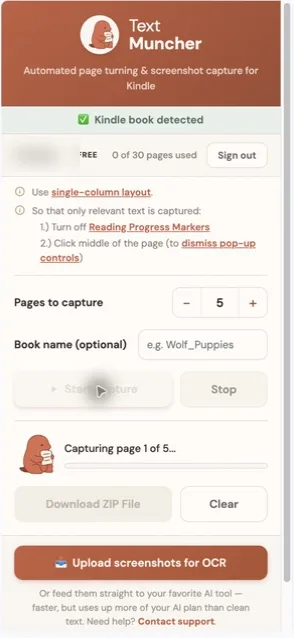
Why it works: Screenshots capture exactly what's rendered on screen. No DRM can prevent you from capturing your own display. The high-accuracy OCR means extracted text is clean enough for research, notes, or feeding a book into ChatGPT for analysis. How that accuracy is measured — a blinded page set, a human-adjudicated answer key, and a published per-page scoring file — is written up in the published OCR benchmark and its method.
Pricing: 30 free pages to try it, then $9.99/month (or $48/year) for unlimited extraction. For context, Readwise charges $7.99/month and reads highlights through Amazon's own export, so the copy limit still applies to it. TextMuncher reads the page image instead, so it never asks Amazon for text.
If you're pulling more than a chapter and don't want to spend an afternoon on it, this is the only method that makes the time investment worthwhile. For a single short excerpt, Method 5's free.
Method Comparison: What Actually Works in 2026?
| Method | Works in 2026? | Time for 100 Pages | Cost | Difficulty |
|---|---|---|---|---|
| Notebook Export | Partial (pre-limit only) | N/A | Free | Easy |
| Browser Extensions | Unreliable | Varies | Free | Easy |
| Developer Tools | Rarely | Hours if at all | Free | Technical |
| VBA Macros/Scripts | Yes (Windows only) | 1-2 hours | Free | Technical |
| Manual Screenshot + OCR | Yes | 2-4 hours | Free | Tedious |
| Automated Screenshot + OCR | Yes | Varies by length | $9.99/mo | Easy |
The honest assessment: if you need significant text from Kindle Cloud Reader in 2026, your reliable options are manual screenshots or automation. Everything else is either limited by Amazon's restrictions, technically demanding, or breaks regularly.
Is This Legal?
TextMuncher captures visible Kindle pages and turns the screenshots into text with OCR; it does not decrypt ebook files. Don't redistribute or sell the extracted text, or post full chapters online. Check school, employer, and platform rules before uploading text to an AI service. Read our copyright and fair-use guide. Whether a particular use is permitted depends on the jurisdiction, material, and use of the output; not legal advice.
Which Method Actually Works in 2026?
Copying text from Kindle Cloud Reader isn't straightforward, but it's definitely possible. If you keep running into the copy limit exceeded error, you're not alone. It's the #1 frustration Kindle users face, and the screenshot-OCR walkthrough for the copy limit lays out the same methods as a checklist. In 2026, your realistic options are:
- Notebook export if you highlighted text before hitting the limit
- Manual screenshots + OCR if you have patience and a short extraction
- Automated screenshots + OCR if you want to avoid page-by-page capture
I built TextMuncher because the manual approach was too tedious and other methods kept breaking. If you're extracting more than a chapter, try the free 30 pages and see if automation makes sense for your workflow. Want the full picture? See how TextMuncher works or our dedicated guide for Kindle readers.
For the shortest product-focused version, the Kindle text-copying workflow walks from visible pages to plain text.
If you're extracting for a particular reason, there's a more specific guide than this one:
- Assistive technology. If Kindle's built-in accessibility didn't reach your book and you need the text in a screen reader, Braille display, or text-to-speech app, start with Kindle book text for screen readers and TTS.
- Research and citation. If you need full passages and the surrounding context rather than just the parts you happened to highlight, start with extracting Kindle books for research.
FAQ
Does Kindle allow you to copy and paste?
Only partially. Kindle Cloud Reader lets you copy small selections until you hit the publisher's 5-10% copy limit, after which all text selection is blocked. Many newer titles render as images, so you can't select text at all. Screenshot-plus-OCR is the reliable way to get the full text out.
How do I extract the text from a Kindle book?
The most reliable method is screenshot-plus-OCR: capture each page as it appears on your screen, then run optical character recognition to turn the images back into editable text. This sidesteps the copy limit because you're capturing your own display. TextMuncher automates page turning and screenshot capture in Kindle Cloud Reader; processing time varies, and long runs may need restarting.
How do you get past the copy limit on Kindle?
You can't reset the limit (it's publisher-set), but you can work around it. Highlight passages before you hit the cap and export them from Amazon's Notebook, or skip selection entirely and use screenshot-plus-OCR, which captures your screen rather than the locked text. See our guide to the copy limit exceeded error.
How do I copy Kindle text on iPhone, Mac, or PC?
The method is the same across devices because it captures your screen, not the file. On PC use Win+Shift+S, on Mac use Cmd+Shift+4, and on iPhone press the side and volume-up buttons to screenshot each page, then run the images through OCR. TextMuncher's extension automates this on desktop Chrome and Firefox.
Does Kindle Cloud Reader work on all browsers?
Yes, Kindle Cloud Reader officially supports Chrome, Firefox, Edge, and Safari. However, some features like offline reading are Chrome-only. For TextMuncher extraction, use desktop Chrome or Firefox; Chrome still has more unrelated third-party extension options.
Why does Amazon make it so hard to copy text?
Publisher licensing agreements. When Amazon sells you an ebook, they're selling access under terms set by the publisher. Most publishers require DRM and copy limits to protect against piracy. Amazon enforces these restrictions to maintain publisher relationships. It's a business decision, not a technical limitation.
Can I use these methods on Kindle Unlimited books?
Yes. All methods work regardless of whether you own the book or access it through Kindle Unlimited. Screenshot-based extraction captures what's displayed on your screen, regardless of how you gained access to view the content.
What about the Kindle desktop app?
The Kindle desktop app has stricter DRM than Kindle Cloud Reader and doesn't run in a browser environment. Most extraction methods that work in Cloud Reader won't work in the desktop app. If you need to extract text, stick with Cloud Reader in your browser.
Will Amazon ban my account for extracting text?
Screenshot-based extraction doesn't interact with Amazon's servers or violate their terms of service. You're capturing what's displayed on your own screen, the same thing you'd do by taking a photo of your monitor. Users have been doing this for years without account issues.
What happened to Calibre and DRM removal?
Calibre with the DeDRM plugin was the gold standard for years. In February 2025, Amazon removed the "Download & Transfer via USB" option, breaking this workflow for most users. The method still works for books purchased before ~2023 on older Kindle devices, but it's no longer viable for recent purchases. For a detailed breakdown, see TextMuncher vs Calibre.
Need to copy text from Kindle Cloud Reader? Try TextMuncher free: 30 pages included.