
Kindle Copy Limit Exceeded? How to Get Past It (2026)
Hit the 'copy limit exceeded' error on Kindle? Here are 5 methods that actually work in 2026, from free workarounds to automated solutions.
• By Mike
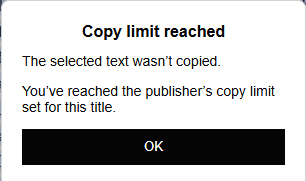
You're highlighting a passage in Kindle Cloud Reader when it hits you: "You have exceeded the publisher's copy limit set for this title." Frustrating doesn't begin to cover it. You bought the book. You just want to copy a few paragraphs for your notes or feed them into ChatGPT.
The good news: there are workarounds that actually work in 2026. I've tested five different methods, from free options to automated solutions. Here's what actually gets you the text, and what's broken.
Kindle limits copying to roughly 5-10% of a book's total content. The cap is set by the publisher, applies per book, and cannot be reset or removed. Once you hit it, Kindle blocks all further text selection, even single sentences. The workarounds below get the rest by capturing what's shown on screen and running OCR.
Why Does Amazon Limit How Much You Can Copy?
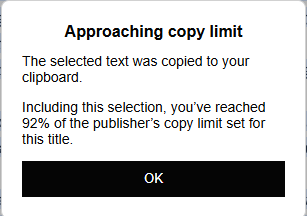
Amazon restricts text copying due to publisher licensing agreements and DRM (Digital Rights Management) protection. Most publishers set a copy limit between 5-10% of the book's total content to prevent piracy while still allowing reasonable highlighting and note-taking.
When you hit the limit, Kindle blocks all further text selection, even single sentences. The 10% cap includes everything you've ever highlighted or copied from that title, and there's no way to reset it without contacting Amazon support (who rarely help).
Students quoting textbooks, researchers pulling passages for literature reviews, language learners translating paragraphs, anyone piping content into ChatGPT or Claude for analysis: they all run into this wall. The copy limit is a business decision, not a technical one. Which means there are technical workarounds for the copy limit.
Method 1: The Highlights Export (Free, Limited)
The easiest workaround is exporting your existing highlights through Amazon's Notebook feature at read.amazon.com/notebook. This exports all your highlighted passages as copyable text, no screenshots required.
How it works:
- Open read.amazon.com/notebook
- Select your book from the left sidebar
- All your highlights appear as selectable text
- Copy and paste what you need
The catch: Notebook exports are still subject to the publisher's copy limit. If you've already hit 10%, you can't add more highlights to export. This method only works for text you highlighted before reaching the limit.
2025 update: As of September 2025, Amazon has started restricting copying from My Notebook on certain titles as well. If you find that even your existing highlights won't copy from Notebook, this method has been blocked for your book. Move to the methods below.
If you made it a habit to highlight as you read, this gets you out. If you hit the wall before you could highlight everything you needed, it won't. For a focused walkthrough of the Notebook route, see the Kindle highlights export guide.
Method 1.5: The Search Trick (Free, Desktop Only)
A quick workaround that's been floating around forums: instead of copying text directly, you can use Kindle's built-in search to pull small amounts of text without the copy dialog.
How it works:
- Open your book in the Kindle desktop app (not Cloud Reader)
- Select the text you want to copy
- Instead of right-clicking > Copy, right-click > "Search the Web"
- The selected text appears in a Google search query
- Copy the text from the Google search bar or results page
The catch: This only works in the Kindle desktop app, not Cloud Reader. It's a one-passage-at-a-time approach, useful for grabbing a quote or paragraph, but impractical for bulk extraction. You're also limited to however much text Kindle lets you select at once.
Works when you need a single quote and don't want to install anything. Falls apart the moment you need more than a paragraph or two.
Method 2: Browser Developer Tools (Free, Technical)
Power users sometimes try extracting text through Chrome's Developer Tools by inspecting the Kindle Cloud Reader page source. In theory, you can find the book text in the DOM and copy it directly.
The reality in 2026: Amazon has largely blocked this approach. Kindle Cloud Reader now renders many books as canvas images rather than HTML text. Even when text exists in the DOM, it's often fragmented, encoded, or dynamically loaded in ways that make extraction impractical.
How to check if it works for your book:
- Open Kindle Cloud Reader in Chrome
- Press F12 to open Developer Tools
- Click the Elements tab
- Try to find and select text content
If you see actual text, you might be able to copy it. If you see canvas elements or encoded data, this method won't work.
Worth a five-minute check if you're comfortable in DevTools. Success rate is low and getting lower as Amazon patches these approaches, so don't build a workflow around it.
Method 3: Manual Screenshot + OCR (Free, Tedious)
The bulletproof method: screenshot each page and run OCR (Optical Character Recognition) to convert the images back to text. This works regardless of DRM because you're capturing what's displayed on screen, exactly what your eyes see.
How it works:
- Open your book in Kindle Cloud Reader
- Screenshot each page (Windows: Win+Shift+S, Mac: Cmd+Shift+4)
- Upload screenshots to an OCR tool like OnlineOCR.net or use Tesseract
- Copy the extracted text
The problem: This is brutally tedious for anything longer than a few pages. A 300-page book means 300 manual screenshots. I've seen users on Reddit report giving up at page 200. One user called it "insanely tedious," and they weren't wrong.
If you need a single chapter, this is completely fine. If you need more than that, you'll hit the same wall of patience that keeps coming up in the Reddit threads.
If your real goal is to copy text from a Kindle book in Cloud Reader, the dedicated Cloud Reader guide walks through the browser setup and OCR path in more detail.
Method 4: Calibre + DeDRM (Free, Broken for New Books)
Calibre with the DeDRM plugin was the gold standard for years. You'd download your Kindle book via USB, strip the DRM, and convert to any format, including copyable text.
What happened: In February 2025, Amazon removed the "Download & Transfer via USB" option from the Kindle content management page. Books purchased after 2023 increasingly use newer DRM that DeDRM can't crack. The method still works for:
- Books purchased before ~2023
- Users with older Kindle devices that still support USB transfer
- Books from publishers who use weaker DRM
For everyone else: This method is effectively dead. If your book was purchased recently or your Kindle is newer, Calibre won't help. For the full timeline of what Amazon changed and why traditional methods to remove Kindle DRM in 2026 no longer work, see our complete breakdown, or jump straight to the TextMuncher vs Calibre comparison if you want a side-by-side.
It's worth trying if you have an older library, but for anything bought in the last couple of years, don't spend time on this one.
Method 5: Automated Screenshot + OCR (Recommended)
Full disclosure: I built TextMuncher to solve this exact problem after getting frustrated with manual screenshots.
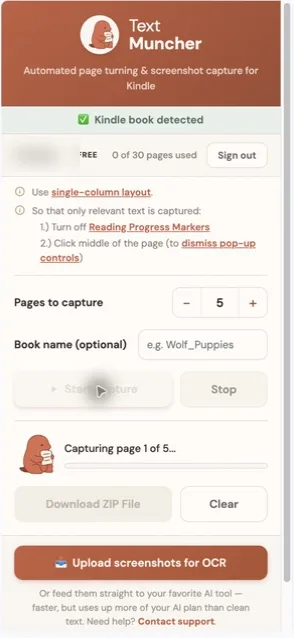
The approach combines the reliability of screenshot + OCR (Method 3) with automation that eliminates the tedium. Instead of manually screenshotting 300 pages, the extension handles everything:
How it works:
- Install the TextMuncher Chrome extension
- Open your book in Kindle Cloud Reader
- Click "Start" in the extension popup
- Let it handle page turning and screenshot capture hands-free; long runs can stop early and may need restarting
- Upload the batch to textmuncher.com for OCR processing
- Review the extracted text and copy or download it
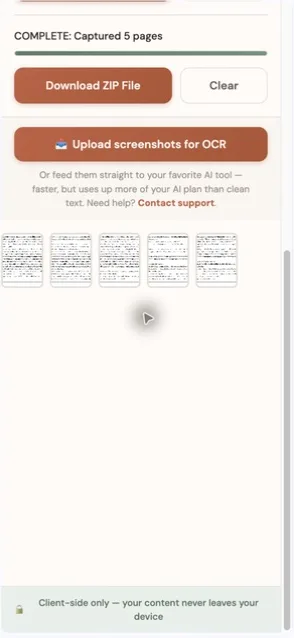
Why it works: Screenshots capture exactly what's rendered on screen. No DRM can block you from capturing your own display. The high-accuracy OCR means the extracted text is clean enough for research, notes, or feeding a book into ChatGPT for analysis.
Pricing: 30 free pages to try it out, then $9.99/month (or $48/year) for unlimited. For context, Readwise charges $7.99/month and reads highlights through Amazon's own export, so the copy limit still applies to it. TextMuncher reads the page image instead, so it never asks Amazon for text.
Anyone who has gotten 50 pages into manual screenshots and thought "there has to be a better way" is the person this was built for. If you need to copy entire chapters at once, automation is the only practical option at scale. The step-by-step version of this route lives in the get past Kindle's 10% copy limit walkthrough.
Method Comparison: What Actually Works in 2026?
| Method | Works in 2026? | Time for 100 Pages | Cost | Difficulty |
|---|---|---|---|---|
| Highlights Export | Partial (pre-limit only) | N/A | Free | Easy |
| Developer Tools | Rarely | Hours if at all | Free | Technical |
| Manual Screenshot + OCR | Yes | 2-4 hours | Free | Tedious |
| Calibre + DeDRM | Old books only | N/A | Free | Technical |
| TextMuncher | Yes | Varies by length | $9.99/mo | Easy |
Two of these are effectively dead for new purchases, two are stopgaps for small jobs, and automation is the practical route for larger captures. Manual work can take hours; automated capture time varies with book length and page rendering, and long runs may need restarting.
Is This Legal?
TextMuncher captures visible Kindle pages and turns the screenshots into text with OCR; it does not decrypt ebook files. Don't redistribute or sell the extracted text, or post full chapters online. Check school, employer, and platform rules before uploading text to an AI service. Read our copyright and fair-use guide. Whether a particular use is permitted depends on the jurisdiction, material, and use of the output; not legal advice.
The Only Method That Works on Every Kindle Book
The "copy limit exceeded" error is frustrating, but it's not unbeatable. In 2026, your realistic options are:
- Export existing highlights if you haven't hit the limit yet
- Manual screenshots + OCR if you have patience and a short book
- Automated screenshot + OCR if you value your time
I built TextMuncher because I kept seeing people on Reddit saying they "gave up at page 200" or that manual extraction was "insanely tedious." If that sounds familiar, try the free 30 pages and see if automation makes sense for your workflow. See our full guide for Kindle readers or learn how TextMuncher works step by step.
FAQ
Can I reset my Kindle copy limit?
No. Amazon doesn't provide a way to reset the publisher's copy limit. Once you've hit 10% (or whatever the publisher set), you can't copy more text from that title through normal means. Some users report success contacting Amazon support, but this is inconsistent.
How do you get past the copy limit on Kindle?
You capture what's on your screen instead of copying text. Screenshot each page and run OCR to turn the images back into editable text. Because you're photographing your own display, the publisher's copy cap never applies. Manual screenshots work for a few pages; automation handles a full book.
Does Kindle allow copy and paste?
Yes, but only up to the publisher's copy limit, usually 5-10% of the book. Kindle Cloud Reader lets you select and copy short passages until you reach that cap, then it blocks all further selection. For anything beyond the limit, screenshot the pages and run OCR to recover the full text.
Does TextMuncher work with Kindle Unlimited books?
Yes. TextMuncher works with any book you can open in Kindle Cloud Reader, including Kindle Unlimited titles. The screenshot approach doesn't care whether you own or rent the book; it captures what's displayed on your screen.
Why not just use the Kindle app instead of Cloud Reader?
The Kindle desktop and mobile apps have even stricter DRM and no browser-based workarounds. Kindle Cloud Reader runs in a standard browser, which makes screenshot automation possible. The web environment is more flexible for extraction.
Will Amazon ban my account for using TextMuncher?
TextMuncher doesn't interact with Amazon's servers or violate their terms of service; it only automates screenshots and page turns within your browser. There's no API abuse, no DRM cracking, and no modification of Amazon's software. Users have been using screenshot-based extraction for years without account issues.
What OCR accuracy can I expect?
TextMuncher uses Tesseract.js with parallel processing, achieving high accuracy on standard book text. Results are best with clean fonts and good page contrast. Unusual fonts, handwritten text, or heavy formatting may reduce accuracy. If you want the measurement rather than the adjective, the published OCR benchmark and its method shows the test set and the scoring file behind it.
Does this work on iPhone or iPad?
Your options are limited on mobile. The Kindle iOS app has stricter DRM than the web version, and there's no browser extension support on iPhone or iPad. The "Search the Web" trick doesn't work on mobile either. Your best bet on iOS is taking screenshots of each page and running them through an OCR app like Adobe Scan or Microsoft Lens. It works, but it's the same manual tedium as Method 3, just on a smaller screen. For bulk extraction, a desktop or laptop is the way to go.
Is the copy limit different for Kindle Unlimited books?
No. Kindle Unlimited books have the same publisher-set copy limits as purchased books. The restriction comes from the publisher, not from how you access the book. Whether you bought it outright or borrowed it through KU, the 5-10% copy cap still applies.
Having trouble with Kindle's copy limit? Try TextMuncher free: 30 pages included.