
Is It Possible to Copy an Entire Chapter from a Kindle Book?
Tired of copying Kindle text one page at a time? Here's how to extract entire chapters from Kindle Cloud Reader using screenshots and OCR.
• By Mike
You want to copy an entire chapter from your Kindle book, maybe to feed it to ChatGPT, paste it into your notes, or study it offline. But Kindle makes you select text one paragraph at a time, and you keep hitting that "copy limit exceeded" wall before you're even halfway through.
The short answer: Yes, you can copy an entire chapter from a Kindle book. Amazon's built-in tools won't do it, because Kindle blocks multi-page selection and caps copying at 5-10% per book. The workaround is to screenshot each page of the chapter and run OCR, which turns the images back into clean, copyable text.
Here's what actually works in 2026, from free manual methods to fully automated extraction.
What Changed in 2026 (and Why Old Tutorials Don't Work)
Most "how to copy Kindle chapters" tutorials online were written before Amazon and Kindle publishers made three significant changes:
Calibre + DeDRM is mostly dead. Amazon removed the "Download & Transfer via USB" option for most newer Kindle accounts in February 2025. Without USB transfer, you can't get the AZW file out of Amazon's ecosystem to strip DRM. Older books and older Kindle hardware still work, but the path is closed for most users.
Kindle Cloud Reader now renders many books as canvas images. Browser extensions that used to read book text directly from the page DOM no longer find any text, because Amazon renders pages as image canvases on the server side. The only methods that still work are screenshot-based, because they capture what your eye sees, not what's in the HTML.
March 2026 firmware update. A new Kindle device firmware tightened encryption on the local book cache, which broke a few remaining workarounds that depended on file system access.
The practical implication: screenshot + OCR is now the only general-purpose method that works across recent purchases, library books, and Kindle Unlimited. Everything else is either dead, restricted to old books, or breaks every few months.
Why Can't You Just Select and Copy a Whole Chapter?
Amazon implements two restrictions that make chapter-level copying impossible through normal means:
No multi-page selection. Kindle Cloud Reader only lets you highlight text within a single page. There's no "select all" for chapters.
Publisher copy limits. Most publishers cap text copying at 5-10% of the book. Hit that ceiling and you can't copy another word, even single sentences.
These aren't technical limitations. They're business decisions to satisfy publisher DRM requirements. Which means technical workarounds for the copy limit exist.
Method 1: Manual Screenshot + OCR (Free, Tedious)
The most reliable free method: screenshot each page of the chapter, then run OCR to convert images back to text.
How to do it:
- Open your book in Kindle Cloud Reader
- Go to the chapter you want
- Screenshot each page:
- Windows:
Win + Shift + S - Mac:
Cmd + Shift + 4
- Windows:
- Upload screenshots to an OCR tool like OnlineOCR.net
- Copy the extracted text
The reality: This works perfectly for 5-10 pages. But a typical chapter is 20-40 pages. That means 20-40 manual screenshots, uploads, and copy-pastes. Users on Reddit describe this as "soul-crushing" and "I gave up at page 15."
Best for: Short excerpts or when you only need a few pages. Not practical for full chapters.
Platform-specific tips for fewer wasted screenshots:
- Windows: Snipping Tool's "Window snip" mode captures just the reader pane. Bind it to a global hotkey for faster cycling. PowerToys also offers a "Text Extractor" feature with built-in OCR if you only need a few paragraphs.
- Mac:
Cmd + Shift + 5opens the screenshot toolbar with a "Capture Selected Window" option that grabs just the reader. macOS Sonoma and later also support live text selection on screenshots, useful for one-off paragraphs. - Chromebook: Use the built-in screenshot tool (
Ctrl + Show windows + Shift) with the partial-screen option. Files save to Downloads automatically, ready to upload to OCR.
Tip on OCR quality: Crop the screenshot to just the text area before OCR. Page chrome, headers, and progress bars confuse most OCR engines and produce noisier output. Most batch OCR tools degrade noticeably if you feed them full-window screenshots versus tight crops.
Method 2: Highlights Export (Free, Limited)
If you highlighted passages before hitting the copy limit, you can export them from Amazon's Notebook.
How to do it:
- Go to read.amazon.com/notebook
- Select your book
- Copy your highlighted passages
The catch: This only works for text you've already highlighted. It won't help you copy a chapter you haven't read yet, and it's still subject to the publisher's copy limit.
Best for: Retrieving highlights you've already made. Not a chapter extraction solution.
Method 3: Calibre + DeDRM (Free, Mostly Broken)
Calibre with the DeDRM plugin used to be the go-to solution. Download your Kindle book, strip the DRM, export as text.
What happened: Amazon removed "Download & Transfer via USB" for most books in early 2025. Newer Kindle DRM also breaks DeDRM compatibility. The method still works for:
- Books purchased before ~2023
- Older Kindle devices with USB transfer
- Publishers using legacy DRM
For recent purchases: This method is effectively dead. See our TextMuncher vs Calibre comparison for the full breakdown.
Method 4: Automated Screenshot + OCR (Recommended)
This is the approach I built TextMuncher around after getting tired of manual screenshots.
The logic: screenshots never touch DRM at all — they capture what's on your screen, not Amazon's protected files — so why not automate the tedious parts?
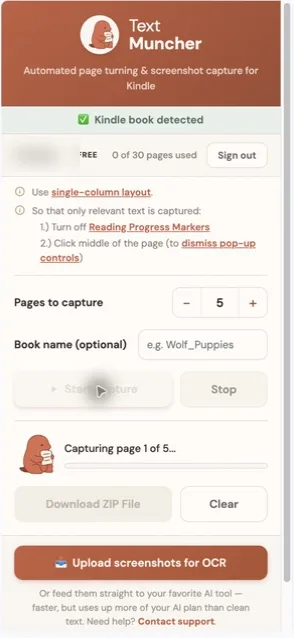
How it works:
- Install the TextMuncher Chrome extension
- Open your book in Kindle Cloud Reader
- Open your chapter's start page
- Click "Start" in the extension
- Let it handle page turning and screenshot capture hands-free. Long runs can stop early and may need restarting.
- Upload the batch to textmuncher.com for OCR
- Get your entire chapter as clean, copyable text
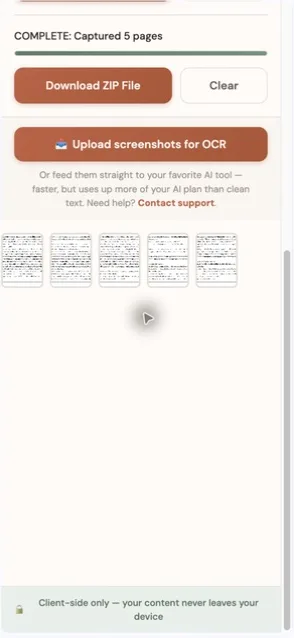
Time comparison: Manual capture can take 30-45 minutes for a 30-page chapter. TextMuncher handles page turning and screenshot capture hands-free, while total processing time varies with page count, page rendering, and device performance. Review the OCR output before using it for research, notes, or AI tools. For a focused walkthrough, see the extract Kindle chapters guide.
Pricing: 30 free pages to test, then $9.99/month (or $48/year) unlimited.
How Many Pages Can You Extract?
There's no technical limit on how many pages you can extract using screenshot-based methods. Since you're capturing your own screen, DRM doesn't apply.
| Method | Page Limit |
|---|---|
| Built-in Kindle copy | 5-10% of book (publisher-set) |
| Highlights export | Same 5-10% limit |
| Manual screenshots | Unlimited (limited by patience) |
| TextMuncher | Unlimited (30 free, then subscription) |
Want to extract an entire 300-page book? Screenshot methods handle it. The question is whether you want to do it manually or let automation handle the repetitive work. Once you have the text, you can use it with ChatGPT for summaries, flashcards, and research.
Which Kindle Reader Should You Use for Extraction?
Use Kindle Cloud Reader (read.amazon.com) for chapter extraction. It's the only Kindle environment that supports browser-extension automation, so capture runs hands-free instead of one manual screenshot at a time. The platform you read on determines what methods are available.
| Environment | Browser-based? | Extension automation? | Screenshot method | Notes |
|---|---|---|---|---|
| Kindle Cloud Reader (read.amazon.com) | Yes | Yes | Easiest — auto-capture works | The best environment for full chapter extraction. Pages render predictably, browser extensions can drive page turns. |
| Kindle for PC / Mac | No | No | Manual only | Native app with stricter DRM. You can screenshot manually, but no automation. Page-turn timing is unpredictable. |
| Kindle for iOS / Android | No | No | Manual phone screenshots | Slowest method. Useful only when a book isn't available on Cloud Reader. Each page is a manual capture. |
| Kindle E-reader (Paperwhite, etc.) | No | No | Camera photos only | Last resort. Photo-of-screen quality degrades OCR accuracy noticeably. Use only when the book is locked to the device. |
Practical rule: If the book is available on Cloud Reader, do the extraction there. The 5-10x speed advantage over manual mobile screenshots compounds across a chapter.
One Cloud Reader gotcha: Some textbook publishers and library platforms lock specific titles to the Kindle app and block Cloud Reader access. If your book opens but shows a "available only in the Kindle app" message, you're stuck with manual methods for that title.
What About Specific Chapter Lengths?
Chapter length varies enormously by genre, which affects how you should approach extraction:
- Short chapters (5-15 pages): Common in thrillers, business books, self-help. Manual screenshot + OCR is feasible if you only need a few. For more than 3-4 chapters, automation pays off fast.
- Standard chapters (15-30 pages): Typical for most non-fiction and literary fiction. Manual extraction becomes painful past chapter one. Automation is the right tool.
- Long chapters (40+ pages): Common in academic texts, dense non-fiction, and some Russian novels. Manual is impractical. Automated extraction is the only realistic path.
- Whole books (200-500+ pages): Automation removes page-by-page capture, but processing time varies and long runs can stop early or need restarting.
What About the Kindle App?
The Kindle desktop and mobile apps have stricter DRM than Kindle Cloud Reader. They don't run in a browser, which limits your options for automation or inspection.
Kindle Cloud Reader at read.amazon.com is the best environment for text extraction because:
- It runs in a standard browser (Chrome, Firefox, Edge)
- Browser extensions can interact with it
- Screenshot automation is straightforward
If your book isn't available on Cloud Reader, you're limited to manual phone/tablet screenshots, which is much slower.
Is Extracting Chapters Legal?
TextMuncher captures visible Kindle pages and turns the screenshots into text with OCR; it does not decrypt ebook files. Don't redistribute or sell the extracted text, or post full chapters online. Check school, employer, and platform rules before uploading text to an AI service. For AI workflow details, see screenshots versus text for ChatGPT. Read our copyright and fair-use guide. Whether a particular use is permitted depends on the jurisdiction, material, and use of the output; not legal advice.
FAQ
Can I copy an entire Kindle book, not just a chapter?
Pro screenshot-based extraction has no page cap. You can set a long capture range, but long runs can stop early and may need restarting. Processing time varies with page count, page rendering, and device performance.
Why does Kindle stop me from copying partway through a chapter?
Because Kindle enforces a cumulative copy cap, usually 5-10% of the whole book, set by the publisher. The count carries across every session, so a single long chapter can exhaust it before you finish. The cap can't be reset, which is why screenshot plus OCR is the dependable way to capture a full chapter.
Does this work with Kindle Unlimited books?
Yes. Screenshot methods capture what's displayed on your screen, regardless of whether you own or rent the book. As long as you can open it in Kindle Cloud Reader, you can extract it.
What's the text quality like after OCR?
TextMuncher achieves high accuracy on standard book text using Tesseract.js. Clean fonts and good contrast produce the best results. The extracted text is clean enough for research papers, AI analysis, or note-taking. Unusual fonts or heavy formatting may require minor cleanup. How that accuracy is measured — a blinded page set, a human-adjudicated answer key, and a published per-page scoring file — is written up in the published OCR benchmark and its method.
Why not just use ChatGPT's file upload?
ChatGPT can't read Kindle files directly. They're DRM-protected. You need to extract the text first, then paste it into ChatGPT or upload it as a plain text file. TextMuncher handles the extraction step.
Will Amazon detect or ban me for this?
TextMuncher doesn't interact with Amazon's servers or modify their software. It automates browser actions you could do manually: pressing Page Down and taking screenshots. There's no API abuse or DRM cracking involved.
Can I extract chapters from library ebooks (Libby, OverDrive, Hoopla)?
Yes, with the same screenshot approach. Library ebook readers run in your browser and display text on screen, so screenshot + OCR works the same way. The catch is that library platforms often have shorter loan windows, so plan your extraction within the borrow period. Some titles are also Kindle-only via the library, in which case you read them on Cloud Reader.
What's the cleanest way to feed an extracted chapter to ChatGPT or Claude?
Paste it as plain text rather than uploading the screenshots themselves. AI tools handle text input far more accurately than image input — they can quote, search, and reason about the content directly instead of running their own OCR pass on your screenshots. For long chapters, Claude's larger context window handles 30+ pages in a single message comfortably; ChatGPT works better when you split into smaller sections.
How do I keep extracted chapters organized across many books?
Most users dump the text into a notes app (Notion, Obsidian, Roam) with one page per book or per chapter. Add the source citation, the date you extracted, and your annotations underneath. This is cleaner than keeping loose .txt files and lets you cross-reference passages across books later.
What about books with heavy formatting — footnotes, equations, tables?
OCR handles body text well but struggles with: footnotes that wrap into the next page, mathematical equations with Greek letters or special symbols, and tables with merged cells. For technical books, expect to do some manual cleanup on these elements. For prose-heavy non-fiction and fiction, OCR output is typically clean enough to use directly.
Is there a way to preserve italics and bold formatting?
Not reliably. Screenshot-based OCR captures the text content but loses formatting markup (italics, bold, smart quotes, em dashes). For most use cases (feeding to AI, building notes, study), this isn't a problem. For citation work where exact formatting matters, verify quotes against the source before publishing.
Need to copy entire chapters from Kindle? Try TextMuncher free: 30 pages included, no credit card required.