
How to Use Your Kindle Books with ChatGPT (Step-by-Step 2026)
Ask ChatGPT about your Kindle books. Get the text out past the copy limit and into ChatGPT in 3 steps, from free methods to automation.
• By Mike
To use Kindle books with ChatGPT in 2026, you need to extract the text first. Amazon's DRM blocks direct copying, with publishers limiting text selection to 5-10% of each book. Two extraction methods work: manual screenshots with free OCR tools, or automated browser-based capture. Once extracted, the text can be pasted into ChatGPT for summaries, flashcards, comprehension questions, and research analysis.
Imagine asking ChatGPT to summarize Chapter 7 of a book you're reading, create flashcards for an exam, or explain a confusing concept in simpler terms. The problem? Kindle doesn't let you copy more than a few sentences before hitting DRM restrictions.
The solution: Extract the text first, then paste it into ChatGPT. You can do this manually (free but tedious) or use automation tools that handle the extraction for you. This guide covers both approaches, plus what to actually ask ChatGPT once you have your book text.
Why Can't You Just Copy Kindle Text into ChatGPT?
Amazon's DRM (Digital Rights Management) and publisher-imposed copy limits restrict Kindle text selection to 5-10% of each book's content. Once you hit this cap, Kindle blocks all further copying, even single sentences.
This creates a wall between your purchased books and AI tools like ChatGPT:
- Kindle Cloud Reader renders many books as images, not selectable text
- The Kindle desktop app has even stricter DRM than the web version
- Highlight exports are capped at the same 10% limit
- Copy-paste triggers "copy limit exceeded" errors
The restriction isn't technical; it's contractual. Amazon's publisher agreements require these limits. But since the text is displayed on your screen, you can capture it through other means.
Method 1: Manual Screenshot + OCR (Free)
The most reliable free method is screenshotting pages and running OCR (Optical Character Recognition) to convert the images back to text. This works because you're capturing what's displayed on your screen. No DRM can prevent that.
How it works:
- Open your book in Kindle Cloud Reader
- Screenshot each page (Windows:
Win+Shift+S, Mac:Cmd+Shift+4) - Upload screenshots to an OCR tool like OnlineOCR.net or Google Drive
- Copy the extracted text
- Paste into ChatGPT
The problem: This is brutal for anything longer than a few pages. A 300-page book means 300 manual screenshots, 300 uploads, and hours of tedious work. I tried this approach with a 200-page textbook and gave up around page 40.
Best for: Extracting a single chapter or a handful of specific pages. Not realistic for full books or regular use.
Method 2: Automated Extraction with TextMuncher
Full disclosure: I built TextMuncher after getting frustrated with manual screenshots. The tool automates the screenshot + OCR workflow so you can extract entire books hands-free.
How it works:
- Install the TextMuncher Chrome extension
- Open your book in Kindle Cloud Reader
- Click "Start" in the extension popup
- Let it handle page turning and screenshot capture hands-free. Long runs can stop early and may need restarting.
- Upload the batch to textmuncher.com for OCR processing
- Get clean, copyable text ready for ChatGPT
Capture and OCR time vary with page count, page rendering, and device performance. Review the extracted text before pasting it into ChatGPT, especially when wording must be exact.
Pricing: 30 free pages to try it, then $9.99/month (or $48/year) for unlimited extraction.
Best for: Anyone who wants to use AI with their Kindle books regularly, or anyone extracting more than a chapter at a time. For the product-side walkthrough, see the Kindle to ChatGPT page.
What to Ask ChatGPT About Your Book
Once you have the extracted text, the real power comes from knowing what to ask. Here are prompts that work well with book content:
For Studying and Comprehension
The most useful prompts here focus on pulling out what matters. Ask ChatGPT to "Summarize Chapter [X] in 5 bullet points" for dense non-fiction or textbooks. If you want it to dig into the argument, try "What are the 3 key arguments in this section?", which forces the model to prioritize rather than just paraphrase. For anything confusing, "Explain [concept from the book] like I'm 12 years old" reliably simplifies complex ideas. And before an exam, "What questions would a professor ask about this chapter?" is genuinely useful for active review.
For Active Recall and Retention
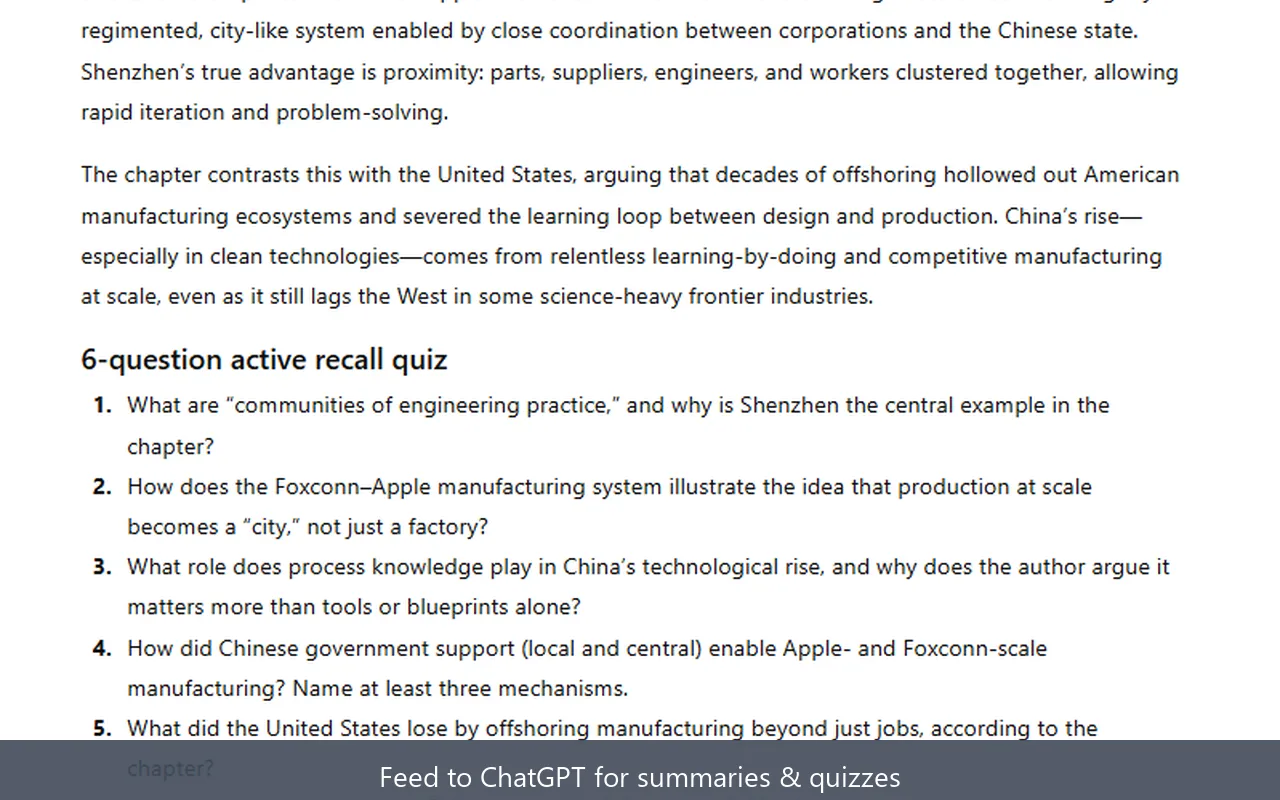
Three prompts work especially well here. "Create 10 flashcards from this chapter with questions on the front and answers on the back" is perfect for Anki import. "Generate a quiz with 5 multiple-choice questions based on this text" tests your actual understanding rather than just recognition. And "What are the most important terms to remember from this section?" is a quick way to identify vocabulary worth drilling.
For Research and Writing
If you're writing a paper or doing a literature review, these three prompts do most of the heavy lifting. Ask "What evidence does the author provide for [claim]?" when you need citations. Use "How does this argument compare to [other theory]?" to build comparative analysis. When you need something citable fast, "Summarize this in a paragraph I could cite in an academic paper" saves a surprising amount of time.
For Language Learning
"List all vocabulary words above B2 level in this passage" identifies exactly what you need to study. "Translate this passage to [language] while preserving the author's tone" consistently outperforms generic translation tools. For grammar work, "Explain the grammar structures used in the first paragraph" gives you targeted instruction tied directly to the text you're already reading.
Pro tip: Paste the entire chapter, or the whole book if it fits, before asking questions. ChatGPT gives better answers when it has the full context rather than snippets. And if you're wondering whether to paste text or screenshots, text is 3-7x more token-efficient.
Building a Custom GPT for Your Books (Advanced)
For books you reference repeatedly (textbooks, reference guides, professional manuals), you can create a Custom GPT with the book text as its knowledge base. This lets you query the book anytime without re-pasting text.
How to set it up:
- Extract the full book text using screenshots + OCR (free) or TextMuncher (automated)
- Go to chat.openai.com and click "Explore GPTs" → "Create"
- Give your GPT a name like "My Marketing Textbook Assistant"
- In the "Configure" tab, upload your extracted text file under "Knowledge"
- Write instructions like: "You are an expert on this textbook. Answer questions based on the uploaded content. Always cite the relevant chapter."
What this enables:
- Ask questions about the book months later without re-uploading
- Compare concepts across different chapters ("How does Chapter 3's framework relate to Chapter 7's case study?")
- Generate study materials on demand
- Have ongoing conversations that build context over time
Alternative for highlights: If you primarily work with Kindle highlights rather than full text, Glasp can import your Kindle highlights directly and format them for ChatGPT. It's a quicker path if you don't need the full book text, just the passages you've already highlighted.
Limitations: Custom GPTs require ChatGPT Plus ($20/month). The knowledge upload has file size limits, so very long books may need to be split. And ChatGPT still occasionally hallucinates, so verify important facts against the actual text.
If the job is ongoing book Q&A rather than a one-off prompt, the chat-with-your-Kindle-books workflow maps the broader setup.
Claude as an Alternative to ChatGPT
ChatGPT isn't the only option. Claude handles long documents particularly well, and paid Claude plans run Opus 5 and Sonnet 5 at a 1M-token context window (about 750,000 words, or 5-7 average non-fiction books in a single conversation). That is the practical in-app gap: ChatGPT Plus tops out at 256K tokens per thread, so books that need chunking in ChatGPT often fit whole in Claude. The full workflow is covered in our companion guide on how to use Kindle books with Claude AI and Claude Code, including the new Claude Code Skills pattern for terminal-resident book references.
When to use Claude instead:
- You need to analyze the entire book at once, or multiple books in a single conversation
- You want responses that go deeper than a typical AI assistant produces
- You're working with technical or academic content (Claude tends to be more precise)
- Your book runs past the 256K-token window a ChatGPT Plus thread gives you
- You use Claude Code and want extracted books available as persistent context across terminal sessions
The extraction process is the same. You still need to get the text out of Kindle first. The difference is where you paste it afterward, and the Kindle to Claude setup covers the Claude side.
Google NotebookLM: The Free Alternative
NotebookLM is Google's AI research tool, and it's one of the best free options for working with book content. Upload your extracted text as a "source," and NotebookLM lets you ask questions, generate summaries, and even create audio overviews: podcast-style conversations about your book that you can listen to on the go.
How to use it with Kindle books:
- Extract your book text using screenshots + OCR (free) or TextMuncher (automated)
- Save the text as a .txt or .pdf file
- Upload it as a source in NotebookLM
- Ask questions, generate study guides, or create an audio overview
Why it stands out: NotebookLM grounds all answers in your uploaded sources, so it won't hallucinate facts that aren't in the text. The audio overview feature is unique: it generates a 5-15 minute conversation between two AI hosts discussing your book's key ideas. Great for reviewing material on a commute. The Kindle to NotebookLM guide covers the upload flow in detail.
Pricing: Free. No subscription required.
Google Gemini: A Million Tokens on the Free Tier
Gemini offers a 1-million-token context window on the free tier, roughly 750,000 words. That is larger than what a paid ChatGPT thread holds, and you get it without a subscription. It's enough to paste an entire book in a single prompt and ask questions across the full text.
When to choose Gemini over ChatGPT:
- You need to analyze an entire book at once, not chapter by chapter
- You want to compare themes or arguments across distant chapters
- Your book runs past what a single ChatGPT thread holds
- You want a free option without a subscription
The tradeoff: Gemini's responses can be less polished than ChatGPT's for creative prompts, but for straightforward analysis and comprehension, a full-book window at no cost is a genuine advantage.
Which AI Tool Fits Your Book?
Once the text is extracted, the same file works in any of these. Here's how the four options above compare:
| AI tool | Context capacity | Best for |
|---|---|---|
| ChatGPT (GPT-5.6) | 256K on Plus with a reasoning model, roughly 320 pages of input | Summaries, flashcards, quizzes, and Custom GPTs for books you reference often |
| Claude (Opus 5 / Sonnet 5) | 1M tokens, about 750,000 words | Analyzing an entire book, or several books, in a single conversation |
| NotebookLM | Grounded in your uploaded sources | Answers that stay in the text, plus podcast-style audio overviews |
| Gemini | 1M tokens on the free tier | Pasting a whole book at once without a subscription |
Is This Legal?
TextMuncher captures visible Kindle pages and turns the screenshots into text with OCR; it does not decrypt ebook files. Don't redistribute or sell the extracted text, or post full chapters online. Check school, employer, and platform rules before uploading text to an AI service. Read our copyright and fair-use guide. Whether a particular use is permitted depends on the jurisdiction, material, and use of the output; not legal advice.
The Best Way to Use ChatGPT with Kindle Books
Getting Kindle books into ChatGPT comes down to solving one problem first: extracting the text. Once you've done that, three paths open up.
Manual screenshots paired with free OCR tools cost nothing but time. It's the right call for a single chapter or a few specific pages. For anyone who wants to work with full books or do this more than once, automated extraction is worth it; the time savings compound quickly. And for books you'll return to repeatedly, building a Custom GPT turns your textbook or reference guide into a searchable, queryable resource you can pull up anytime.
The real value isn't in the extraction step. It's in what becomes possible afterward: summaries in seconds, flashcards on demand, deeper analysis of material you're actually trying to learn. Solve the extraction problem once, and you change how you engage with everything you read. For more advanced AI workflows with your books, check out our guide for AI-powered learners.
FAQ
Can I use this with Kindle Unlimited books?
Yes. All extraction methods work regardless of whether you own the book or access it through Kindle Unlimited. Screenshot-based extraction captures what's displayed on your screen. It doesn't matter how you gained access to view the content.
How much text can ChatGPT handle at once?
Less than the model's headline number, and it depends on your plan. OpenAI's API documents a 1.05-million-token window for the GPT-5.6 models, but inside ChatGPT the window is smaller, and OpenAI publishes it per plan on its pricing page. With a reasoning model, Plus and Go get 256K tokens (about 320 pages of input) and Pro gets 400K (about 680 pages). The fast Instant mode is much tighter: 27K on Free, 54K on Go and Plus, 128K on Pro, which is roughly 12 to 250 pages depending on the plan. So a short book fits in one reasoning thread on Plus, a long textbook does not, and Instant mode is a chapter-at-a-time tool. When a book does not fit, split it into sections.
Will Amazon ban my account for extracting text?
Screenshot-based extraction doesn't interact with Amazon's servers or violate their terms of service. You're capturing what's displayed on your own screen, the same thing you'd do by taking a photo of your monitor. Users have been doing this for years without account issues.
What about PDF ebooks instead of Kindle?
PDFs are much easier. Most allow direct text selection and copying, so you can paste directly into ChatGPT without any extraction tools. The methods in this guide are specifically for Kindle's DRM-protected content.
Does the extracted text include images and charts?
No. OCR extracts text only. Diagrams, charts, and images in your Kindle books won't be captured as visual content. For image-heavy books like art textbooks or cookbooks, you'll need to reference the original alongside your extracted text.
Can ChatGPT read Kindle ebooks directly?
No. ChatGPT cannot open Kindle's .azw, .mobi, or .kfx file formats. These files are encrypted with Amazon's DRM, and no AI tool can read them directly. You need to extract the text first using manual screenshots + OCR or automated extraction with TextMuncher, then paste or upload the text to ChatGPT.
Is there a ChatGPT plugin for Kindle books?
No official ChatGPT plugin or custom GPT exists that can read Kindle books directly from your library. Amazon's DRM encryption prevents any third-party tool from accessing the book content programmatically. The extraction step is unavoidable regardless of which AI tool you use.
If the book is assigned for a class, the Kindle course-reading guide maps the same extracted text to seminar questions, verified quotes, flashcards, quizzes, and exam prep.
Need to extract text from Kindle for ChatGPT? Try TextMuncher free: 30 pages included.