
Extract Text FromKindle for Mac Books
Kindle for Mac blocks bulk text copying. Switch to Cloud Reader in Chrome or Firefox for automated extraction, or screenshot and OCR the desktop app.
Local-First Processing
Works with Kindle Cloud Reader
No Desktop Software
Why Can't You Copy Text From Kindle for Mac?
Kindle for Mac applies the same publisher-set copy restrictions as every other Kindle platform. There is no text export built in.
Kindle for Mac limits copying to a small percentage of any book's content. The desktop app has no text export feature. The fastest workaround: open your book in Kindle Cloud Reader (read.amazon.com) in Chrome or Firefox and use the TextMuncher extension for automated capture. Or take Mac screenshots with Cmd+Shift+4 and upload them to textmuncher.com for OCR.
Copy Cap Blocks Full Extraction
Kindle for Mac enforces a 10% copy limit across the book. You hit it quickly on any substantive research or study project.
No Book Export in the App
Kindle for Mac offers notes and highlights export, but not the book text itself. There is no built-in way to export what you've read.
Browser Extensions Don't Reach Desktop Apps
TextMuncher and similar tools run inside the browser. They cannot interact with the Kindle for Mac native application.
Two Ways to Extract Text From Kindle for Mac
Use Cloud Reader in a Desktop Browser or Firefox
Open your book at read.amazon.com. TextMuncher's extension automates page capture and OCR directly in Chrome or Firefox.
Screenshot the Mac App
Take screenshots with Cmd+Shift+4 and upload them to textmuncher.com. The web app runs OCR without needing the extension.
Clean Text Output
high-accuracy OCR converts Kindle page images to plain text. Copy to any writing app, AI tool, or note-taking system.
How It Works
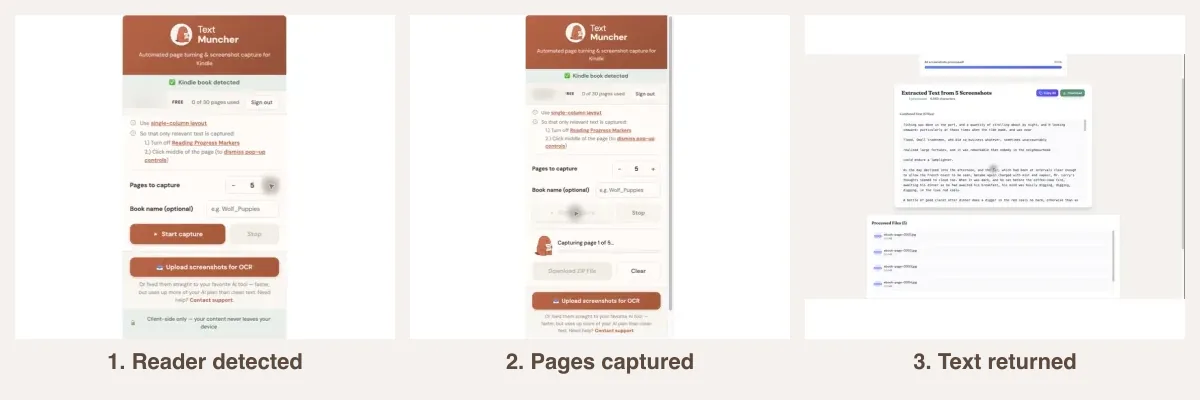
Three steps. No technical knowledge required.
1. Pick Your Workflow
Option A: Open your book at read.amazon.com in Chrome or Firefox. Option B: Use Kindle for Mac and screenshot with Cmd+Shift+4.
2. Capture the Pages
Option A: TextMuncher extension auto-captures pages. Option B: Screenshot the pages you need and save them.
3. Extract and Use
Upload screenshots to textmuncher.com for OCR. Copy the extracted text to your document, AI tool, or notes app.
using Kindle Cloud Reader for text extraction on Mac how to extract Kindle book text
Related Resources
Kindle Cloud Reader Extraction Workflow Kindle for PC Text Extraction eBook Extraction on Mac Kindle Text Extraction Tool How to Copy Text from Kindle Kindle for Mac Copy Blocked? The FixFrequently Asked Questions
Is my Kindle library the same in Cloud Reader vs the Mac app?
Not always. Amazon says not all titles are available in Kindle for Web, so a book in Kindle for Mac may not open at read.amazon.com. Cloud Reader is the recommended workflow for TextMuncher, so check that your book opens there.
How do I screenshot a book page in Kindle for Mac?
Press Cmd+Shift+4 to activate the Mac screenshot crosshair, then drag over the book page. Or use Cmd+Shift+3 to capture the full screen. Save the images and upload them to textmuncher.com for batch OCR.
What if I only need a few pages from the Mac app?
Take screenshots of those specific pages with Cmd+Shift+4 and upload them to textmuncher.com. You don't need full automation for small extractions. The web app handles one-off uploads easily.
Does this work on M1/M2/M3 Macs?
Yes. TextMuncher runs in Chrome or Firefox, which support all recent Mac hardware. The screenshot upload workflow also works on any Mac regardless of chip.
Ready to Extract Text From Kindle on Mac?
Get TextMuncher Free30 free pages • No credit card • Cancel anytime