
Extract Text FromApple Books
Apple Books restricts text copying. Screenshot pages from the app and upload to TextMuncher for high-accuracy OCR.
Local-First Processing
Works with Kindle Cloud Reader
No Desktop Software
Why Is Text Copying Blocked in Apple Books?
Apple Books enforces publisher DRM that limits or blocks text selection on most purchased ebooks.
Apple Books uses FairPlay DRM to restrict text copying on purchased ebooks. Most titles allow only small highlights, not bulk extraction. TextMuncher's web app handles this: take screenshots of Apple Books pages using Cmd+Shift+4 on Mac or the standard iOS screenshot shortcut, upload them to textmuncher.com, and get clean text from OCR with high accuracy. No extension or DRM tools required.
Publisher DRM Limits Copying
FairPlay DRM restricts how much text you can copy from most Apple Books titles. You hit the limit mid-chapter on any research-heavy book.
No Text Export from the App
Apple Books doesn't offer a way to export book content as plain text. Notes and bookmarks export is limited.
Browser Extensions Can't Access Desktop Apps
TextMuncher's extension runs in Chrome or Firefox. It cannot interact with Apple Books, which is a Mac or iOS native application.
Screenshot Apple Books and Extract Text With OCR
Works With Any Screenshot
Screenshot Apple Books pages on Mac (Cmd+Shift+4) or iPhone/iPad. Upload the images to textmuncher.com for OCR.
High-Accuracy OCR
TextMuncher's Tesseract engine converts Apple Books page images to clean text. Standard book fonts extract accurately.
No DRM Removal
You're working with plain screenshots. Nothing gets decrypted, and there's no technical setup to fight.
How It Works
Three steps. No technical knowledge required.
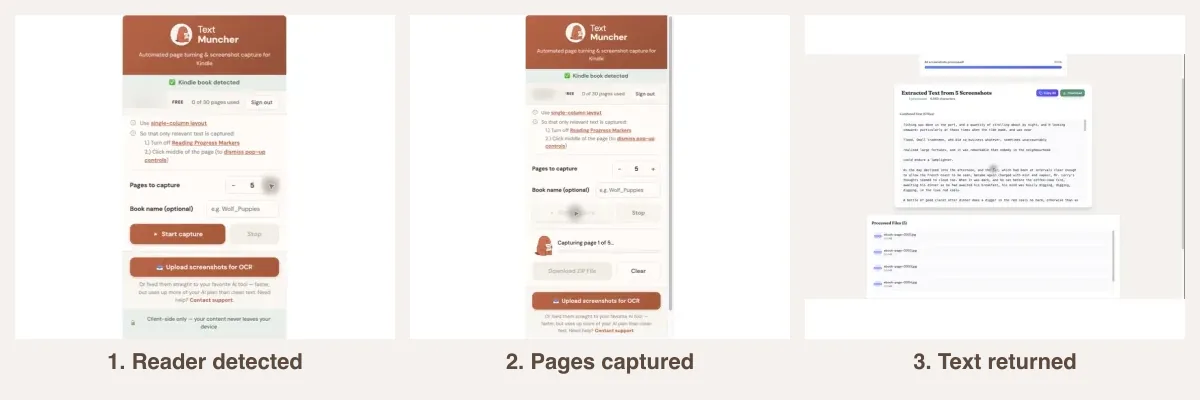
1. Screenshot Your Pages
On Mac: press Cmd+Shift+4 and drag over the Apple Books page. On iPhone/iPad: press the side button and volume up together.
2. Upload to TextMuncher
Go to textmuncher.com and upload your screenshots. The web app handles batches. Upload a full chapter at once.
3. Copy the Text
TextMuncher runs OCR on your screenshots and returns clean text. Copy it to your notes, writing app, or AI tool.
how DRM blocks text copying on ebook apps why extracting text is better than screenshots with AI
Related Resources
Kindle for Mac Text Extraction Extract Ebook Text OCR Ebook Screenshots How to OCR Book Screenshots Kobo Text ExtractionFrequently Asked Questions
Does the TextMuncher browser extension work with Apple Books?
Not directly. Apple Books is a native Mac and iOS app, not a web-based reader. The browser extension cannot interact with it. The workaround is to screenshot pages and upload them to textmuncher.com. The web app handles screenshots from any source.
Can I use this on iPhone or iPad?
Yes. Take a screenshot on iPhone or iPad (side button and volume up), then go to textmuncher.com in a browser and upload the screenshot. The web app is mobile-compatible.
How many screenshots can I upload at once?
TextMuncher handles batch uploads. Upload a full chapter's worth of screenshots at once and it processes them in sequence. The free plan covers 30 pages.
Is it legal to screenshot Apple Books for personal use?
TextMuncher reads screenshots you take in Apple Books and turns them into text with OCR; it does not automate capture or decrypt ebook files. Whether personal screenshotting is permitted depends on the jurisdiction, material, and use of the output; not legal advice. Read our copyright and fair-use guide.
What about PDFs I've bought through Apple Books?
PDFs in Apple Books can sometimes be copied directly if they are not DRM-locked. If they are locked, screenshot the pages and upload them to textmuncher.com for OCR.
Ready to Extract Text From Apple Books?
Get TextMuncher Free30 free pages • No credit card • Cancel anytime