
Can't Copy Text from Kindle? Here's the Fix (2026)
Can't copy text from Kindle? Workarounds still exist: use Notebook for highlights, OCR for visible pages, and TextMuncher for full chapters.
• By Mike
The fix, in one line: if you already highlighted the passage, open read.amazon.com/notebook and copy it from there; if the words are on your screen but Kindle won't put them on the clipboard, screenshot the page and run OCR on the screenshot.
Everything below is the longer version of that sentence. Kindle apps, Kindle for Web, a physical Kindle, and the highlight notebook each expose a different route, so the matrix comes first and the explanation of why Kindle blocks copying comes later.
Jump to what you need:
- The options matrix
- Highlights you already saved
- Highlights from a physical Kindle
- Kindle for Web
- Screenshot OCR for visible pages
- Pasting into ChatGPT or Claude
- Why Kindle blocks copying, and the error messages
- Which option should you pick?
What Still Works When You Can't Copy From Kindle?
When you can't copy from Kindle, the working options are Kindle Notebook, My Clippings, smaller manual copy attempts, manual screenshot OCR, and automated screenshot OCR. The best choice depends on whether the text is already highlighted, visible in Kindle for Web, or locked inside an app surface that does not expose copying.
Use this matrix first:
| Situation | Best first option | When to switch |
|---|---|---|
| You already highlighted the passage | Kindle Notebook | Export is missing or truncated |
| You highlighted on a physical Kindle | My Clippings.txt |
The highlight was made in an app or browser |
| You are in Kindle for PC or Mac | Reopen the book in Kindle for Web, or screenshot OCR | See Kindle desktop app copy not working |
| You only need one sentence | Smaller copy selection | Copy button is missing or limit appears |
| You need a few visible pages | Manual screenshot OCR | More than a handful of screenshots |
| You need a chapter or research section | TextMuncher OCR | You need exact published citations |
| One book works, another does not | Treat as a title restriction | Stop reinstalling apps |
The goal is to avoid wasting time on the wrong surface. If Kindle refuses normal copy but still displays the text clearly, OCR is usually the fastest route.
Use Kindle Notebook If You Already Highlighted It
Kindle Notebook is the cleanest path when the passage was saved as a highlight before the copy problem appeared. Open read.amazon.com/notebook, select the book, and check whether the passage is visible there.
Notebook is best for quote banks, class notes, book summaries, and short excerpts. It is weak for long sections because exports can still be affected by publisher limits. Readwise documents that Kindle highlight exports may be truncated by copyright limits that vary by book, so Notebook is useful but not dependable as a full extraction workflow. For a dedicated walkthrough of the Notebook route, see the Kindle highlights export guide.
If Notebook has what you need, use it. If it does not, do not keep refreshing the page. Move to a method that works from the visible page.
Use My Clippings For Physical Kindle Highlights
If you highlighted on a Kindle e-reader, connect the device to your computer over USB and look for documents/My Clippings.txt. That file can include highlights and notes made on that device.
My Clippings is best for:
- Vocabulary lists.
- Quote banks.
- Reading logs.
- Anki prompts from highlights.
- Notes made directly on a Kindle device.
It is not a universal Kindle export. Highlights made in Kindle for Web, Kindle mobile apps, or some personal-document workflows may not appear there. It also does not help with text you never highlighted.
Use Kindle For Web When You Need Text In Other Apps
Kindle for Web is usually the best starting surface when your end goal is Word, Google Docs, Notion, Obsidian, Anki, ChatGPT, Claude, or NotebookLM. It runs in a desktop browser, which makes both normal selection and screenshot workflows easier.
Try this order in Kindle for Web:
- Select a shorter passage.
- Check whether Copy appears.
- Check Kindle Notebook for saved highlights.
- If the text is visible but blocked, use screenshot OCR.
This order matters because Kindle for Web is not a guaranteed text export tool. Amazon describes it as a browser reader for reading, search, highlights, notes, and annotations. Copying large amounts of book text is still controlled by the book and publisher settings.
For a more detailed browser workflow, read How to Copy Text from Kindle Cloud Reader.
Use OCR When Kindle Shows Text But Won't Copy
OCR is the practical fallback when Kindle displays the page but blocks clipboard export. It reads the screenshot, not the Kindle file, so it works even when normal selection, copy buttons, or highlight exports fail.
If you need a reusable ebook file rather than copied text, first check whether Amazon lets you download the Kindle book as a DRM-free EPUB. That only works for qualifying purchases. For protected titles, OCR is the path that starts from the page you can already see.
Manual OCR works for a few pages:
- Open the page in Kindle for Web.
- Take a screenshot.
- Run the screenshot through OCR.
- Paste the result into your notes.
- Check quotes against the original page.
For longer sections, manual OCR becomes tedious. TextMuncher automates the same reader-visible screenshot workflow: the browser extension turns Kindle for Web pages, captures screenshots, and the web app runs OCR locally so you can copy the output into your own notes or AI tools.
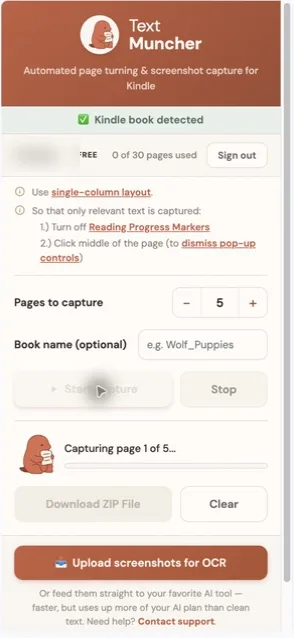
TextMuncher does not open, decrypt, download, or convert Kindle book files. It photographs pages you can already view and reads the letters back out of those screenshots, turning them into editable text for personal notes, study, research, accessibility, or private AI analysis. If you're curious why the old file-decryption tools stopped being an option, the state of Kindle DRM removal in 2026 walks through what broke and what replaced it.
Pasting Kindle Text Into AI Tools Like ChatGPT and Claude
If you can't paste Kindle text into ChatGPT, Claude, NotebookLM, or another AI tool, the upstream problem is almost always Kindle, not the AI app. ChatGPT and Claude both accept pasted text by default; if nothing arrives, Kindle never wrote text to the clipboard.
Two practical paths work:
- Paste OCR text. Capture the page in Kindle for Web, run OCR, and paste the cleaned output into ChatGPT or Claude. The AI tool sees plain text and treats it like any other input.
- Upload a screenshot. ChatGPT and Claude can read images directly. For a one-off page, sending the screenshot can be faster than running OCR.
For longer sections — a chapter, a study packet, a research excerpt — OCR-first is more reliable. AI tools handle text better than images for retrieval, citation, and follow-up questions. TextMuncher's local OCR path also keeps the book text on your device rather than uploading it to a third-party OCR service before reaching the AI tool.
Why Kindle Blocks Copy-Paste (And the Errors You'll See)
Kindle copy limits come from publisher licensing settings, not from a fault on your device. Each title ships with a DRM setting that caps how much text you can copy: usually 5-10% of the book, sometimes 1-2% for academic titles, occasionally 0%. The cap is cumulative across every highlight and copy you have ever made from that title, it does not reset, and Amazon does not show it on the product page before you buy. Since October 2025 the purchase button states you are buying a license to the content, which is why the publisher's limit is the one that applies.
When you hit the cap, the message depends on the surface:
- "You have reached the publisher's copy limit for this title": Kindle for Web and the desktop apps.
- "You have reached the clipping limit for this item": Kindle e-readers and older app versions.
- "You have exceeded the copy limit for this author": rarer; the limit is set at the author level instead of the title.
After any of these, Kindle blocks all further selection from that book, even a single sentence, and support rarely resets it. The matrix above still applies: highlights you already saved stay in Notebook, and OCR reads the visible page regardless of the cap. For the limit-specific walkthrough, read Kindle Copy Limit Exceeded: What It Means and How to Work Around It.
Which Option Should You Pick?
Pick the option based on the job, not the error message. A single quote, a study guide, and a 40-page research section need different workflows.
| Goal | Recommended workflow |
|---|---|
| One short quote | Try smaller selection, then Notebook |
| Existing highlights | Notebook or My Clippings |
| Study notes from a chapter | Kindle for Web plus TextMuncher |
| Anki cards | Highlights first, OCR for surrounding context |
| AI summary or analysis | Extract the full section with OCR |
| Academic citation | Verify final quotes against Kindle |
If Kindle says a publisher copy limit was reached, read Kindle Copy Limit Reached? What It Means and What To Do Next. If the Copy button is missing, read Kindle Copy Disabled? Why the Copy Button Is Missing. If you see a copy warning or clipboard-style error, use Kindle Copy Paste Error: Copy Limit and Fixes Explained.
A Safe Personal-Use Workflow
Keep the workflow narrow and defensible. Extract only the passages or sections you need, keep them in your private notes, and preserve the book title plus Kindle location or page context.
For students and researchers:
- Capture the needed section from Kindle for Web.
- Run OCR.
- Clean obvious OCR errors.
- Add the book title, author, and location/page context.
- Use the text privately for notes, study, search, or AI analysis.
- Verify any direct quote against the original Kindle page before publishing or submitting work.
Do not redistribute extracted book text, post chapters online, sell copies, or treat OCR output as a replacement for the book. The useful lane here is personal reading and research productivity.
FAQ
Can I copy and paste from Kindle books?
Sometimes. Some Kindle books allow short excerpts, while others block copying or hit a publisher limit. Copy behavior depends on the book, publisher settings, device, app, and whether the text is exposed as selectable text.
Why can I copy from one Kindle book but not another?
Publishers set different DRM and copy/export restrictions. If one Kindle title copies normally and another refuses, the problem is probably title-specific rather than your clipboard, keyboard, browser, or notes app.
What is the fastest way to copy Kindle text into notes?
For existing highlights, check Kindle Notebook first. For visible pages that will not copy, use screenshot OCR. TextMuncher is the faster OCR path when you need a chapter or research section instead of one screenshot.
Can Kindle for Web copy text?
Kindle for Web can copy short passages from some titles, but many books restrict normal copy/paste. If the text is visible in the browser but not copyable, OCR is the practical fallback.
Is OCR the same as removing Kindle DRM?
No. OCR reads text from screenshots of pages you can already view. DRM removal tries to decrypt or convert the ebook file. TextMuncher uses OCR and does not download or convert Kindle book files.
Why is Select All not working on Kindle?
Kindle does not expose a normal Select All across most reader surfaces. Browsers and apps usually only allow short manual selections, and even those can be blocked by publisher copy limits. For full-page or chapter-level extraction, screenshot OCR replaces the Select All workflow entirely.
Why won't a Kindle quote paste into Notion?
If a Kindle quote will not paste into Notion, the issue is usually that Kindle never put the text on your clipboard, not that Notion rejected it. Test by pasting into a plain text field; if nothing appears anywhere, the copy step inside Kindle was blocked. Use screenshot OCR to recover the visible page and paste the OCR output into Notion.
Can't copy from Kindle into your notes? Try TextMuncher free - 30 pages included.