
Kindle Copy Paste Error: Copy Limit and Fixes Explained
Seeing a Kindle copy paste error or copy limit warning? Learn what the message means, why it happens, and the safest ways to recover text.
• By Mike
You tried to copy a paragraph from Kindle and got a copy paste error instead. Sometimes the message says your copy limit has been exceeded. Sometimes the Copy option disappears. Sometimes a text-to-speech or clipboard feature fails even though you did not think you copied anything.
The short version: most Kindle copy paste errors come from publisher copy limits, DRM settings, or the specific Kindle app you are using. Kindle does not always treat copying, highlighting, accessibility speech, and clipboard actions as separate workflows. When the app thinks you are extracting protected text, it can block the action.
This guide explains what the common errors mean, what to try first, and when screenshot OCR is the practical path for personal notes, quotes, research, or AI workflows.
What Does a Kindle Copy Paste Error Mean?
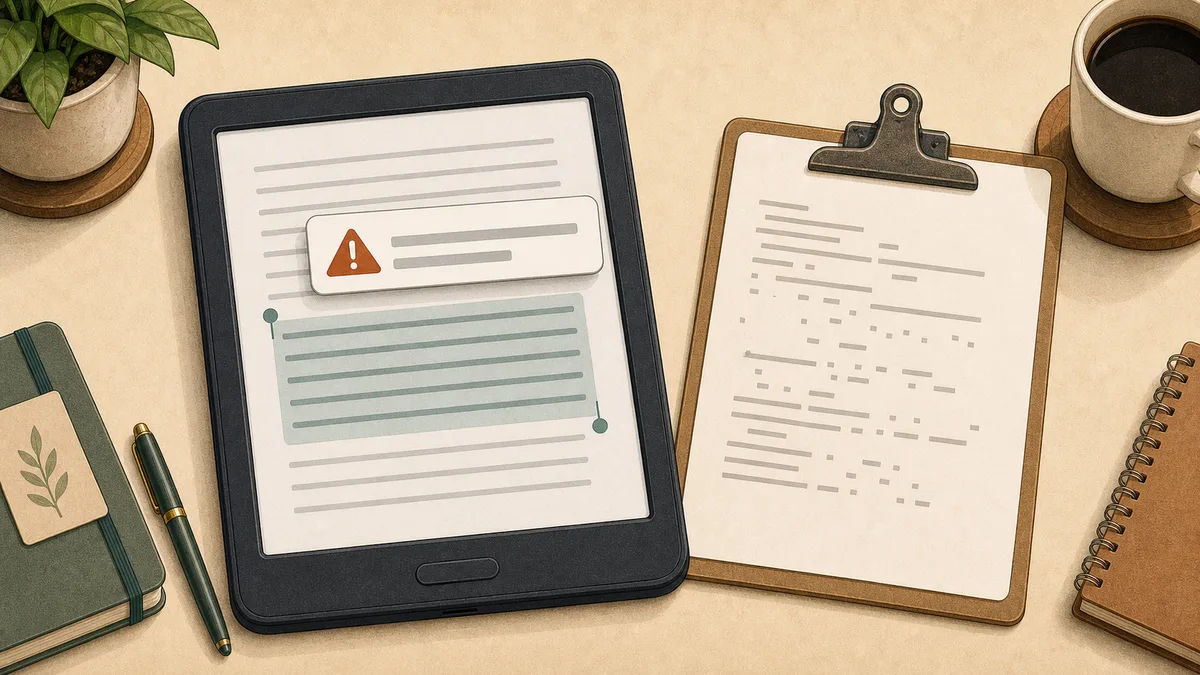
A Kindle copy paste error usually means the app refused to place book text on your clipboard. That can happen because the publisher set a copy limit, the book has stricter DRM, the app surface does not support copying, or Kindle is treating another action as a copy attempt.
The important distinction: this is usually not a normal clipboard bug. If copy and paste works in your browser, notes app, and email, but fails inside Kindle, the restriction is probably coming from the Kindle book or Kindle app.
Common symptoms include:
| Symptom | Likely cause | Best next step |
|---|---|---|
| "Copy limit exceeded" message | Publisher copy limit reached | Use highlights if available, then OCR for visible pages |
| Copy option missing | App or device does not expose copy | Try Kindle for Web, then OCR |
| Copy works in one book but not another | Publisher-specific settings | Treat it as a book-level restriction |
| Text-to-speech triggers a copy warning | Kindle may route speech through protected text handling | Use a native audiobook, accessibility option, or OCR workflow |
| Text highlights but will not copy | Highlighting and copying are controlled separately | Export highlights, or capture visible pages |
Amazon's own KDP documentation says DRM is designed to limit unauthorized access to or copying of digital content files. That is the system you are running into when copy paste fails. The current Amazon Kindle for Web reader is good for reading, search, notes, and highlights, but it is not a full text export tool.
Why Does Kindle Say the Copy Limit Was Exceeded?
The copy limit warning means you have reached the amount of text the publisher allows Kindle to copy or export from that title. The exact limit varies by book, and Kindle does not show you a clear counter before you hit it.
This is why the error feels random. You can copy freely from one title, then get blocked after a few passages in another. A textbook, academic book, or heavily protected publisher title may have stricter settings than an indie novel.
The limit may include more than obvious copy actions. Highlights, notebook exports, and app-level text handling can all be affected depending on the surface. Readwise documents that Kindle highlight exports can be truncated by publisher-required copyright limits, which is why highlights sometimes stop syncing cleanly after a threshold.
If you are seeing the copy-limit wall specifically, read the deeper guide to Kindle copy limit exceeded workarounds. This post focuses on the broader copy paste error state.
Why Kindle Can Show This Even If You Did Not Copy Anything
Kindle can show copy-related errors even when you did not manually press Copy. Some accessibility, speech, lookup, annotation, or clipboard features still need access to underlying text. Kindle may count or block those actions under the same protection rules.
That is why some users report a copy protection error while using macOS speech or another accessibility layer. From the user's point of view, they asked the computer to read text aloud. From Kindle's point of view, another tool may be trying to access book text outside the Kindle interface.
Try these quick checks:
- Test copy/paste in a normal web page to rule out your system clipboard.
- Try a different Kindle book. If only one title fails, it is probably book-specific.
- Try Kindle for Web in Chrome or Edge.
- Check whether your text is already available in Kindle Notebook.
- If the text is visible but not copyable, move to screenshot OCR.
Do not spend an hour reinstalling Kindle unless other apps also have clipboard problems. If the restriction follows the same book across devices, it is not your clipboard.
Fixes To Try Before Using OCR
Start with official or low-friction options. They are limited, but they are worth checking before you build a bigger workflow.
Check Kindle Notebook. If you highlighted the passage earlier, open read.amazon.com/notebook and see whether your highlights are available there. This works best before you hit the copy limit. A Kindle highlights export tool can format them cleanly.
Use My Clippings on a physical Kindle. If you made highlights on a Kindle device, connect it by USB and look for documents/My Clippings.txt. This file is device-local, so it may not include highlights made in apps or on the web.
Try a smaller passage. Some books allow short excerpts but block larger selections. If you only need one sentence, this can work.
Check whether the book is DRM-free. Amazon's KDP help says verified purchasers can download EPUB/PDF files only for books confirmed DRM-free by the publisher or author. For most traditionally published Kindle books, that option will not be available.
Avoid DRM-removal rabbit holes for a simple quote. Calibre is useful ebook software, but its own docs say it does not support DRM removal. DeDRM workflows are fragile, legally sensitive, and version-dependent. For notes and quotes, screenshot OCR is usually cleaner.
How OCR Helps When Copy/Paste Is Blocked
OCR helps because it works from the page you can already see. It does not download a Kindle file, remove DRM, or unlock hidden book data. It captures reader-visible pages and converts the screenshot back into editable text, which is the reliable way to copy Kindle text when the clipboard is blocked.
For the broader browser workflow, see the guide to extract text from Kindle Cloud Reader. This page is focused on diagnosing the error state first.
Manual screenshot OCR works if you only need a few pages:
- Open the page in Kindle for Web.
- Take a screenshot.
- Run it through an OCR tool.
- Copy the resulting text into your notes.
The problem is scale. Ten pages is annoying. A chapter is tedious. A whole research section can eat your afternoon.
That is why I built TextMuncher. The browser extension opens Kindle for Web, turns pages, captures screenshots automatically, and lets you process the batch locally with OCR. The goal is not to crack Kindle files. It is to make the screenshot method practical for legitimate personal workflows.
Use this framing for yourself too: extract what you need for notes, study, citation, accessibility, or private AI analysis. Do not redistribute extracted text, sell it, or post full chapters online. Fair use depends on the circumstances, and there is no fixed safe percentage.
The Cleanest Recovery Path
If you are staring at a Kindle copy paste error, use this order:
- Check whether the passage is already in Kindle Notebook.
- Try copying a smaller excerpt.
- Try Kindle for Web if you were using an app.
- Use manual screenshot OCR for a few pages.
- Use TextMuncher if you need a chapter or more.
If the error is specifically a copy limit warning, go next to Kindle Copy Limit Reached? What It Means and What To Do Next. If the Copy button is missing or greyed out, see Kindle Copy Disabled? Why the Copy Button Is Missing. For a broader overview, read Can't Copy Text from Kindle? Here's the Fix.
FAQ
How do I fix a Kindle copy paste error?
First, test whether copy and paste works outside Kindle. If it does, the issue is probably a Kindle book restriction, not your clipboard. Try Kindle Notebook, a smaller selection, or Kindle for Web. If the text is visible but blocked from copying, screenshot OCR is the most reliable recovery path.
Why does Kindle say copy limit exceeded when I copied nothing?
Some app features can access text in ways Kindle treats like copying. Text-to-speech, lookup, annotations, or export tools may trigger a copy-protection path even when you did not manually press Copy. The restriction can also come from previous highlights or copies from the same title.
Can reinstalling Kindle reset the copy limit?
Usually no. Publisher copy limits are tied to the book and your Kindle account or book data, not just the local app install. Reinstalling may fix a broken app, but it normally will not reset a publisher copy limit.
Is OCR different from removing Kindle DRM?
Yes. DRM removal tries to decrypt or convert the Kindle book file. OCR reads pixels from screenshots of pages you can already view. TextMuncher uses the screenshot and OCR path; it does not remove Kindle DRM or download Kindle book files.
Is there a legal way to extract a short Kindle passage?
Whether limited extraction for personal notes, study, research, or quotation qualifies as fair use depends on the purpose, work, amount used, market effect, and jurisdiction. Keep the text for your own workflow, cite properly, and do not redistribute extracted book content. Read our copyright and fair-use guide.
What does "this page is restricted from copying" mean on Kindle?
It means the publisher or DRM settings explicitly block clipboard export from that page or title. The restriction is enforced by Kindle, not your browser or operating system, so reinstalling apps will not change it. If the text is still visible on the page, screenshot OCR is the practical fallback for personal notes.
Why does Kindle say "copy permission denied"?
A copy permission denied message means the Kindle app refused to export the selected text, usually because the publisher copy limit was reached or the book has stricter DRM settings. The message is enforcement, not a bug — there is no setting to override it. Use Kindle Notebook for previously-saved highlights, or screenshot OCR for visible pages.
Seeing a Kindle copy paste error right now? Try TextMuncher free - 30 pages included.