
Kindle Copy Disabled? Why the Copy Button Is Missing
If Kindle copy is disabled or the Copy button is missing, here are the likely causes, what to try first, and when screenshot OCR makes sense.
• By Mike
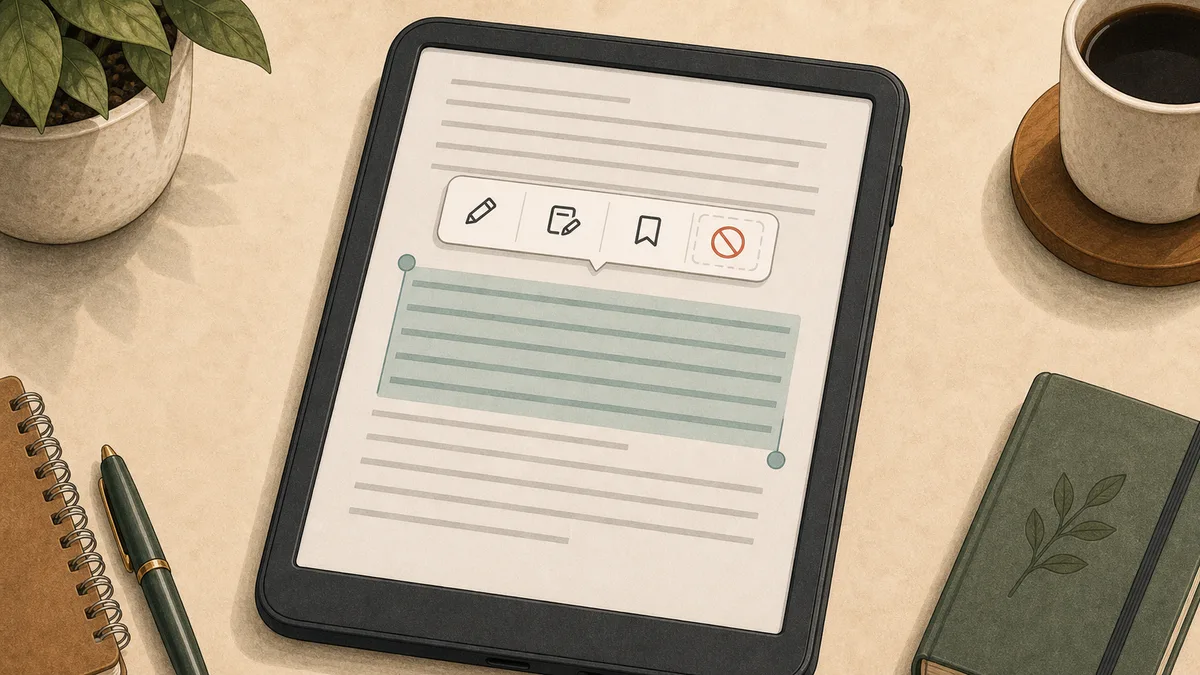
You selected text in Kindle, but the Copy button is missing, greyed out, or never appears. Maybe Kindle only shows Highlight, Note, Look Up, or Search. Maybe one book copies fine and another refuses completely.
The short answer: Kindle copy is disabled when the app, device, book format, or publisher settings do not expose text to the clipboard. It is usually not something you can fix with a setting. If the page is visible but Kindle will not copy it, screenshot OCR is the practical fallback.
This guide separates the common causes so you do not waste time trying fixes that cannot change publisher restrictions.
What Does "Kindle Copy Disabled" Usually Mean?
"Kindle copy disabled" means Kindle is letting you read the text but not place that text on your clipboard. The restriction may come from DRM, publisher copy settings, app design, device limitations, or a book surface that is rendered like an image.
Start with the symptom:
| What you see | Likely cause | What to try |
|---|---|---|
| No Copy button | App/device does not support copying there | Try Kindle for Web |
| Copy button greyed out | Publisher or DRM restriction | Try highlights, then OCR |
| Can highlight but not copy | Highlighting and clipboard export are separate | Check Kindle Notebook |
| Copy works in another book | Title-specific publisher setting | Treat it as a book restriction |
| Text cannot be selected at all | Image/canvas/fixed layout rendering | Use screenshot OCR |
Amazon's Kindle for Web page says readers can read, search, highlight, and make notes in the browser. It does not promise full text export. That is the gap most readers discover only after they try to copy.
Copy Disabled by Publisher Restrictions
Publishers can restrict how much Kindle text can be copied or exported. Some books allow a few excerpts. Some hit a copy limit after several highlights. Some block copying from the start.
Amazon's KDP DRM help explains that DRM is designed to limit unauthorized access to or copying of digital content files. For readers, that shows up as missing Copy buttons, clipping limits, or export restrictions.
This is why Kindle copying feels inconsistent:
- A public-domain or DRM-free title may copy easily.
- A new textbook may block copying quickly.
- A library ebook may have stricter rules.
- A personal document may behave differently from a purchased Kindle book.
- The same book may behave differently in a Kindle app, Kindle device, and Kindle for Web.
If the Copy button is disabled in only one title, assume it is a title-level restriction.
Copy Disabled in Kindle Apps, Devices, or Samples
The Kindle surface matters. A physical Kindle, Kindle Scribe, Kindle for Mac, Kindle for Android, Kindle for iPad, and Kindle for Web do not expose the same copy controls.
Physical Kindle devices are built for reading and highlighting, not moving book text into other apps. Kindle Scribe users often expect notebook-style copy/paste and discover that text copied from Kindle books does not behave like normal document text. Mobile apps can also limit cross-app copying depending on device, book, and publisher settings.
Kindle for Web is usually the best surface for extraction workflows because it runs in a desktop browser. It gives you the most practical options:
- Try normal selection.
- Check Kindle Notebook.
- Capture visible pages if selection or copy is blocked.
- Run OCR on the captured pages.
If you are using a sample, rented book, or library loan, expect more limits. You may still be able to read and highlight, but copying can be disabled.
Copy Disabled vs Text Selection Not Working
Copy disabled and text selection not working are related but different. If you can select text but cannot copy it, Kindle is probably blocking clipboard export. If you cannot select text at all, the page may be rendered in a way that does not expose selectable text.
Many modern web readers use image, canvas, fixed-layout, or heavily controlled rendering for some titles. From your perspective, the page looks like text. From the browser's perspective, there may be no normal text node to copy.
That is why developer tools extraction is unreliable. Even if you inspect the page, you may find fragments, encoded data, or a canvas rather than clean book text. If you only need the text for notes, this is the wrong battle.
The reliable question is simpler: can you see the words on your screen? If yes, OCR can read them.
Can You Still Export Highlights?
Sometimes. If you already highlighted the passage, go to read.amazon.com/notebook and check whether the highlight is available there. A Kindle highlights export tool can pull those saved highlights into a cleaner format. If you used a physical Kindle, connect it over USB and look for documents/My Clippings.txt.
These options are useful, but limited:
- Notebook may not include every personal document.
- My Clippings is local to a physical Kindle device.
- Publisher limits can truncate exports.
- Highlights only help with passages you saved before the copy problem.
For organizing existing highlights, tools like Readwise can help. For getting full visible page text after copying is disabled, highlights are not enough.
Using OCR When Kindle Shows Text But Will Not Copy It
OCR is the fallback when Kindle shows the text but refuses to copy it. It converts a screenshot into editable text, which you can paste into Word, Google Docs, Notion, Obsidian, Anki, ChatGPT, or Claude.
Manual OCR works like this:
- Open the page in Kindle for Web.
- Take a screenshot.
- Upload the screenshot to an OCR tool.
- Copy the recognized text.
- Check the output for errors.
For a single quote, that is fine. For 30 pages, it becomes a slog.
TextMuncher automates the repetitive part. The browser extension turns Kindle for Web pages and captures screenshots. The web app processes the images locally with OCR, so your book text does not get uploaded to a cloud OCR service. It is built for the exact moment where Kindle copy is disabled but the page is visible.
TextMuncher does not remove Kindle DRM, download Kindle files, or convert ebooks. It works from the reader-visible page.
A Better Workflow for Kindle Notes and Quotes
If Kindle copy is disabled, use a workflow that does not depend on the Copy button:
- Use Kindle highlights for short passages while they still work.
- Export those highlights through Notebook or My Clippings.
- Use TextMuncher for sections that need full context.
- Store the extracted text in your notes app with citation details.
- Keep extracted text private and limited to your study, research, or personal AI workflow.
If you are hitting an actual error message, read Kindle Copy Paste Error: Copy Limit and Fixes Explained. If Kindle says the copy limit was reached, read Kindle Copy Limit Reached? What It Means and What To Do Next. For the broader "why is this happening" explanation, see Can't Copy Text from Kindle? Here's the Fix.
FAQ
Why is the Kindle copy button missing?
The Copy button may be missing because the app surface does not support copying, the publisher disabled copying, the book has strict DRM, or the text is rendered in a non-selectable format. Try Kindle for Web and Kindle Notebook first. If the page is visible but not copyable, use OCR.
Why can I highlight Kindle text but not copy it?
Highlighting and copying are controlled separately. Kindle may let you mark a passage for reading later while still blocking clipboard export. Check whether the highlight appears in Kindle Notebook. If you need surrounding text, screenshot OCR is the better option.
Can publishers disable Kindle copy?
Yes. Publishers can apply DRM and copy/export limits to Kindle books. Amazon enforces those restrictions across Kindle apps, devices, Notebook, and Kindle for Web in different ways.
Is copy disabled on Kindle Scribe?
Kindle Scribe supports notebooks and handwriting features, but Kindle book text does not behave like a normal editable document. Many users expect desktop-style copy/paste and find that book text cannot be moved freely into other apps.
Can OCR read Kindle text from screenshots?
Yes. OCR can read Kindle text from screenshots as long as the image is clear. TextMuncher automates the screenshot capture from Kindle for Web and runs OCR locally so you can copy text into your notes.
What does "copy not allowed" mean on Kindle?
Kindle shows "copy not allowed" when the book or publisher settings explicitly prohibit copying from that title or page. It is not a bug or temporary state — Amazon enforces the publisher's setting. If you can still see the text on the page, screenshot OCR captures the visible page without asking Kindle to copy anything.
Kindle copy disabled on the page you need? Try TextMuncher free - 30 pages included.