
Dismiss Kindle Pop-Up Controls Before Capture
Kindle Cloud Reader shows pop-up controls whenever you interact with the page. Hide the toolbar, page arrows, and bookmark icon before TextMuncher starts capturing.
Why it matters
The top toolbar, left and right page-turn arrows, and bookmark icon sit on top of the book page. If those controls are visible, they get captured into your screenshots. Dismissing them first keeps the page clean.
Where to change it
Press anywhere in the middle of the page to take away the pop-up controls. Once the toolbar and arrows disappear, the page is ready for a clean capture.
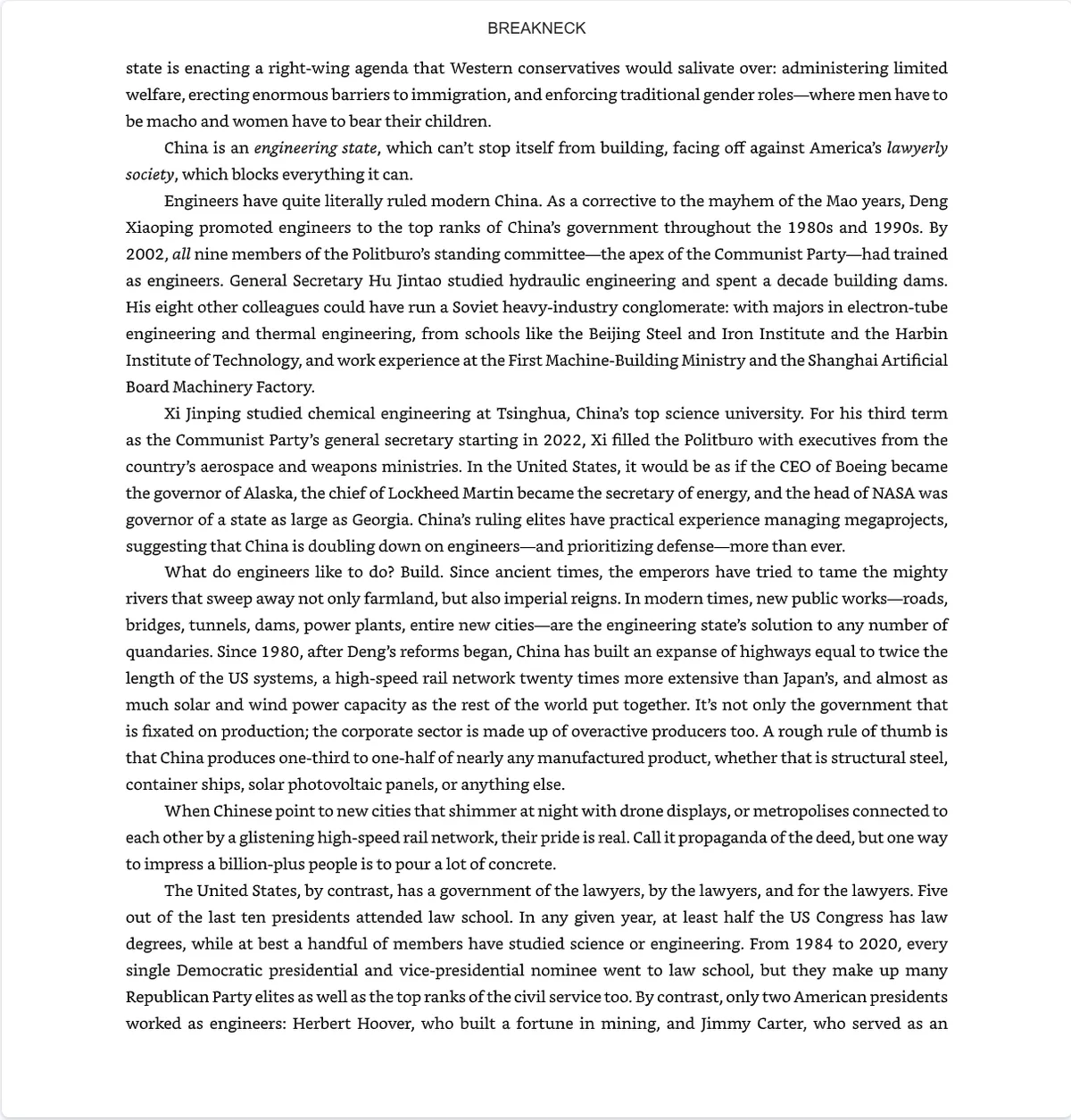
This, not that
Controls visible — avoid
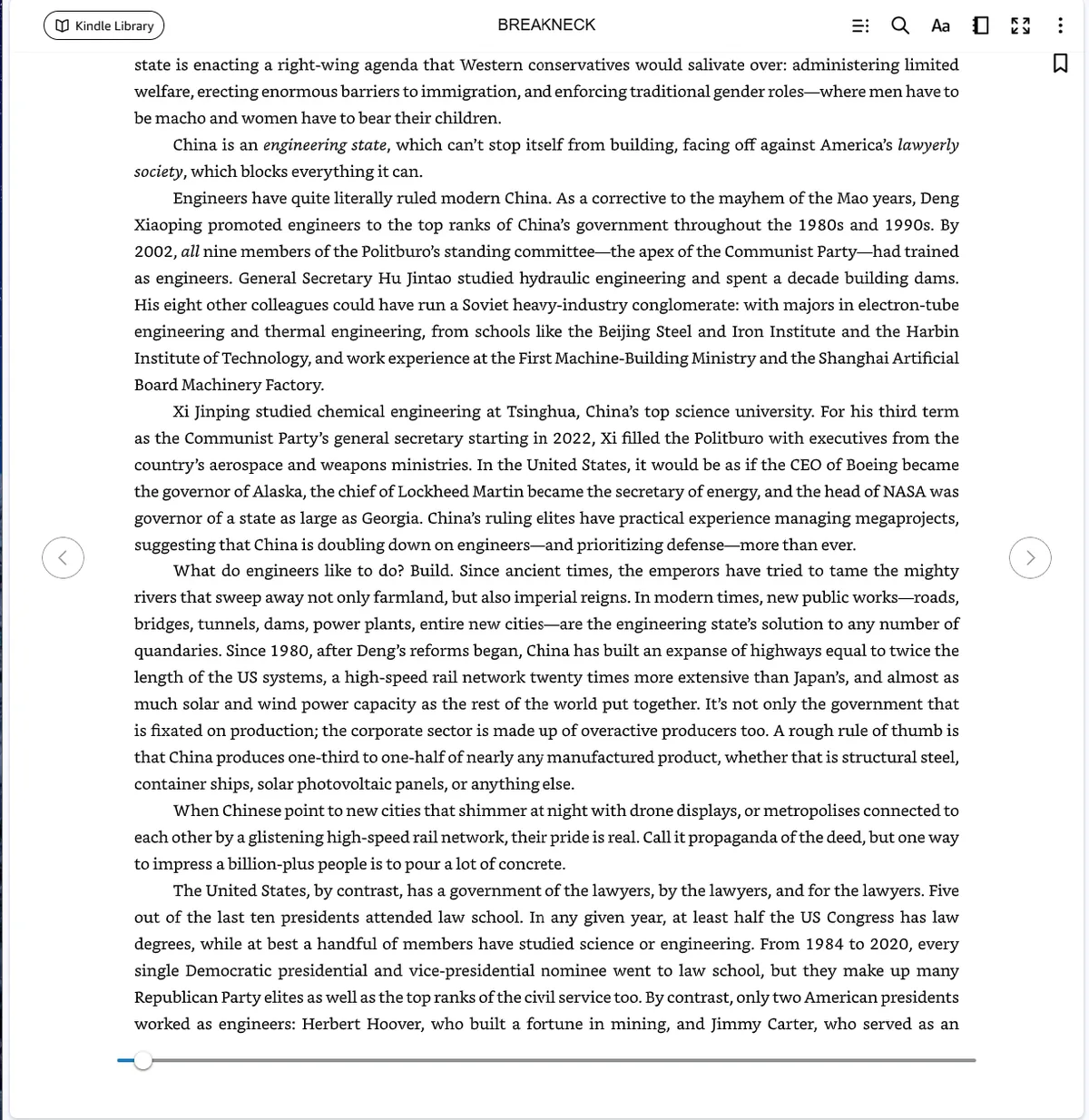
Visible pop-up controls sit over the book page and can get captured into your screenshots.
Controls dismissed — do this
A clean page without toolbar overlays or page arrows gives TextMuncher the capture surface it needs.
What the controls do to a capture
The toolbar sits across the top of the page and the page arrows sit over the outer margins, so a capture taken while they are showing has real words underneath them.
That is a worse failure than the stray text a progress marker adds. OCR cannot read what an overlay covers, so the line simply comes out short, and nothing in the output marks the gap. A sentence with a missing clause still reads plausibly - which is the last thing you want in a research note you plan to quote from.
Why they keep coming back
As far as we can tell the controls are tied to interaction rather than to a setting you can switch off. Moving the mouse over the reader, clicking, or pressing a key may bring them back, which is why they can reappear seconds after you dismissed them.
Once a capture run is going, leave the mouse alone. Every nudge is another chance for the toolbar to be showing when the next page is captured.
Dismiss, then check all four edges
Press once in the middle of the page and watch the edges. The toolbar goes first; the page arrows and the bookmark icon in the corner sometimes linger a moment longer.
Wait until the page is bare on all four sides before you start. If a control comes back, press the middle of the page again rather than clicking near an edge - a click in the margin can turn the page and cost you your place.
Click the middle once, then start capture
Get TextMuncher Free30 free pages • No credit card • Cancel anytime