
Use Single-Column Layout for the Cleanest Capture
Before you start capturing, switch your reader to a single-column page layout. It's a one-time setting that makes a big difference in how clean your extracted text comes out.
Why it matters
TextMuncher reads the text exactly as it appears on your screen. When a page is split into two columns, OCR reads straight across both columns line by line, so the left and right columns get interleaved into scrambled, out-of-order text. A single column keeps everything in natural reading order, top to bottom, so your extracted text comes out clean and correct.
Where to change it
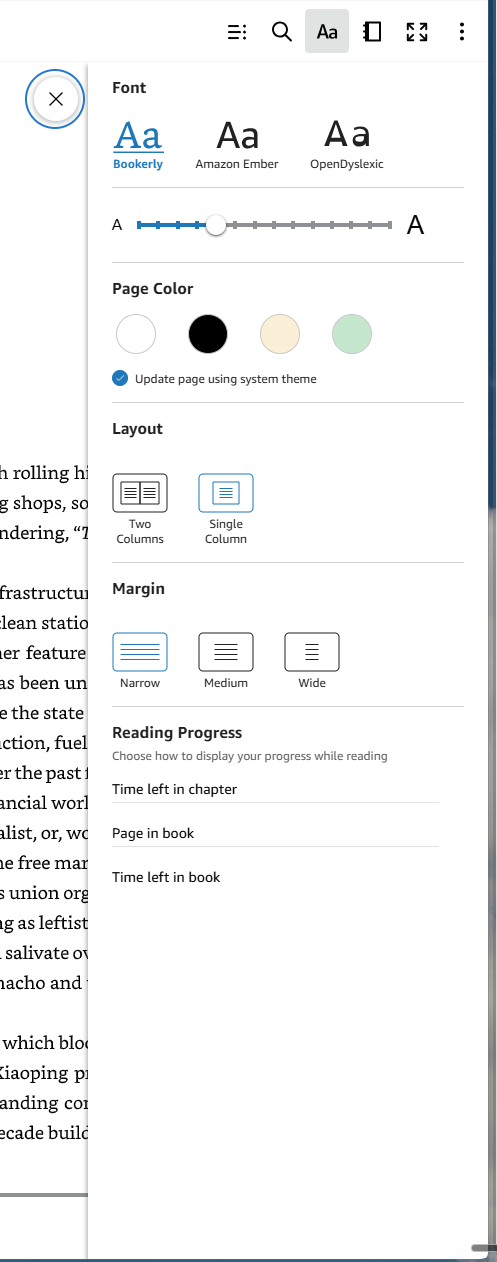
In Kindle Cloud Reader, click the Aa button in the top toolbar to open the display menu. Under Layout, choose Single Column.
This, not that
Two columns — avoid
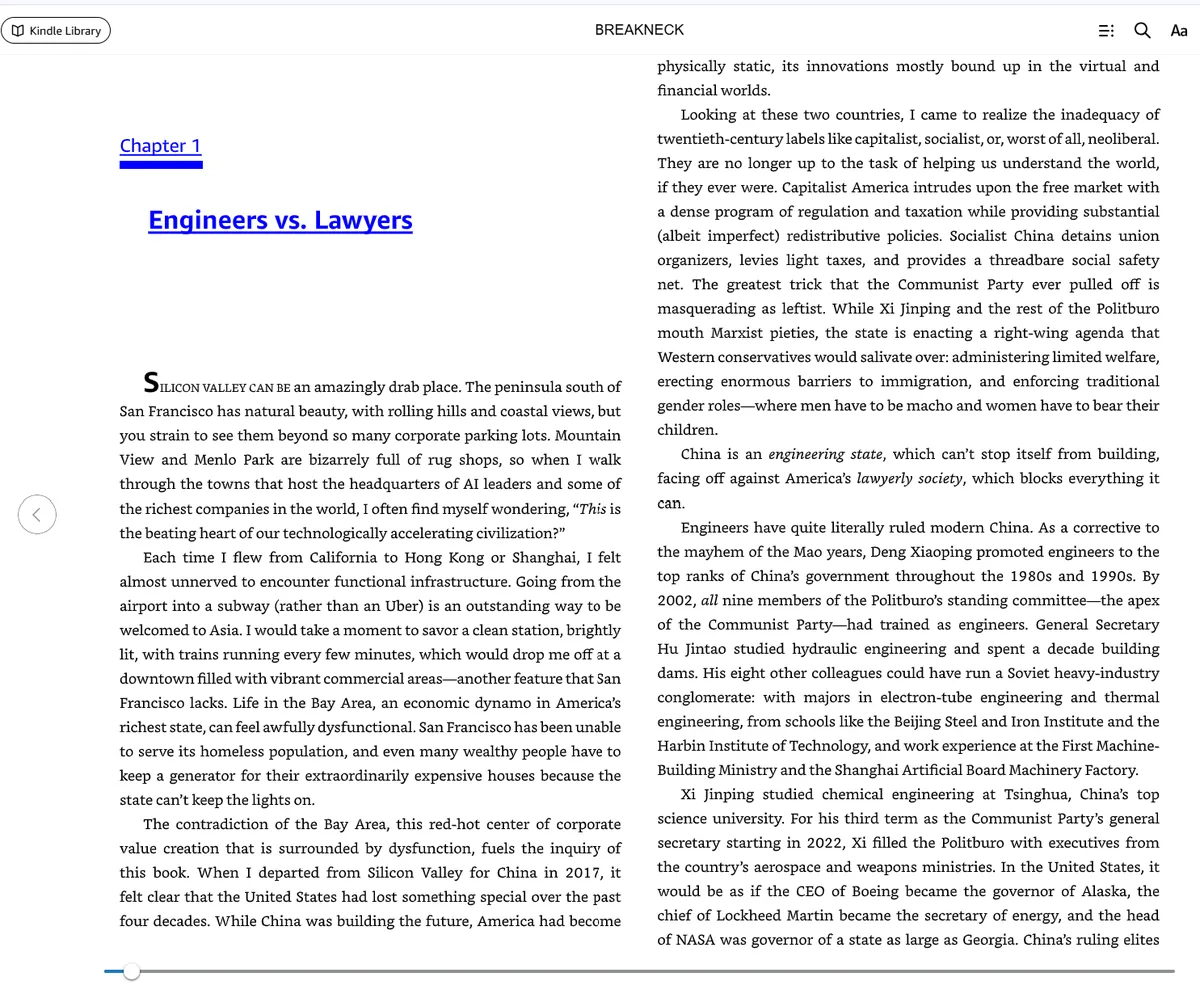
Two-column pages get captured left-to-right across both columns, so OCR interleaves them into scrambled text.
Single column — do this
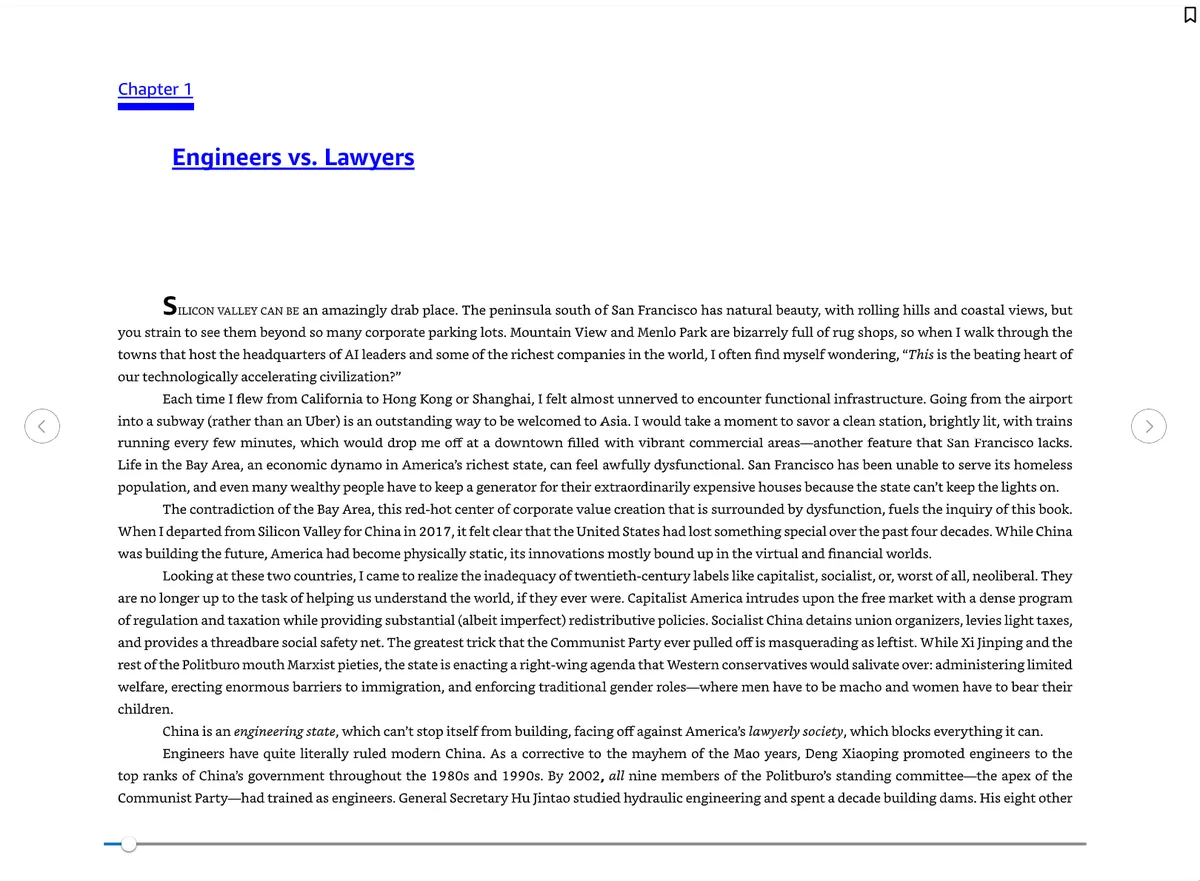
A single column keeps text in natural reading order: clean, linear, correctly ordered output.
What a two-column capture looks like
Once you have seen the failure it is easy to recognise. A sentence starts on the left, jumps mid-clause to a line from the right column, then comes back. Nothing is missing: every word the page held is in the output. The order is wrong, which is worse in one specific way. A human reader spots the seam and works around it; an AI tool reading the same text has no way to tell the interleaving from the author's own prose, so it summarises a sentence the author never wrote.
Repairing it afterwards means reflowing the chapter by hand, line by line. That reliably takes longer than setting the layout and capturing the chapter again, which is why this is the first setting to check rather than the last.
If Single Column is not in the menu
Some books do not offer the choice. Fixed-layout titles - most comics, many cookbooks, illustrated children's books - ship with a page design the reader cannot reflow, and on the books we tested the Aa menu offered no Layout section at all for them.
Two things are still worth trying. Narrow the browser window: many two-column layouts are responsive and may fall back to one column per screen on their own. Or raise the font size a step or two, which can have the same effect for a different reason - fewer words fit on a line, so the reader may give up the second column to make room. Neither is guaranteed on every book.
Set it before you start, not during
Changing the layout repaginates the book underneath a running capture. The capture loop decides a page turn happened by comparing each new page against the last one, so a mid-run repagination reads to it as an ordinary page turn and the run carries straight on. The problem is where the reader lands afterwards: the next capture can repeat text you already have, or skip past text you do not.
Pick the layout first. Look at one page and confirm it reads top to bottom in a single column. Then start the run and leave the display settings alone until it finishes.
Set it once and capture away
Get TextMuncher Free30 free pages • No credit card • Cancel anytime