
Bring Your Kindle BooksInto OneNote
Extract full chapters from any Kindle book and paste them straight into your OneNote notebooks without ever hitting a copy limit.
Local-First Processing
Works with Kindle Cloud Reader
No Desktop Software
Why Can't You Paste Kindle Text Into OneNote?
Amazon blocks copy-paste from Kindle Cloud Reader. There's no Microsoft-Amazon integration to fill the gap.
TextMuncher extracts text from Kindle Cloud Reader so you can paste full book passages into OneNote. The browser extension captures pages automatically and converts screenshots to text with high accuracy. Paste into any OneNote section, tag key passages, and link book content to your meeting notes, research pages, or project notebooks.
No Amazon-Microsoft Integration
There's no official way to connect your Kindle library to OneNote. Microsoft and Amazon don't share data.
Kindle's Copy Limit Cuts You Off
Amazon limits you to roughly 10% of any book. Once you hit the cap, copying stops entirely.
Manual Typing Is Not an Option
Retyping book passages into OneNote wastes hours you could spend reading and thinking.
What TextMuncher Does for Microsoft Users
Full Chapters in OneNote
Paste complete sections (not just snippets) into your notebooks. Tag, annotate, and link freely.
Searchable Book Content
Once in OneNote, your book text is fully searchable. Find any passage across all your notebooks instantly.
Works With the Whole Microsoft Stack
Copy into OneNote, then link to Word docs, Teams notes, or Outlook emails - it's just text.
How It Works
Three steps. No technical knowledge required.
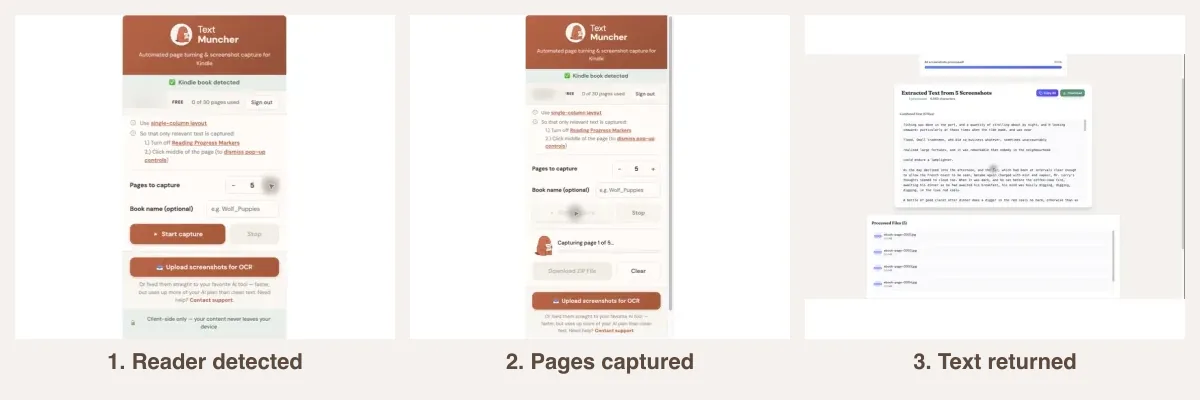
1. Install TextMuncher
Add the browser extension in 10 seconds. No account needed to start.
2. Extract Your Book
Open your Kindle book at read.amazon.com and run TextMuncher to capture the text.
3. Paste Into OneNote
Copy the extracted text and paste into any OneNote page, section, or notebook.
why Kindle blocks text extraction using Kindle books with AI tools
Related Resources
Kindle to Word Kindle to Notion Kindle to Google Docs Kindle Highlights ExportFrequently Asked Questions
Can I sync Kindle highlights to OneNote automatically?
There's no official Kindle-to-OneNote sync. TextMuncher extracts full chapters, not just highlights. For highlight-specific workflows, Readwise has a OneNote integration - but for full book text, TextMuncher is the better fit.
Does the formatting survive the paste into OneNote?
TextMuncher outputs plain text. Paragraphs and line breaks are preserved. OneNote will apply its default text formatting, which you can adjust. Tables and complex layouts from the original book may not transfer perfectly.
Will this work with OneNote for Windows, Mac, and web?
Yes. TextMuncher outputs text to your clipboard or a text area - you can paste it into any version of OneNote, including the Windows app, Mac app, and the web version at onenote.com.
Can I use this for work research notes?
Absolutely. Many users extract chapters from business books and paste them into OneNote alongside their meeting notes and project research. The text is just text - use it however your workflow requires.
Does it work with Microsoft Edge instead of Chrome?
TextMuncher is a browser extension for Chrome and Firefox. It also works in Microsoft Edge, since Edge is built on Chromium and supports Chrome extensions from the Chrome Web Store.
Ready to Build Your Book Notes in OneNote?
Get TextMuncher Free30 free pages • No credit card • Cancel anytime