
Feed Your Kindle Booksto Google Gemini
Extract book text and use it with Gemini, NotebookLM, or any Google AI tool for instant analysis and summaries.
Local-First Processing
Works with Kindle Cloud Reader
No Desktop Software
Why Can't You Use Kindle Books With Gemini?
Amazon locks your book text behind copy restrictions. Google's AI tools need text input to work well.
TextMuncher extracts text from Kindle Cloud Reader books so you can use it with Google Gemini and NotebookLM. The browser extension captures pages automatically and converts them to text with high accuracy. Paste into Gemini for analysis or upload to NotebookLM for an AI study companion built around your books.
Kindle Blocks Copy-Paste
Amazon limits copying to about 10% of any book. Not enough to feed into Gemini for useful analysis.
Gemini Needs Text, Not Images
While Gemini can read images, text input gives more accurate results and uses fewer tokens.
No Google-Kindle Integration
There's no official way to connect your Kindle library to Google's AI ecosystem.
What TextMuncher Does for Gemini Users
Clean Text for Gemini
Extract full chapters as plain text. Paste directly into Gemini for accurate analysis and summaries.
NotebookLM Ready
Upload extracted text to NotebookLM to create an AI study companion that knows your books inside out.
Automated Extraction
TextMuncher turns pages and captures screenshots hands-free. Longer captures may stop before the requested range finishes, so check the result and restart if needed.
How It Works
Three steps. No technical knowledge required.
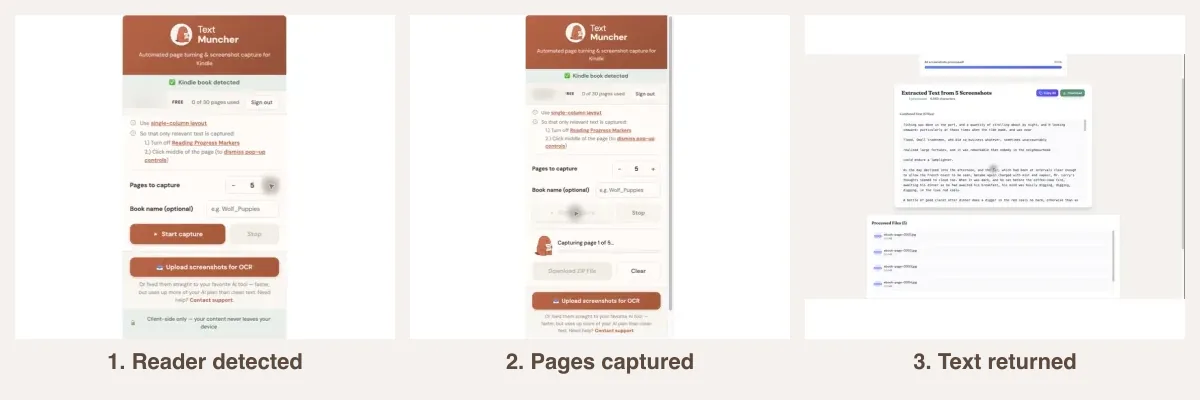
1. Install TextMuncher
Add to Chrome in 10 seconds. No account needed to start.
2. Extract Your Book
Open any book on read.amazon.com and run the extension.
3. Use With Google AI
Paste into Gemini for quick analysis, or upload to NotebookLM for deep book exploration.
why text beats screenshots for AI using Kindle books with AI tools
Related Resources
Kindle to ChatGPT Kindle to Claude Chat With Kindle Books Student Guide Using Kindle Books with GeminiFrequently Asked Questions
Can I use extracted Kindle text with NotebookLM?
Yes. Save the extracted text as a document and upload it as a source in NotebookLM. It will index the content and let you ask questions, generate summaries, and create study materials - all grounded in your actual book text.
Does Gemini work better with text or screenshots?
Text produces better results. While Gemini can process images, text input is more accurate and efficient. You get cleaner analysis, better quotes, and more reliable summaries when working with extracted text.
Can I use this with Google Docs or Sheets?
Yes. TextMuncher outputs plain text that you can paste anywhere in the Google ecosystem - Docs, Sheets, Slides, or Keep. From there, you can use Gemini's built-in AI features directly in those apps.
How much text can Gemini handle?
Gemini supports up to 1 million tokens - enough for multiple full-length books. TextMuncher extracts the text; you can paste entire books into Gemini for detailed analysis.
Is this better than using Readwise with NotebookLM?
Readwise only syncs your highlights - a fraction of the book. TextMuncher extracts full chapters, giving NotebookLM the complete text to work with. More source material means better AI responses.
How do I add my extracted book to NotebookLM?
Save the extracted text as a plain text or document file, open NotebookLM, and add it as a new source. NotebookLM indexes the whole thing, so you can then ask questions, request chapter summaries, and pull grounded quotes that cite the exact passage. You can add several books as sources and have NotebookLM reason across all of them.
Can NotebookLM make an audio overview from my book text?
Yes. Once your extracted text is a source, NotebookLM can generate its audio overview, a conversational summary you can listen to like a short podcast about the book. Because it is built from the full chapter text rather than a handful of highlights, the overview covers the material far more completely than a clippings-based source would.
Does the free version of Gemini work for this?
For pasting in a chapter and asking for summaries or analysis, the standard Gemini tier handles it well. Very long books that lean on the full million-token window may need a paid tier for the largest context, and usage limits are set by Google, not TextMuncher. Working chapter by chapter keeps most sessions comfortably within the free allowance.
Ready to Use Gemini With Your Books?
Get TextMuncher Free30 free pages • No credit card • Cancel anytime