
How to Upload Kindle Books to NoteGPT (2026 Guide)
NoteGPT can't read Kindle books directly. Get your Kindle book's text into NoteGPT for summaries, notes, and mind maps with this workflow.
Published · Updated • By Mike
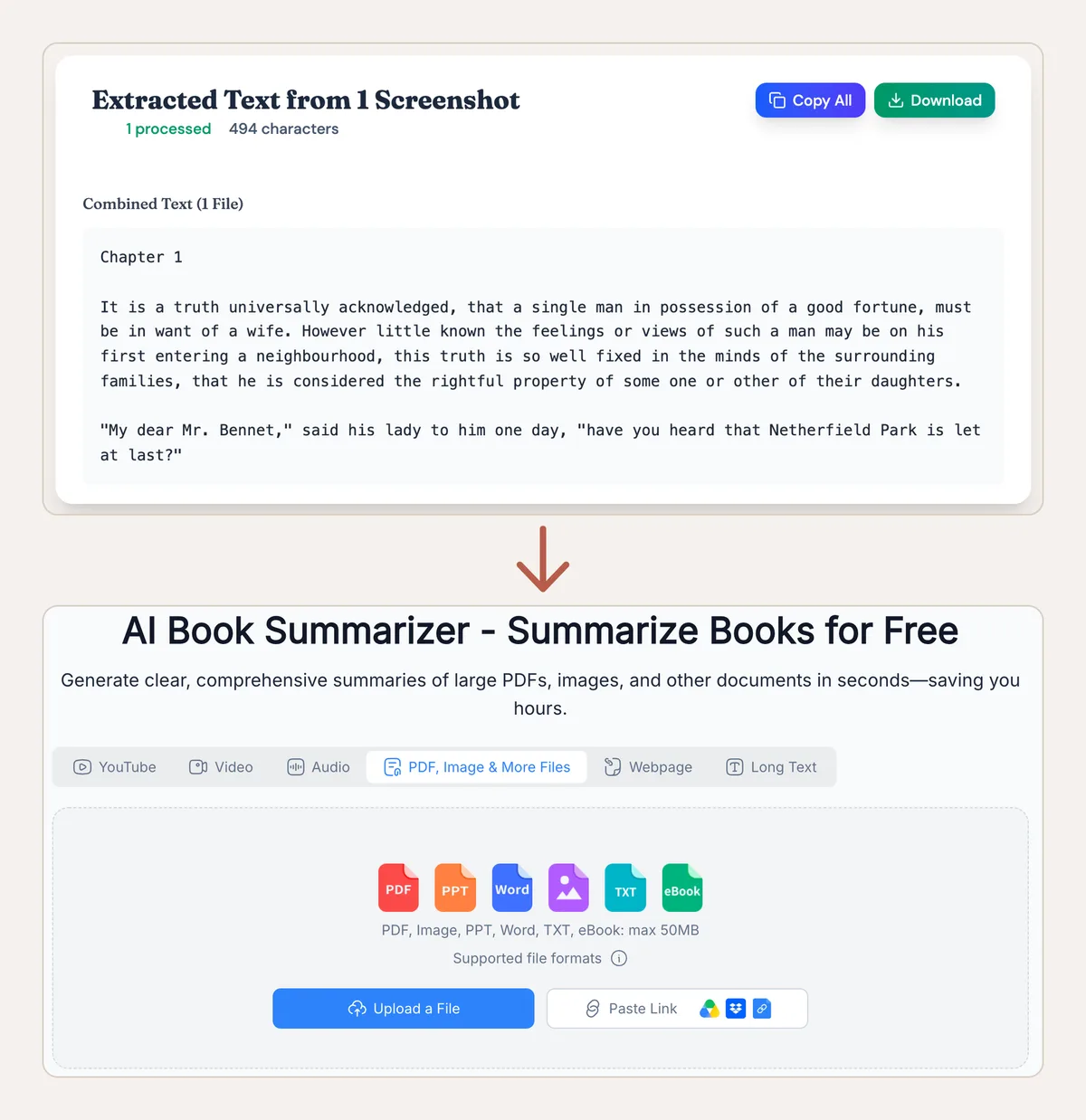
You can't upload a Kindle book to NoteGPT directly. NoteGPT's Book Summarizer accepts PDF, EPUB, FB2, MOBI, and TXT files, but a Kindle book never exists on your computer as any of those; it stays locked inside Amazon's apps. The workaround is a two-step bridge: extract the book's text from Kindle Cloud Reader, then upload that text file to NoteGPT.
This guide walks the whole route, including one thing NoteGPT's site makes surprisingly hard: figuring out which of its many tools you should even be using for a book.
Can You Upload a Kindle Book to NoteGPT?
Not directly. The Book Summarizer's format list is genuinely friendly to ebooks: PDF, EPUB, FB2, MOBI, and TXT. That's a wider list than most AI study tools offer. The problem sits on the Kindle side. Books you buy from Amazon are stored in the AZW and KFX formats, readable only in Kindle apps, and there's no export button that turns your purchase into an EPUB or TXT file.
So the format list is an invitation the Kindle can't accept on its own. Once you have the book's text as a file, though, NoteGPT treats it like any other upload.
Which NoteGPT Tool Is Right for Books?
Use the Book Summarizer, which lives in NoteGPT's AI Book Library workspace. This matters because NoteGPT has grown into a sprawl of tools: a YouTube video summarizer, a PDF tool, audio transcription, image generators, and more. It's easy to land on the generic PDF summarizer and wonder why the experience feels wrong for a 300-page book.
The Book Summarizer is the one built for long-form reading. Feed it a book file and it produces:
- A structured summary of the whole book
- A mind map of the book's argument and structure
- Saved notes you can edit and organize
- AI chat that answers questions grounded in the book you uploaded
On limits: the Book Summarizer page states a 50MB maximum per upload (older mentions of a 30MB cap still float around the web). In practice this rarely matters for our route, because plain text is tiny; a full novel in TXT form is usually under 1MB.
Why Kindle Books Won't Upload Directly
Two locks keep your book inside Amazon's ecosystem. The format lock means AZW and KFX files open only in Kindle apps, so there's nothing to drag into NoteGPT. The copy limit means you can't just select-all inside the app either; publishers cap clipboard copying, often at a few pages per book. As one reader put it: "I can't even download the original file from Amazon."
Desktop conversion tools have historically filled this gap, and guides exist for routes like Calibre with plugins, but Amazon's newer formats and app updates have broken most of them repeatedly. The approach that keeps working is simpler: capture the text where it renders, in your browser.
Step 1: Get Your Book's Text Out of Kindle
TextMuncher is a Chrome extension that captures pages from Kindle Cloud Reader automatically, paired with a web app that converts the captures to clean text with OCR. Because it works from what's displayed on screen rather than touching Amazon's files, copy limits don't apply to it.
The workflow:
- Open your book at read.amazon.com in Chrome and start a TextMuncher capture. The extension turns pages and captures the chapters you want summarized.
- Upload the captured pages to the TextMuncher web app, which runs OCR and produces clean text.
- Copy the text, or save it as a TXT file.
Either output works for NoteGPT, so there's no conversion step afterward. I built TextMuncher after hitting the copy limit on my own books, and this pairing is close to the ideal case for it: NoteGPT wants long clean text, and that's precisely what the extraction produces. The first 30 pages are free, which is enough to run a real chapter through the full loop before deciding anything.
Extract only from books you own, for your own use. And give the output a quick skim before uploading: OCR is very accurate on standard prose, less so on dense tables and equations. How that accuracy is measured — a blinded page set, a human-adjudicated answer key, and a published per-page scoring file — is written up in the published OCR benchmark and its method.
Step 2: Upload to NoteGPT's Book Summarizer
The Book Summarizer takes input through several tabs, including "PDF, Image & More Files" for uploads and a "Long Text" tab. That second one is the shortcut almost nobody mentions: Long Text accepts pasted content directly, so you can paste your extracted chapter straight in without saving a file at all. For whole books, upload a TXT file through the files tab instead.
For long books, chapter-by-chapter input gives you tighter summaries and a more useful chat experience than one giant file, and since TextMuncher captures chapter by chapter anyway, the split comes free. The same rule holds anywhere you want an AI summary of a book you own: the summary is only as sharp as the slice of text you hand over.
On pricing: NoteGPT's free tier has a limited monthly quota, with paid plans listing at $9.99/month for Pro as of July 2026, and the site runs frequent half-off promotions. Check their pricing page for current numbers, since third-party reviews floating around Google still cite tier structures that no longer exist.
NoteGPT vs Gemini Notebook (formerly NotebookLM) for Kindle Books
Both tools want the same input, your book as clean text, and the extraction step is identical. The difference is what comes out.
| NoteGPT Book Summarizer | Google Gemini Notebook | |
|---|---|---|
| Core output | Summary, mind map, notes | Source-grounded Q&A, study guide |
| Standout feature | Mind maps of the book's structure | Audio Overviews (podcast-style discussion) |
| Chat grounding | The uploaded book | Up to 50 sources per notebook |
| Book formats | PDF, EPUB, FB2, MOBI, TXT | PDF, TXT, Markdown, EPUB |
| Price | Free tier; paid from $9.99/mo | Free; Pro tier via Google One |
Rough guide: NoteGPT suits a single-book workflow where you want a visual map and quick summaries; Gemini Notebook wins when you're synthesizing several sources or want audio. The full walkthrough for the other side of that table is in how to upload Kindle books to Gemini Notebook. One caution that applies to both, from a Gemini Notebook user: these tools work best when you don't need them to surface "every bit of those books," so for close reading of specific passages, keep the extracted text file too.
If you're comparing more broadly, best AI study tools for Kindle books covers the field, there's a matching guide for StudyFetch if flashcards and quizzes matter more than summaries, and the general primer on reading Kindle books with AI explains the extraction approach across every tool.
Conclusion
NoteGPT's Book Summarizer is one of the more ebook-friendly AI tools around, accepting five book formats, but Kindle purchases can't reach it without help. Extract your book's text once with TextMuncher, upload the TXT file, and you get summaries, mind maps, and a chat grounded in the book you actually bought.
Try it on one chapter first. The first 30 pages are free.
FAQ
Does NoteGPT support Kindle or AZW files?
No. NoteGPT's Book Summarizer accepts PDF, EPUB, FB2, MOBI, and TXT, but not Amazon's AZW or KFX formats, and no AI study tool reads those directly. Extract your Kindle book's text to a TXT file first, then upload it to NoteGPT normally.
What's NoteGPT's file size limit for books?
NoteGPT's Book Summarizer page states a 50MB maximum per upload as of July 2026, covering PDF, image, PPT, Word, TXT, and ebook files. Older mentions of a 30MB cap still circulate, so treat 50MB as the current figure. For extracted book text the limit doesn't matter in practice, since a full-length book in plain TXT form is usually under 1MB.
Is NoteGPT free for book summaries?
NoteGPT has a free tier with a limited monthly quota, which is enough to test the workflow on a book or two. Paid plans list at $9.99/month for Pro as of July 2026, with higher tiers adding larger credit allowances and frequent site-wide discounts. Check notegpt.io/pricing for current figures, as older reviews cite outdated tiers.