How to Upload Kindle Books to StudyFetch (2026 Guide)
StudyFetch can't read Kindle books directly. Here's how to get your Kindle textbook's text into StudyFetch for flashcards and quizzes.
Published · Updated • By Mike
You can't upload a Kindle book to StudyFetch directly. StudyFetch accepts PDF, DOCX, PPTX, and TXT files, but Kindle books are locked in Amazon's own format, which no study tool can open. The fix takes two steps: extract your book's text from Kindle Cloud Reader, then upload that text to StudyFetch like any other document.
If you're staring at a $90 textbook in your Kindle library while StudyFetch asks you to "upload a document," this guide bridges that gap. Here's the whole workflow, including the parts StudyFetch's own docs skip.
Can You Upload a Kindle Book to StudyFetch?
Not directly. StudyFetch's document uploader accepts PDF, DOC, DOCX, PPT, PPTX, TXT, and image files (PNG, JPEG). Kindle books use Amazon's AZW and KFX formats, which don't appear anywhere on that list, and StudyFetch's upload tutorial doesn't cover Kindle formats or explain how to get a purchased ebook in.
That silence trips up a lot of students. You bought the book, it's sitting in your library, and there's no export button anywhere in the Kindle app. The book isn't really a file you can grab. It only exists inside Amazon's readers.
So the real question isn't "does StudyFetch support Kindle?" It's "how do I get my book's text into a format StudyFetch accepts?" That's solvable.
Why Kindle Books Won't Upload Directly
Kindle books are locked to Amazon's apps, and even inside those apps, publishers set copy limits that stop you from selecting more than a small amount of text. Try to copy a chapter and you'll hit the wall fast; many textbooks allow only a few pages' worth of clipboard copying, and some allow almost none.
Three specific walls stand between your book and StudyFetch:
- The format wall. AZW and KFX files only open in Kindle apps. StudyFetch, like every AI study tool, can't read them.
- The copy limit. Publishers cap how much text you can copy from any Kindle book. One student on Reddit put it plainly: "publishers set copy limits (clipboard limits) on Kindle books." Copying a 400-page textbook a paragraph at a time isn't a workflow, it's a punishment.
- No export option. Amazon's Kindle Cloud Reader displays your books in a browser but offers no download or save-as-text feature.
None of this means you're stuck. The text still renders on your screen, and text on your screen can be captured.
Step 1: Get Your Book's Text Out of Kindle
The most reliable route runs through Kindle Cloud Reader in your browser. TextMuncher is a Chrome extension that captures each page of your book automatically, paired with a web app that converts those captures to clean text with OCR. Because it works from what's displayed on screen, the copy limit that blocks clipboard methods doesn't apply.
The workflow:
- Open your book at read.amazon.com in Chrome and start a TextMuncher capture. The extension turns pages and captures them for you.
- Upload the captured pages to the TextMuncher web app, which runs OCR and produces clean text.
- Copy the text or download it as a file.
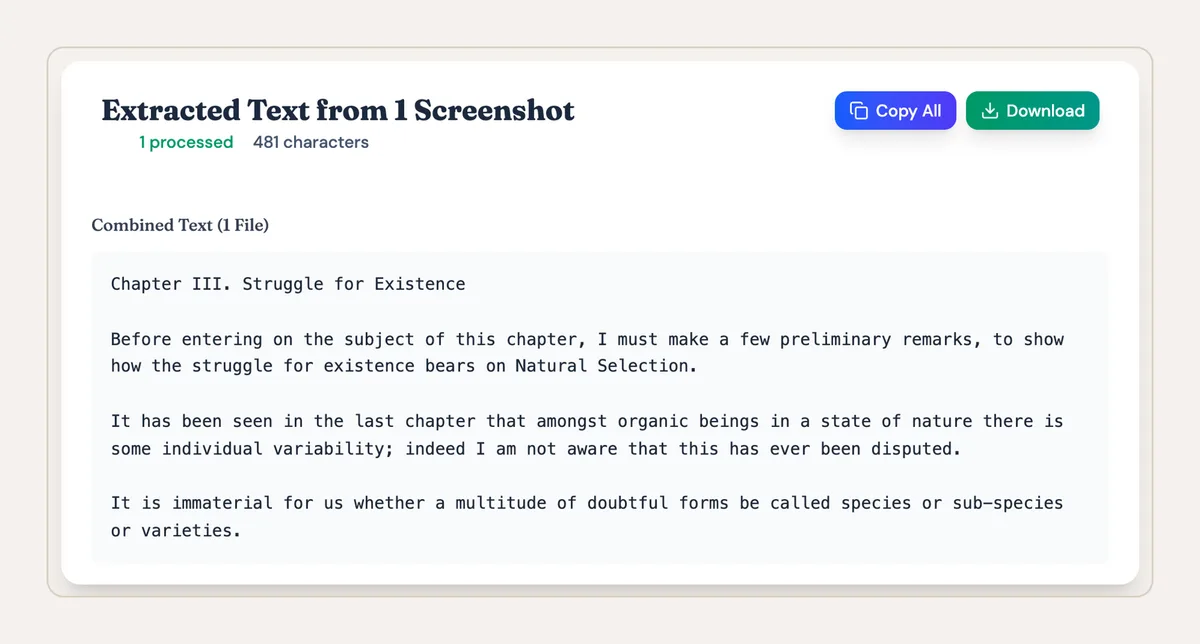
Processing time varies with chapter length, page rendering, and device performance. I built TextMuncher after hitting Amazon's copy limit while pulling quotes from my own books, and the design goal has stayed the same since: get the text you already paid for into the tools you actually study with. Your first 30 pages are free, which covers a chapter or two, enough to test the full loop before an exam week.
Two honest caveats. First, only extract from books you own, for your own study use. Second, OCR output is very accurate on standard book text but can wobble on dense equations or complex tables, so skim the output before uploading. If you want the deeper background on this approach, the guide to reading Kindle books with AI covers it tool by tool. The method behind that claim is public: see the published OCR benchmark and its method.
Step 2: Upload the Text to StudyFetch
Once you have clean text, you're on StudyFetch's happy path, and you actually have two ways in. StudyFetch organizes everything into study sets, so create the set first, then add your material to it.
The fastest route for a single chapter: Paste Notes. StudyFetch has a paste-in option (paste your text in the box under Your Notes, then hit Create Materials) that skips file handling entirely. Extracted chapter text drops straight in, and StudyFetch generates materials from it immediately.
For whole books: Upload Documents. Save your extracted text as a TXT file and upload it; TXT is on the accepted format list alongside PDF and DOCX. A few settings matter more for books than for lecture notes:
- Use Chapter Splitting for full books. Under the upload panel's advanced options, StudyFetch can split a long document into chapters. A whole textbook uploaded as one blob produces muddier flashcards than chapter-sized chunks, so either use this toggle or upload chapter files separately. TextMuncher makes the second option easy since you capture chapter by chapter anyway.
- Pick your study-note depth. StudyFetch generates notes at three depth levels, from quick summary to full detail. For exam prep from a textbook, the middle setting is usually the right trade-off.
- Watch for size limits. StudyFetch doesn't publish a file size cap. Plain text is tiny, so TXT uploads of even long books are unlikely to hit whatever the internal limit is. This is a quiet advantage of text over scanned PDFs.
From one upload, StudyFetch generates flashcards, quizzes, practice tests, and study notes, and its Spark.E tutor can answer questions grounded in your actual assigned reading rather than generic knowledge.
What StudyFetch Generates From Your Book
Expect the output quality to track the input quality. Clean extracted text produces sharp flashcards; garbled text produces garbage cards. As one student noted about AI study tools generally, the "quality of information going into it likely dictates the quality of information/practice questions being produced." That's exactly why the extraction step is worth doing properly instead of feeding in phone photos of your screen.
With a full chapter loaded, StudyFetch will typically give you:
- Flashcards keyed to terms and definitions from the actual chapter
- Practice tests in multiple-choice and short-answer formats
- Study notes at your chosen depth
- Spark.E chat that cites your uploaded material when answering
If you're still choosing a tool, StudyFetch sits alongside several similar apps that all share the same constraint: they need your text first. The comparison in best AI study tools for Kindle books ranks the options, and there are matching guides for Mindgrasp and NoteGPT if those fit your workflow better. For turning the same extracted text into a structured revision document instead, see how to make an AI study guide from a Kindle book.
Conclusion
StudyFetch can't open Kindle books, but it doesn't need to. Extract your book's text with TextMuncher, review the TXT file, and use it with StudyFetch features such as flashcards, tests, notes, and Spark.E. TextMuncher removes page-by-page copying, while total processing time varies.
Start with the chapter your next exam covers. Your first 30 pages are free.
FAQ
Does StudyFetch support EPUB or Kindle files?
Not through the standard uploader. StudyFetch's document upload tool lists PDF, DOCX, PPTX, TXT, and images (PNG, JPEG), with audio, video, and YouTube handled by separate flows; Kindle's AZW and KFX formats aren't accepted anywhere. Even where ebook support exists elsewhere in StudyFetch's platform, a purchased Kindle book never exists as a file you can hand over, so extracted text (pasted or as TXT) is the practical route.
How do I upload a whole textbook without hitting limits?
Upload it as plain text and split it by chapter. StudyFetch publishes no file size limit, but text files are small enough that size rarely matters; the bigger win is that chapter-sized uploads produce more focused flashcards and quizzes than a single 400-page blob. StudyFetch's Chapter Splitting option under the advanced upload settings handles this, or you can upload each chapter as its own document.
Is it legal to extract text from books I own?
TextMuncher captures text that a book you own already displays on your screen, for your own personal study use. That's the use case it's built for. Keep extracted text for yourself: don't share copies, post them, or use extraction as a substitute for buying books. Copyright law varies by country and situation, so if your use goes beyond personal study, check the rules that apply to you. Read our copyright and fair-use guide.