
How to Use Kindle Books with NotebookLM (Full Workflow)
Use Kindle books in NotebookLM. DRM-free EPUBs upload directly; purchased Kindle books need their text extracted first. Step by step, free to start.
Published · Updated • By Mike
NotebookLM was renamed Gemini Notebook in July 2026, and using Kindle books with it means getting the book into a source format it can read. If you have a DRM-free EPUB, upload it directly. If you have a purchased Kindle book, extract the text first, then upload the clean text to NotebookLM for source-grounded Q&A, Mind Maps, study guides, and Audio Overviews.
I built TextMuncher because I kept running into this exact wall. Kindle displays the book on your screen, but Amazon blocks copy-paste after a small percentage of the text. NotebookLM is excellent once it has the source. The bottleneck is getting the Kindle book out of Amazon's reader and into a file NotebookLM can use.
This guide covers the full workflow: when EPUB upload works, why Kindle's native files still do not, how to extract text from Kindle Cloud Reader, and how to turn that text into a useful NotebookLM notebook.
Can You Upload Kindle Books Directly to NotebookLM?
You usually cannot upload a purchased Kindle book directly to NotebookLM. NotebookLM reads EPUB files natively (Google added EPUB as a source type on March 20, 2026) but cannot read Kindle's DRM-locked .azw and .kfx files. NotebookLM also supports PDF, DOCX, TXT, Markdown, CSV, web URLs, YouTube URLs, images, audio, pasted text, and Google files.
That EPUB change landed in the March 20, 2026 Workspace update. Google's current NotebookLM source documentation also lists ePub files as supported sources.
So the split is simple:
| Book type | Best path into NotebookLM |
|---|---|
| DRM-free EPUB from Project Gutenberg, Standard Ebooks, indie publishers, or your own manuscript | Upload the EPUB directly |
| PDF ebook | Upload the PDF directly |
| Kindle highlights only | Export highlights through Kindle Notebook, Readwise, or Glasp, then upload the text |
| Purchased Kindle book in Cloud Reader | Extract text with OCR, then upload TXT or Markdown |
Local Kindle .azw / .kfx file |
NotebookLM cannot read it directly |
Older tutorials often tell you to convert every ebook to PDF first. That is no longer true for EPUB. The new rule is more specific: EPUB works, but Amazon's encrypted Kindle files still do not.
For Kindle books you bought from Amazon, the practical path is:
- Open the book in Kindle Cloud Reader.
- Extract the rendered text.
- Save it as TXT, Markdown, or a Google Doc.
- Add it as a source in NotebookLM.
Why NotebookLM Is Different From ChatGPT or Claude
NotebookLM is built around source-grounded notebooks, not open-ended chat. Once you upload a Kindle book as a source, answers are tied back to your uploaded text, and the notebook can produce study artifacts like Mind Maps, Audio Overviews, flashcards, quizzes, and briefing documents from that source set.
That makes it a better fit for studying and research than a plain chat window when citations matter. ChatGPT and Claude are strong for general analysis. NotebookLM is stronger when you want to ask questions about specific sources and verify the answer against the passage it used.
The three NotebookLM features that matter most for Kindle books:
- Source-grounded answers: NotebookLM cites the source passage it used, which helps when writing essays or literature reviews.
- Mind Maps: NotebookLM can turn a dense book into a visual map of concepts and relationships.
- Audio Overviews: NotebookLM can generate a podcast-style discussion from your book sources.
For a one-off chapter summary, ChatGPT or Claude may be faster. For a semester-long textbook, a reading list, or a research notebook that you return to every week, NotebookLM is the better shape.
If you want the other AI workflows, I wrote the sister guides for using Kindle books with ChatGPT and using Kindle books with Claude. The extraction step is the same. The best destination depends on what you want the AI to do after the text is extracted.
How Many Kindle Books Fit in One NotebookLM Notebook?
NotebookLM's standard limit is 50 sources per notebook, and each source can contain up to 500,000 words or 200 MB. That is far beyond the size of a normal Kindle book. A 75,000-word nonfiction book is only about 15% of one source's word cap.
The rough math:
| Limit | What it means for books |
|---|---|
| 500,000 words per source | About 6 average 75,000-word books if combined into one file |
| 50 sources per standard notebook | Up to 50 separate book files |
| 25 million words per standard notebook | About 300 average nonfiction books if source limits are used efficiently |
| 100 sources on NotebookLM Plus | About twice the standard source count |
Google's NotebookLM upgrade documentation lists 50 sources per standard notebook, 100 in Plus, and 300 in Pro. For most readers, the free source limit is not the bottleneck. Getting clean Kindle text is.
That is why the extraction step matters more than the notebook limit. NotebookLM can hold a reading library. Kindle just does not give you the library in a format NotebookLM can read.
Method 1: Upload a DRM-Free EPUB
If your book is already a DRM-free EPUB, this is the cleanest path. Open NotebookLM, create a notebook, add a source, and upload the EPUB. No OCR. No PDF conversion. No extra tool.
Good EPUB sources include:
- Public-domain books from Project Gutenberg or Standard Ebooks
- Indie-publisher EPUBs sold without DRM
- Your own manuscript drafts
- Course packets or files your instructor gave you in EPUB format
This is the part that changed in 2026. Before EPUB support, many NotebookLM workflows told you to convert EPUB to PDF. That step is now unnecessary for clean EPUB files.
Kindle purchases are different. Amazon's book files are not standard EPUBs. Even if the book started as an EPUB upstream, the Kindle copy you receive is packaged in Amazon's own DRM-protected format. NotebookLM can support EPUB and still fail on a Kindle file.
So: use direct EPUB upload when you have a real EPUB. Use OCR extraction when the book lives inside Kindle Cloud Reader.
Method 2: Export Kindle Highlights to NotebookLM
If you only need the passages you already highlighted, exporting highlights is faster than extracting the full book. A highlights-only notebook works well for quotes you marked while reading, personal commonplace books, and review sessions built around your own annotations.
The common path is:
- Export Kindle highlights.
- Send them through Readwise, Glasp, or a Markdown file.
- Upload the result to NotebookLM.
- Ask NotebookLM to group ideas, generate a Mind Map, or quiz you from the highlights.
This is the path NotebookLM's own ecosystem often points toward. It is also limited by design. Highlights are only the parts you noticed while reading. If you did not highlight chapter 4, NotebookLM cannot answer detailed questions about chapter 4 from a highlights-only source.
Use highlights when:
- You are reviewing a book you already annotated.
- You only care about favorite quotes.
- You want a fast study notebook from selected passages.
Do not use highlights when:
- You need chapter-level coverage.
- You are writing a paper and need context around a quote.
- You want NotebookLM to build a Mind Map of the whole book.
- You are comparing several books across arguments, themes, or methods.
For full coverage, extract the book text instead.
Method 3: Extract Kindle Cloud Reader Text with TextMuncher
For purchased Kindle books, the most reliable NotebookLM workflow is screenshot-based OCR from Kindle Cloud Reader. TextMuncher automates that loop: the browser extension turns pages and captures screenshots, then the web app converts the screenshots into clean text.
Here is the workflow:
- Install the TextMuncher Chrome extension.
- Open the book in Kindle Cloud Reader.
- Click Start in the TextMuncher side panel.
- Let it turn pages and capture screenshots.
- Upload the page-image ZIP the extension produced to TextMuncher's OCR app.
- Save the extracted text as TXT or Markdown.
- Add that file as a source in NotebookLM.
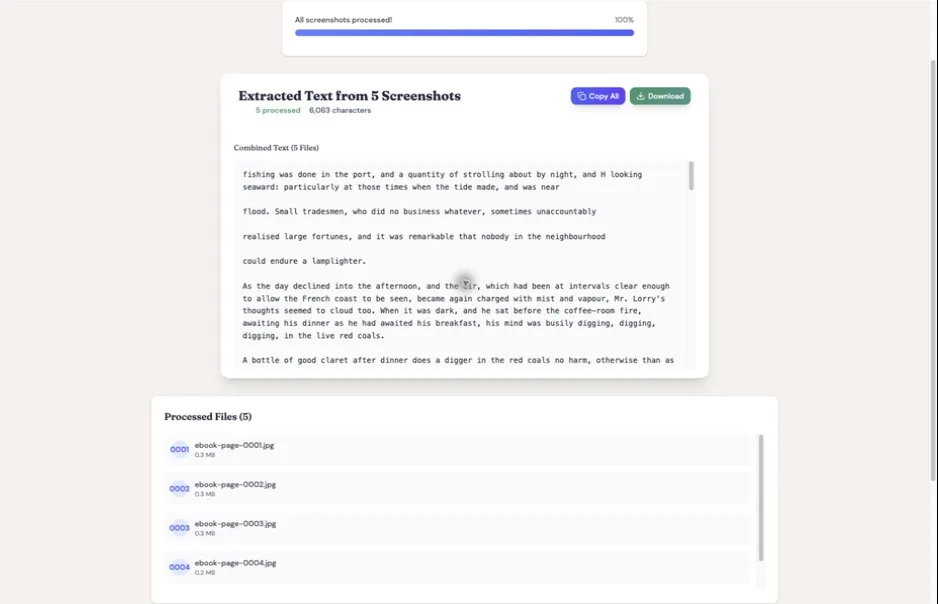
Capture and OCR time vary with page count, page rendering, and device performance. Speed mode, the default, handles OCR right in your browser with Tesseract.js; Quality mode, a Pro option you switch on yourself, sends the tougher pages to a cloud OCR service for another pass. Standard prose usually comes out clean, while complex pages may need some correction by hand.
This works because TextMuncher reads what is already displayed on your screen. It does not decrypt Kindle files. It captures rendered pages, then turns those page images back into text.
For a deeper explanation of why text works better than screenshots inside AI tools, read screenshots vs text for ChatGPT. The same logic applies to NotebookLM. A clean text source gives the model more reliable words, names, and citations than a pile of images.
What to Do After Uploading the Book to NotebookLM
Once your Kindle book is inside NotebookLM, start with structure before asking for summaries. A good notebook should help you study, retrieve, and compare. Do not just ask "summarize this book" and stop there.
I usually start with these prompts:
- "Create a chapter-by-chapter outline of this book. Keep each chapter to 5 bullets."
- "Build a Mind Map of the main concepts and show where the author connects them."
- "List the 10 claims in this book that would need evidence in an academic paper."
- "Find every passage where the author discusses [topic]. Include source citations."
- "Turn this book into 20 active-recall questions, with answers grounded in the source."
For research work, use NotebookLM's citation habit directly:
"Answer using only the uploaded source. Cite the passage for every claim."
For literature review work:
"Compare the argument in this book with the argument in [second source]. Where do they agree, and where do they conflict?"
If you are comparing sources for a paper, the AI literature review workflow carries this multi-book setup into synthesis.
For class prep:
"Generate a study guide for the exam. Separate key terms, likely essay questions, and weak spots I should reread."
NotebookLM's Mind Map is especially useful after full-book extraction. A highlights-only source can only map the ideas you marked. A full-book source lets the map see ideas you missed, including repeated terms, hidden connections, and side arguments you did not know to highlight.
For a broader tool-agnostic workflow, use the guide on reading Kindle books with AI. For the product-focused version of this page, see the Kindle to NotebookLM solution page.
Turn a Kindle Book Into a Podcast with Audio Overviews
You can turn a Kindle book into a podcast-style discussion using NotebookLM's Audio Overview feature. Once the book text is uploaded as a source, click Generate under Audio Overview and NotebookLM produces a two-host conversation that walks through the book's main arguments, with the hosts riffing on examples and pushing back on each other. It sounds surprisingly close to a real show.
The workflow is the same extraction chain as everything else on this page:
- Extract the book text from Kindle Cloud Reader (TextMuncher, or manual screenshots plus OCR).
- Upload the text file as a NotebookLM source.
- Generate the Audio Overview and download or stream it.
Two things make the source quality matter more for audio than for chat. First, the hosts only discuss what is in the source, so a highlights-only upload gets you a podcast about your highlights, not the book. Full-book extraction gives the hosts the whole argument to work with. Second, Gemini Notebook has an interactive mode where you select Join and ask the hosts questions during an Audio Overview, though it works only in English and only on newly generated overviews. The hosts still can only talk about what the source contains, so scrambled OCR or absent chapters remain holes in the discussion, and jumping in cannot add text that was never uploaded.
To be clear about what does what: TextMuncher extracts the text. NotebookLM generates the audio. TextMuncher is not a text-to-speech tool, and it does not produce the podcast itself. It solves the step Amazon blocks, which is getting your book into a format NotebookLM can read.
I use this for commute listening on books I have already read once. A 10-minute Audio Overview is a compressed re-read, and because it is grounded in the actual book text, it recalls specifics that a generic summary podcast misses.
When NotebookLM Is Not the Right Tool
NotebookLM is strong for source-grounded study, but it is not always the best destination. If you need fast one-shot writing help, ChatGPT or Claude may be easier. If you need very long single-conversation synthesis, Claude's current context window may fit more raw text in one chat.
Choose NotebookLM when:
- You want citations back to your uploaded book.
- You want a persistent notebook for a class, project, or reading list.
- You want Mind Maps, Audio Overviews, flashcards, or quizzes.
- You want to compare several sources inside one workspace.
Choose another AI tool when:
- You want creative writing help from the book.
- You only need one quick answer.
- You need the model to draft long prose in your voice.
- You already work in a Claude Project or ChatGPT Project.
The extraction step stays useful either way. TextMuncher outputs plain text, so you can upload it to NotebookLM, paste it into Claude, use it with ChatGPT, or save it in your notes.
Is This Legal?
TextMuncher captures the Kindle pages shown on your screen and turns those screenshots into text with OCR; it does not decrypt ebook files. Whether a particular use is permitted depends on your jurisdiction, the material, and how you use the output, so there is no single yes or no I can give you, and nothing here is legal advice. Before uploading extracted text to an AI service, check the rules set by your school, your employer, and the platform itself. For background on the questions involved, see the copyright and fair-use guide.
The line is redistribution. Do not share the extracted book text publicly, sell it, upload it to a public dataset, or use it in a product without rights. Keep the use personal: studying, research, quoting with citation, or building a private NotebookLM notebook around books you have access to.
Also follow Google's own guidance: NotebookLM's source docs tell users to avoid uploading documents they do not have rights to. That is the right frame. Extract your own books for your own study. Do not treat extraction as permission to republish.
The Best Kindle to NotebookLM Workflow
The best workflow depends on what kind of book file you have. If you have a DRM-free EPUB, upload it directly. If you only need highlights, export highlights and use those as the source. If the book is a purchased Kindle title inside Cloud Reader, extract the rendered text with OCR and upload that result.
For most TextMuncher users, the third path is the one that unlocks NotebookLM. Kindle blocks the copy step. TextMuncher removes the manual screenshot work. NotebookLM turns the extracted text into a persistent study notebook with citations, Mind Maps, and Audio Overviews.
That is the full chain:
- Kindle Cloud Reader displays the book.
- TextMuncher extracts the text.
- NotebookLM turns the text into a source-grounded notebook.
Once the book is in NotebookLM, the hard part is done. You can ask questions, build study guides, map ideas, compare books, and return to the same source weeks later without re-uploading anything.
FAQ
Can I upload a Kindle book directly to NotebookLM?
Not usually. NotebookLM supports EPUB, PDF, TXT, Markdown, DOCX, CSV, web URLs, YouTube URLs, images, audio, pasted text, and Google files, but it does not read Kindle's DRM-locked .azw or .kfx files. For purchased Kindle books, extract the text first, then upload the result as TXT, Markdown, Google Doc, or another supported source.
Can NotebookLM read EPUB files?
Yes. NotebookLM reads EPUB files natively — Google added EPUB as a supported source type in March 2026. That means DRM-free EPUB files can go straight into NotebookLM without PDF conversion. Purchased Kindle books are different because Amazon does not give you a normal EPUB file. Those books still need a text extraction step before NotebookLM can use them.
How many Kindle books can I put in one NotebookLM notebook?
NotebookLM Standard supports 50 sources per notebook, with each source capped at 500,000 words or 200 MB. That is enough for dozens of normal book files. NotebookLM Plus raises the source count to 100 per notebook, and Pro raises it further. For most readers, source limits are not the bottleneck. Extracting clean Kindle text is.
Is Readwise enough for Kindle to NotebookLM?
Readwise is enough if you only need your highlights. It is not enough if you want NotebookLM to answer questions about unhighlighted chapters, build a full-book Mind Map, or compare complete books. Highlights are a useful source, but they are still a selected subset of the book. Full-book extraction gives NotebookLM more context.
Why use NotebookLM instead of ChatGPT for Kindle books?
Use NotebookLM when you want answers grounded in uploaded sources, citations back to passages, a persistent reading notebook, Mind Maps, Audio Overviews, flashcards, or quizzes. Use ChatGPT when you want a faster general assistant or more open-ended drafting help. Both need the Kindle text first.
Can I turn a Kindle book into a podcast?
Yes. Extract the book text from Kindle Cloud Reader, upload it to NotebookLM as a source, and generate an Audio Overview. NotebookLM produces a podcast-style discussion between two AI hosts grounded in your book's text. The audio quality of the discussion depends on the source quality, so full-book extraction works much better than a highlights-only upload.
Is it legal to extract Kindle text for NotebookLM?
Extracting book text for private study, research, or personal analysis is generally treated like note-taking. TextMuncher captures what your own screen displays and does not decrypt DRM. The risky line is redistribution: do not publish, sell, or share the extracted book text. Keep it private and use it with books you have access to. Read our copyright and fair-use guide.
For a class reading list, the Kindle course-reading guide shows where NotebookLM fits beside study guides, flashcards, discussion questions, and quote verification.
Want to turn Kindle books into NotebookLM sources? Try TextMuncher free - 30 pages included, no credit card. The Kindle to NotebookLM solution page covers the product workflow.