
How to Use Kindle Books with Claude AI & Claude Code (2026)
How to extract Kindle book text and use it with Claude AI or Claude Code. Covers Cloud Reader, OCR, EPUB upload, and the 1M-token context window.
Published · Updated • By Mike
To use a Kindle book with Claude in 2026, you need to get the text out of Kindle first, because Amazon's copy cap blocks you at around 10% of the book. Once you have the text, three paths open: paste it into Claude.ai, upload it as a TXT or EPUB to Claude Projects for persistent reference, or load it into a Claude Code Skill that any future terminal session can read. The 1M-token context window on Claude Fable 5.1, Opus 5.5, Opus 5 and Sonnet 5 means most full-length books fit in a single conversation now.
I built TextMuncher after getting frustrated with Amazon's copy cap on technical books I wanted Claude to help me work through. This guide is the workflow I actually use, including the parts that have changed in 2026 with longer context windows, EPUB upload support, and Claude Code Skills.
Why You Can't Just Paste Kindle Text Into Claude
Amazon caps text selection at around 10% of any Kindle book. Publishers control this through DRM and contractual limits, and once you hit it, copy-paste stops working entirely, even for single sentences. The wall sits between your purchased book and Claude.
A few things make it worse:
- Kindle Cloud Reader renders many books as images instead of selectable text, so there is nothing on the page for the clipboard to take
- The Kindle desktop app has stricter DRM than the web reader
- Highlight exports are capped at the same 10% limit
- Copy-paste triggers "copy limit exceeded" errors, which happens to be our top-traffic post (people hit this wall a lot)
The restriction isn't technical, it's contractual: the publisher sets the cap and Amazon enforces it on every surface. The words are still drawn on your screen, though, which is why screenshot OCR can read them when the clipboard can't. Once you have the text, Claude can do everything you'd expect from a book-length input.
The 2026 Context Window Reality
This is the part most older Kindle-to-Claude tutorials get wrong. The 1M-token window is no longer a beta or a premium add-on; it is the standard for the current Opus and Sonnet line on paid Claude plans, per Anthropic's context-window support article. Here's where the models actually sit:
| Model | Context window | Words equivalent | Practical capacity |
|---|---|---|---|
| Claude Opus 5 | 1M tokens | ~750,000 words | 5-7 average non-fiction books |
| Claude Sonnet 5 | 1M tokens | ~750,000 words | 5-7 average non-fiction books |
| Claude Opus 4.8 / 4.7 / 4.6 | 500K tokens | ~375,000 words | Roughly 3 average non-fiction books |
| Claude Sonnet 4.6 | 500K tokens | ~375,000 words | Roughly 3 average non-fiction books |
| Claude Haiku 4.5 | 200K tokens | ~150,000 words | One 400-page book |
For most full-length non-fiction or fiction, you can paste the entire extracted text into a single Claude conversation with room left for back-and-forth. Reference textbooks at 1,000+ pages still need chunking, but the 200K-era "chapter-by-chapter only" advice is out of date for the current generation. Worth checking Anthropic's live model docs on the day you're working. Anthropic ships fast and this number moves.
Three Paths From Kindle to Claude
Once you have the extracted text, there are three workflows worth knowing. I use all of them depending on the book.
Path 1: Paste into Claude.ai (the quickest)
For one-off analysis (summarize a chapter, pull arguments out of a section, draft flashcards from a few pages), paste the extracted text directly into a new Claude.ai conversation and ask. Works in any browser, no setup. This is the right path when you're treating the book as a transient input.
Path 2: Upload to Claude Projects (for books you'll come back to)
For textbooks, professional references, or anything you'll query repeatedly, Claude Projects lets you attach the extracted text as a persistent source. Every new conversation in that project has the book in context automatically. No re-pasting, no re-uploading.
The upload formats Anthropic accepts on Claude.ai (per their file upload support docs): PDF, DOCX, CSV, TXT, HTML, ODT, RTF, EPUB, JSON, XLSX. Notice EPUB is on that list. If you happen to own a DRM-free EPUB of the book (Project Gutenberg, indie publishers, your own manuscripts), you can upload it directly with no extraction step.
Anthropic does not accept .azw, .kfx, or .mobi. Those are DRM-encrypted Kindle formats Anthropic has no decryption rights for. There's no roadmap that fixes this from Anthropic's side. That is why the workflow starts by turning the rendered pages into plain text before Claude ever sees them.
Path 3: Claude Code Skills (the persistent terminal pattern)
This one's newer and most tutorials haven't caught up yet. Claude Code Skills let you define a named primitive that loads context into any Claude Code session on demand. You save the extracted book as a file in your project (or a global location), reference it from a Skill, and any terminal session you start can pull the book into working memory.
The pattern that actually works in practice:
- Extract the book text once, save as
~/books/atomic-habits.txt - Create a Skill that exposes the book (for example,
skill-name: read-atomic-habitswith a description telling Claude to load the file when relevant) - From any Claude Code session, mention the book by name and Claude pulls the contents
- Query across sessions without re-uploading or re-pasting
This is what changed in 2026. Before Skills, "Claude knows my book" meant Custom-GPT-style work inside Claude.ai. With Skills, your terminal-resident Claude Code has the same persistent-book pattern but ties into your file system, your other Skills, and your MCP servers. Useful for developers using technical books as live reference, and for anyone doing repeated research against the same source.
If you are building a reusable knowledge base from several books rather than one Claude conversation, the books-to-AI workflow covers that broader setup.
Extracting Your Kindle Book
The extraction step is the same regardless of which path you take afterward. Two methods work for Kindle's DRM:
Method 1: Manual Screenshot + OCR (Free)
Screenshot each page in Kindle Cloud Reader, run the images through any OCR tool, paste the resulting text into Claude.
How it works:
- Open your book in Kindle Cloud Reader
- Screenshot each page (Windows:
Win+Shift+S, Mac:Cmd+Shift+4) - Upload screenshots to an OCR tool like OnlineOCR.net or Google Drive
- Copy the extracted text
- Paste into Claude
The problem: this is brutal past a few pages. A 300-page book is 300 screenshots, 300 uploads, hours of click-by-click work. I tried this on a 200-page reference book and gave up at page 40.
Best for: A specific chapter or a handful of pages you need fast. Not realistic for a full book.
Method 2: Automated extraction with TextMuncher
I built TextMuncher to automate the screenshot + OCR loop, so a full book happens hands-free while you work on something else.
How it works:
- Install the TextMuncher Chrome extension
- Open your book in Kindle Cloud Reader
- Click "Start" in the extension side panel
- Let the extension handle page turning and screenshot capture hands-free; long runs can stop early and may need restarting
- Upload the page-image ZIP the extension produced to textmuncher.com for OCR processing
- Get clean text ready to feed into Claude
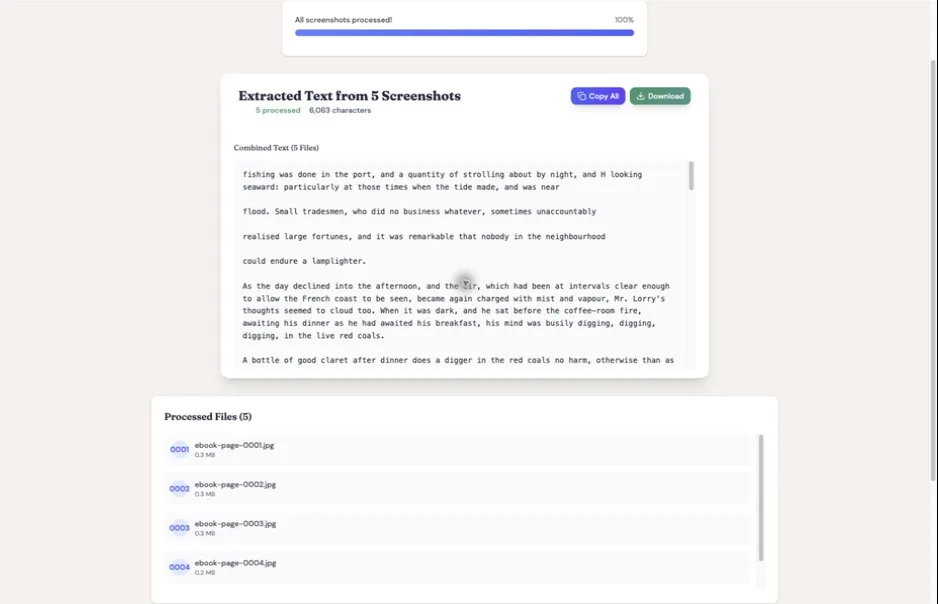
Capture and OCR time vary with page count, page rendering, and device performance. Standard prose typically extracts cleanly, but review the output before pasting it into Claude, especially when wording must be exact. We charge $9.99/month (or $48/year) for unlimited extraction; the first 30 pages are free.
For more on why text outperforms screenshot uploads in any AI tool, see why text beats screenshots for AI analysis.
A Note on Vision-OCR Degradation
One thing worth knowing if you're tempted to skip extraction and just feed Claude screenshots: Claude's vision pipeline OCRs images internally before reasoning about them. That's a second OCR layer on top of whatever rendering Kindle already did, and it's noticeably lossy on proper nouns, technical terms, and quote integrity. Character names get mangled. Citations come out partially garbled.
Text-first extraction sidesteps the vision-OCR pass entirely. The text gets OCR'd once, cleanly, by a pipeline tuned for book pages, and Claude reads text as text. The difference shows up most in fiction (character-name recall), academic work (terminology accuracy), and any prompt that asks Claude to quote the source verbatim.
This is the part I noticed building TextMuncher's OCR pipeline. The token-cost difference between text and screenshots is well-documented; the accuracy difference is less talked about, but matters more for the kinds of analysis you'd actually want a book in Claude for.
Prompts That Work With Claude + Your Book
Claude tends to produce longer, more careful responses than ChatGPT, especially on book-length inputs. The prompts that work best lean into that. Here are the ones I actually use:
For Comprehension and Study
For dense non-fiction or textbooks, "Summarize Chapter [X] in 5 bullet points, then list the 3 claims that need the most evidence" gives you a usable summary plus a critical-reading map in one pass. For confusing concepts, "Explain [concept] in terms a smart 12-year-old would understand, then give one example from the book" anchors the simplification in the source instead of letting Claude wander. Before an exam or talk, "Generate 8 questions a professor would ask about this chapter, ranked by difficulty" is genuinely useful prep.
For Research and Writing
If you're writing a paper or lit review, "What evidence does the author provide for [specific claim]? Quote each piece of evidence verbatim with the surrounding context." is how I get citable material out of Claude without hallucination risk. Making Claude quote the source verbatim is the guardrail. "How does [argument from this book] compare to [other framework]? Be specific about where they agree and where they conflict." does the comparative analysis you'd otherwise spend hours mapping out manually.
For Cross-Book Synthesis (Claude's Sweet Spot)
This is where the 1M context window changes the workflow. Drop two or three full books into a single conversation and ask "Find the three places where the arguments in these books contradict each other. Quote the conflicting passages." That's a multi-book lit-review move that simply didn't work at 200K. With 1M, it does.
For active recall, "Generate 15 flashcards from this book: front of card is a question that requires understanding (not recognition), back is a concise answer with the chapter reference." outputs cleanly into Anki via plain-text import.
Pro tip: Always paste or upload the full chapter (or full book) before asking, not snippets. Claude reasons better with the surrounding context than with isolated fragments. And if you find yourself fighting hallucination, switch the prompt to require verbatim quotes — Claude is much more careful when forced to cite.
When NOT to Use Claude
A few cases where another tool is the better path:
- Highlights-only workflows. If you only need to work with the passages you've already highlighted on Kindle, Mark Carrigan's setup of exporting Kindle's notebook + pasting to Claude is faster than extracting the full book. Glasp and Readwise both import Kindle highlights cleanly if you want a managed pipeline.
- Audio-first studying. If you'd rather listen than read, Gemini Notebook (formerly NotebookLM) generates podcast-style audio overviews from your extracted text.
- Already paying for Google AI. Gemini includes 1M tokens of context with Google AI Pro or Ultra, while the free tier tops out at 32K. Claude is still more careful and produces better long-form analysis in my experience, but if you already pay for one of those plans, Gemini is a reasonable place to start.
The extraction step is the same regardless of which AI you end up using. TextMuncher outputs plain text that works with any of them.
Is This Legal?
TextMuncher captures visible Kindle pages and turns the screenshots into text with OCR; it does not decrypt ebook files. Don't redistribute or sell the extracted text, or post full chapters online. Check school, employer, and platform rules before uploading text to an AI service. Read our copyright and fair-use guide. Whether a particular use is permitted depends on the jurisdiction, material, and use of the output; not legal advice.
The Best Way to Use Claude With Kindle Books
The whole workflow comes down to one bottleneck: getting the text out of Kindle. Once that's solved, the three paths (paste, Project, Skill) let you pick the right level of persistence for the book at hand. Quick one-off analysis goes into a chat. References you'll return to belong in a Project. Books you want resident in your development environment ride along inside a Claude Code Skill.
The 1M context window means most books fit in a single conversation now, and the EPUB-direct upload path means DRM-free books skip the extraction step entirely. For DRM-locked Kindle purchases, screenshot OCR is the route that has worked since Cloud Reader existed: it reads the page your browser already draws, so the file format never comes up.
Solve the extraction problem once, and the rest of your reading life with Claude opens up: chapter summaries in seconds, cross-book synthesis at scale, citable evidence pulled on demand. For more on AI workflows for readers and learners, see our guide for AI-powered learners, the tool-agnostic Kindle + AI guide, or the sister post on using Kindle books with ChatGPT.
FAQ
How much of a Kindle book can I fit into Claude in 2026?
Claude Fable 5.1, Opus 5.5, Opus 5 and Sonnet 5 all support a 1M-token context window: roughly 750,000 words, or about 5-7 average non-fiction books in a single conversation. The 4.8, 4.7, and 4.6 Opus models and Sonnet 4.6 each offer a 500K-token context window in the Claude apps; Haiku 4.5 stays at 200K (~150,000 words, or one 400-page book). Most full-length Kindle books fit comfortably on the current Opus and Sonnet line.
Can Claude Code read my Kindle highlights?
Not directly. Claude Code can't open Kindle's encrypted .azw or .kfx files. The working pattern is to export your highlights to a text file (via My Clippings.txt on physical Kindles, or Amazon's notebook export for cloud users), then point Claude Code at that file via a Skill or by passing the path as an argument. For the full book and not just highlights, use TextMuncher to OCR-extract the Cloud Reader pages, save as a .txt or .md, and feed that into Claude Code.
What's the best way to convert a Kindle book for Claude?
Three paths, ranked by friction. If you only need highlights, use Amazon's notebook export: fastest, free, but limited to passages you happened to highlight. For DRM-free EPUBs from Project Gutenberg or indie publishers, upload directly to Claude.ai (EPUB is on Anthropic's accepted upload list). For purchased Kindle books with DRM, screen-OCR the Cloud Reader pages (TextMuncher automates this) and paste the resulting text. Capture and OCR time vary, and passages that must be exact should be checked against the source.
Does Anthropic let me upload a Kindle book?
Anthropic accepts PDF, DOCX, CSV, TXT, HTML, ODT, RTF, EPUB, JSON, and XLSX uploads to Claude.ai, up to 500MB per file in chat (30MB per file in Projects). It does not accept Kindle's native formats (.azw, .kfx, .mobi) because those are DRM-encrypted and Anthropic has no decryption rights. The practical route is to turn the rendered pages into text yourself first, then upload as TXT, MD, or EPUB.
Why use Claude over ChatGPT for Kindle book analysis?
The extraction step is identical: both AIs need the text out of Kindle first. The differences kick in at the analysis step. Paid Claude plans run Opus 5 and Sonnet 5 at 1M tokens (~750K words); OpenAI publishes 256K per thread for a reasoning model on ChatGPT Plus, about 320 pages of input, so long books that need chunking in ChatGPT often fit whole in Claude. Claude also produces more careful, longer-form summaries, useful for academic, research, or technical reading. Since personal ChatGPT plans can no longer create Custom GPTs, Projects is now the way to keep a book persistent in ChatGPT. On the Claude side, Projects paired with Claude Code Skills is the comparable setup, and it gives developers more flexibility.
Is it legal to extract Kindle text for Claude?
TextMuncher captures rendered pages you can already view and uses OCR to turn the screenshots into text. It does not decrypt ebook files. Whether a particular use is permitted depends on the jurisdiction, the material, and what you do with the output. This is not legal advice. Read our copyright and fair-use guide.
Will Amazon ban my account for extracting text?
Screen-OCR extraction doesn't touch Amazon's servers or violate their terms of service. You're capturing what's displayed on your own screen, the same thing you'd do by taking a phone photo of your monitor. Readers have been doing this for years without account issues.
Does the extracted text include images and charts?
No. OCR pulls text only. Diagrams, charts, and inline images don't come through as visual content. For image-heavy books like art textbooks or cookbooks, you'll want the original alongside your extracted text. Most non-fiction and fiction books are text-dominant and extract cleanly.
Students using Claude for assigned books can start with the Kindle course-reading guide for seminar questions, comparisons, verified quotations, and exam prep.
Want to feed your Kindle library into Claude? Try TextMuncher free (30 pages included, no credit card). The dedicated Kindle to Claude solution page covers the product side.