
Feed Kindle Booksto Microsoft Copilot
Extract full chapter text from Kindle and paste it into Microsoft Copilot for book summaries, analysis, and research in your Microsoft workflow.
Local-First Processing
Works with Kindle Cloud Reader
No Desktop Software
Why Can't Copilot Read Your Kindle Books Directly?
Microsoft Copilot is powerful - but it can't access your locked Kindle library.
Microsoft Copilot can analyze documents and answer detailed questions about content you provide. The problem is getting Kindle book text into Copilot: Amazon's copy restrictions limit bulk text export, and Copilot can't connect to your Kindle account. TextMuncher bridges the gap by extracting complete chapter text from Kindle Cloud Reader, which you then paste into Copilot for analysis.
No Kindle-Copilot Integration
Microsoft and Amazon don't share data. Copilot cannot read your Kindle library or access book text directly.
Kindle's Copy-Paste Limit
Amazon restricts how much text you can copy from any book - typically about 10%. Too little for thorough analysis.
Screenshots Are Inefficient
Uploading Kindle screenshots to Copilot wastes tokens and produces less accurate responses than clean text input.
Bridge Kindle and Microsoft Copilot
Full Book Text for Copilot
TextMuncher extracts complete chapters. Paste into Copilot for summaries, Q&A, and research without Amazon's restrictions.
Automated Extraction
The extension turns pages and captures each one as a screenshot; the web app at textmuncher.com/extract runs OCR once the ZIP is uploaded. Review the chapter text, then move it to Copilot.
Works With Word and Edge Copilot
Paste extracted text into Copilot in Microsoft Word, Bing, Edge sidebar, or the Copilot web app - all work the same way.
How It Works
Three steps. No technical knowledge required.
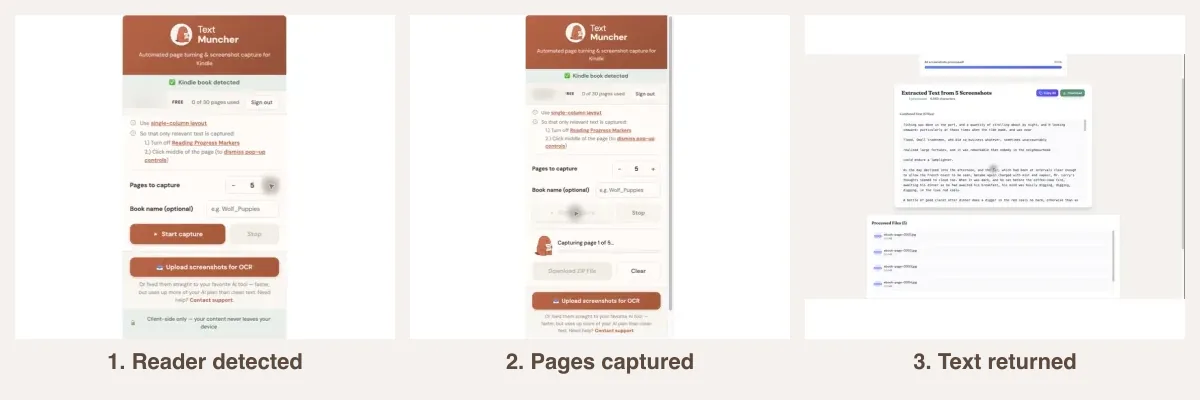
1. Install TextMuncher
Add to Chrome in 10 seconds.
2. Extract Your Kindle Chapter
Open read.amazon.com and run TextMuncher on the chapter you want.
3. Paste Into Copilot
Copy the extracted text and paste it into any Microsoft Copilot interface for analysis.
using books with AI tools why text beats screenshots for AI
Related Resources
Kindle to ChatGPT Kindle to Claude Kindle to Perplexity Kindle to Grok Can Perplexity Read Kindle Books?Frequently Asked Questions
Which Copilot interface works best for book analysis?
Copilot in Microsoft Word is excellent for analyzing book content if you are already working in a document. The Copilot web app and Edge sidebar also work well. All accept pasted text from TextMuncher.
Can I upload extracted text as a file to Copilot?
Yes. Copilot supports file uploads. Save TextMuncher output as a .txt file and upload it for longer documents, or paste directly for quick sessions.
How does Microsoft Copilot compare to ChatGPT for book analysis?
Both are capable, and TextMuncher's text output works with either one. Copilot works inside the Microsoft 365 apps with a Microsoft 365 Personal, Family or Premium subscription, which makes it handy when you're building documents. On a Family plan, keep in mind that only the primary account holder gets the full Copilot features, not every member.
Does TextMuncher work in Edge browser?
TextMuncher is a browser extension for Chrome and Firefox. Microsoft Edge is Chromium-based and supports Chrome extensions through the Edge Add-ons store or by enabling developer mode. TextMuncher works in Edge, though Chrome and Firefox are the officially supported browsers.
What about Copilot in Microsoft Teams or Outlook?
Copilot in Teams and Outlook focuses on meeting transcripts and emails. For book analysis, the Copilot web app or Word integration is the better fit.
Ready to Analyze Books With Copilot?
Get TextMuncher Free30 free pages • No credit card • Cancel anytime