
Can Perplexity Read Kindle Books? Upload Limits and the Workflow (2026)
Perplexity can't open DRM-locked Kindle files. Its real file upload limits, plus the extract-then-upload workflow that works for book research.
Published • By Mike
To move Kindle to Perplexity in 2026, you need to extract the book text first. Perplexity can work with uploaded files, Spaces, and Research mode, but Kindle purchases are locked inside Amazon's reader. The practical path is: capture the Kindle Cloud Reader pages, OCR them into clean text, then upload or paste that text into Perplexity.
I built TextMuncher because this exact problem kept showing up for readers using AI tools. Perplexity is strong for source-backed research, but it cannot magically read a DRM-locked Kindle book. The bottleneck is still getting the words out of Kindle and into a format Perplexity can use.
Last verified: 2026-05-24. Perplexity changes plans and file limits often, so check the linked Perplexity pages before relying on exact caps.
This guide covers the full workflow: where file upload works, when a Space is better than a one-off thread, and how Research mode fits book work.
Can You Upload Kindle Books Directly to Perplexity?
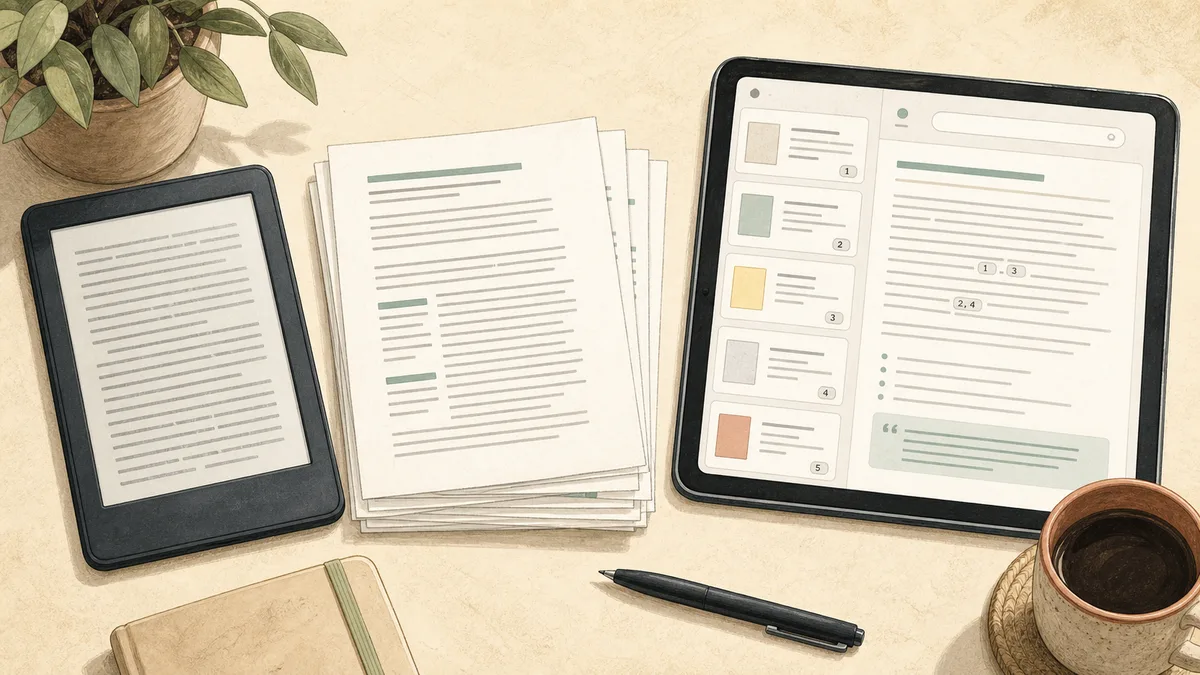
You usually cannot upload a purchased Kindle book directly to Perplexity. Kindle's .azw and .kfx files are Amazon formats with DRM. Perplexity's current upload docs cover files such as plain text, PDFs, office documents, images, audio, and video, but they do not list Kindle-native formats as supported uploads.
That creates a simple split:
| Book source | Best Perplexity path |
|---|---|
| DRM-free PDF or document | Upload the file directly |
| Plain text, code, or PDF export | Attach it to a Perplexity thread |
| Project files you will query repeatedly | Add them to a Perplexity Space |
| Purchased Kindle book in Cloud Reader | Extract text first, then upload or paste |
Kindle .azw or .kfx file |
Do not expect direct upload to work |
Perplexity's file uploads documentation says thread uploads can include textual files, code, PDFs, images, audio, and video. It also says long files may be reduced to the most relevant parts for the query.
For developer workflows, the Perplexity API file attachment docs list PDF, DOC, DOCX, TXT, and RTF. That confirms a practical fact for book work: plain text is a safe output format, while EPUB and Kindle-native formats are not listed there.
For a purchased Kindle book, the reliable path is:
- Open the book in Kindle Cloud Reader.
- Extract the rendered pages with OCR.
- Save the result as TXT, DOCX, or PDF.
- Upload or paste that file into Perplexity.
If you only need highlights, start with exporting Kindle highlights and notes. If you need chapter-level coverage, use full text extraction instead.
Why Perplexity Is Different for Book Research
Perplexity is most useful for Kindle books when you want answer-backed research, not just a summary. Its core advantage is the combination of cited answers, uploaded files, Spaces, and Research mode. That makes it a good fit for students, researchers, and professionals who need to check claims against sources.
The current SERP gap is clear: forum and Hacker News threads show unmet demand, while Amazon results mostly point to books about Perplexity. This post owns the actual method.
Perplexity gives you three useful pieces once the book text is extracted:
- Threads with files: Attach a chapter or book file and ask focused questions.
- Spaces: Keep a project library in one place with files, threads, custom instructions, and source selection.
- Research mode: Ask Perplexity to run deeper research around your book, using web sources plus the material you provide.
The citation piece matters. A Columbia Journalism Review study found that AI search tools often cite sources incorrectly, and Perplexity still answered 37% of the tested citation queries incorrectly. That does not make Perplexity useless. It means you should make the source set easier to inspect.
When your Kindle book is uploaded as a source, you can ask Perplexity to cite the uploaded text and then verify the answer against the passage. That is a better workflow than asking an open-web answer engine to remember or infer what a book says.
How to Extract Kindle Text for Perplexity
The extraction step is the same whether you plan to use a Perplexity thread, Space, or Research mode. TextMuncher captures Kindle Cloud Reader pages, turns the screenshots into text in your browser, and gives you a clean file you can paste or upload. It does not decrypt Kindle files.
Here is the workflow:
- Install the TextMuncher Chrome extension.
- Open the book in Kindle Cloud Reader.
- Start capture from the extension popup.
- Let TextMuncher turn pages and capture screenshots.
- Upload the batch to TextMuncher's OCR app.
- Save the extracted text as TXT, Markdown, DOCX, or PDF.
- Add that output to Perplexity.
Capture and OCR time vary with page count, page rendering, and device performance. The OCR pipeline uses Tesseract.js; standard prose typically extracts cleanly, while complex pages may need correction.
This matters because Perplexity is better with clean text than screenshots. Screenshot uploads force the model to read visual pages first, which can drop proper nouns, footnotes, equations, and quote boundaries. A text file gives it words directly, so converting your Kindle book to plain text comes before any upload.
For the broader extraction logic, read the guide on getting book text into AI tools.
Should You Use a Perplexity Thread or a Space?
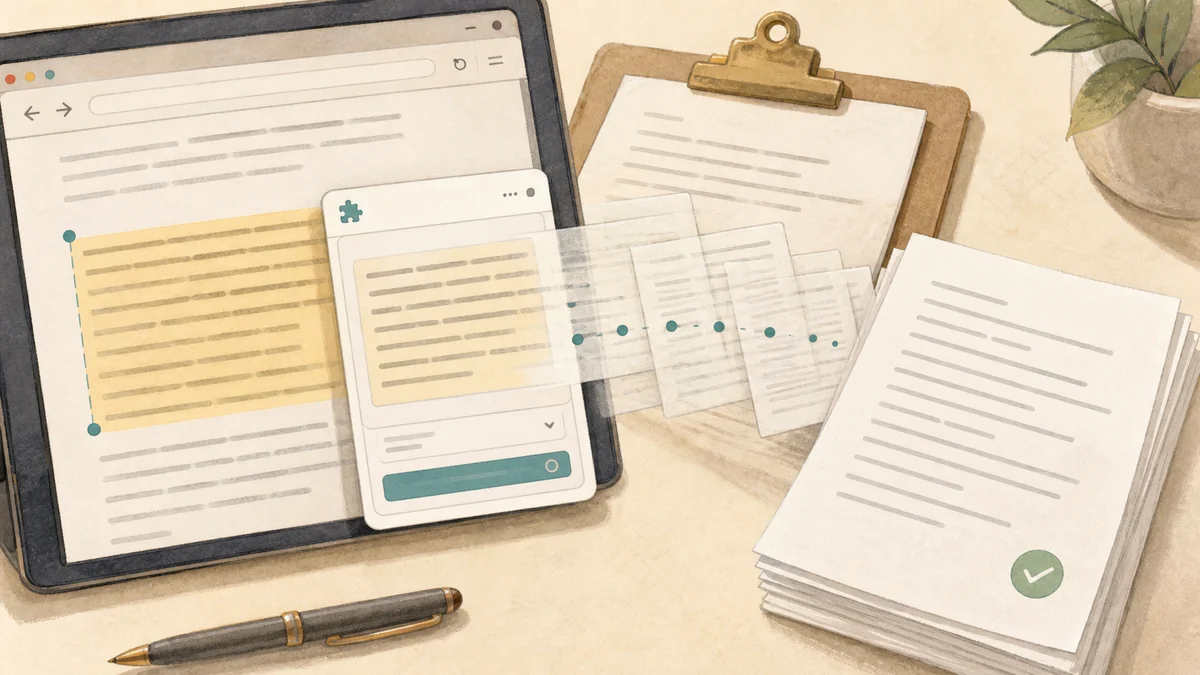
Use a thread for one-off questions and a Space for a project you will return to. A thread is faster for a single chapter summary. A Space is better for a class, literature review, consulting project, or research library where the same files and instructions should stay attached.
Perplexity's current Spaces help page describes Spaces as project workspaces with files, threads, custom AI instructions, source selection, and sharing controls. It also says Pro subscribers can upload up to 50 files per Space, while Enterprise Pro and Max users get higher limits.
For Kindle work, that is a good fit for project-scale research:
| Use case | Better choice | Why |
|---|---|---|
| Summarize one chapter | Thread | Fast and disposable |
| Ask questions about one whole book | Thread or Space | Use a Space if you will come back |
| Compare 5 books for a paper | Space | Keeps source files and threads together |
| Build a professional research folder | Space | Custom instructions and source selection help |
| Run repeated literature scans | Space plus Research mode | Book text stays tied to the research project |
One caveat: Perplexity's file-type rules differ by surface. The file upload page supports broad thread attachments, while the internal knowledge search docs list office files, PDFs, and CSV for that search surface. If a TXT or Markdown file does not appear as an option in your Space upload dialog, convert the extracted book text to DOCX or PDF before adding it.
The best Space setup is simple:
- Create one Space per class, client project, or research topic.
- Upload the extracted book files.
- Add custom instructions such as: "Answer from uploaded book files first. Cite the file and section for every claim."
- Ask targeted questions instead of broad "summarize everything" prompts.
That gives Perplexity a stable source set and gives you a way to audit answers.
How to Use Research Mode With Kindle Books
Use Perplexity Research mode when the book is the starting point, not the whole task. Research mode can search, read sources, reason through the material, and produce a report. For Kindle books, the best use is to combine extracted book text with live sources around the same question.
Perplexity's current Research mode help page says Research performs dozens of searches, reads hundreds of sources, and generates reports for complex questions. The same page says users cannot manually pick a model for Research mode because Perplexity selects the model mix automatically.
Because model choices change often, this draft does not name a minor model version.
Good Kindle-to-Research prompts:
- "Use the uploaded book as the primary source. Compare the author's thesis with current research from the last two years. Separate book claims from web evidence."
- "Find where this book's argument conflicts with recent academic or industry sources. Cite the book file and every outside source."
- "Turn this book into a research brief for [topic]. Use the uploaded file for the author's position and web sources only for updates or counterpoints."
- "List five claims from the book that need verification today. Cite the original passage and the best current source."
Avoid asking Research mode to "analyze my whole library" in one shot. Start with a focused question, then widen the scope. Perplexity is better when the task has a clear research target.
What Amazon's Ask This Book Still Does Not Solve
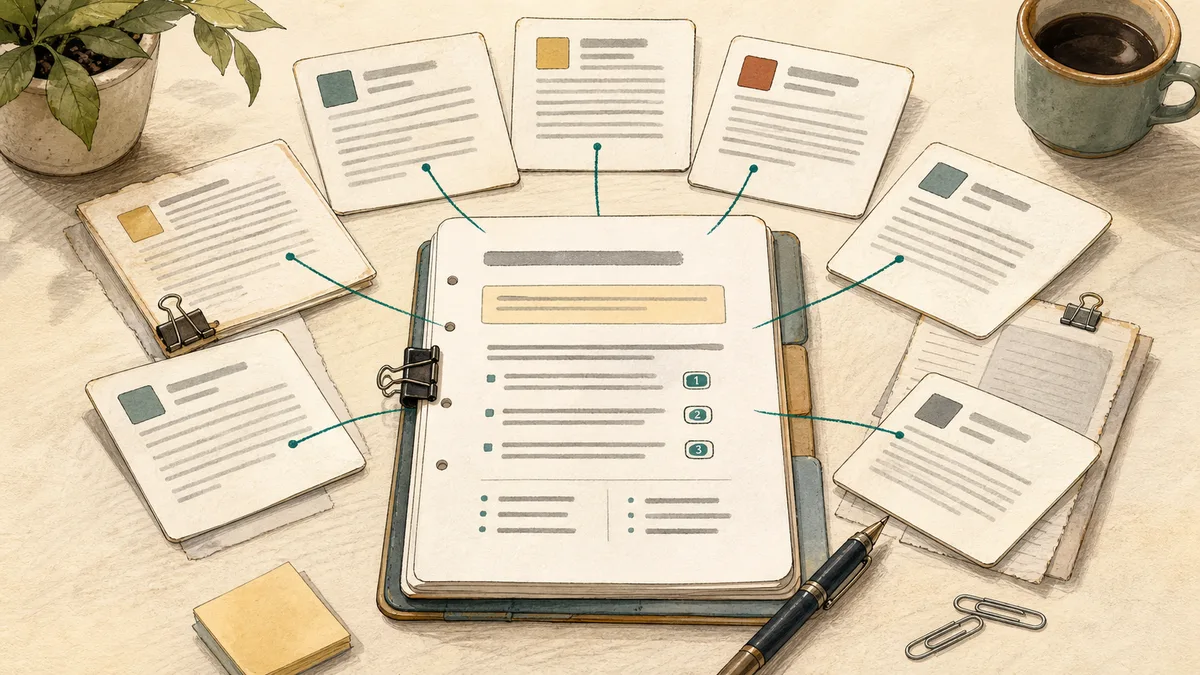
Amazon's own "Ask this Book" feature proves the demand for AI-assisted reading, but it does not replace a Kindle to Perplexity workflow. Amazon describes it as a Kindle reading feature for spoiler-free answers inside the Kindle experience. It is not a Perplexity Space, not your model choice, and not a multi-book research workspace.
Amazon's Kindle feature page says "Ask this Book" lets U.S. customers ask questions about thousands of English-language eBooks and receive spoiler-free answers. It also says the feature is currently available on the Kindle iOS app in the U.S. and will expand to Kindle devices and Android.
That is useful if you want a quick in-reader explanation. It is weaker if you want to:
- Compare several books in one project.
- Bring the book into Perplexity's citation-heavy research workflow.
- Add custom instructions for a class or client project.
- Mix book evidence with current web research.
- Keep your extracted notes in your own files.
The difference is control. Ask this Book keeps the AI inside Kindle. TextMuncher plus Perplexity gets the text into your research system, where you can choose the workflow, save the source, and ask follow-up questions across books.
Best Prompts for Kindle Books in Perplexity
The best Perplexity prompts tell the model what to use as evidence. Do not just ask for a book summary. Tell it whether to answer from the uploaded book only, from the web only, or from both. That source choice is the main research control.
Use these starting prompts:
- "Answer using only the uploaded book file. Cite the passage for every claim."
- "Create a chapter outline from this file. Keep each chapter to five bullets and include the strongest quote."
- "Find every place where the author discusses [topic]. Group the passages by subtheme."
- "Compare this book with current sources on [topic]. Mark each claim as book-only, web-supported, or web-disputed."
- "Create 20 active-recall questions from this chapter. Each answer must cite the uploaded source."
For a Space, add a standing instruction:
Use uploaded files as the default source. If you use web sources, label them separately. Never blend book evidence and web evidence without saying which is which.
That one instruction reduces a lot of confusion. It keeps Perplexity from turning a book analysis question into a general web answer.
The Best Kindle to Perplexity Workflow
The best workflow is to extract first, then choose the Perplexity surface based on the task. Threads are best for single chapters. Spaces are best for ongoing research. Research mode is best when you want Perplexity to compare the book with current sources.
For most TextMuncher users, the chain looks like this:
- Kindle Cloud Reader displays the book.
- TextMuncher extracts the rendered text.
- You save the output as TXT, DOCX, or PDF.
- Perplexity reads the extracted source in a thread, Space, or Research run.
The important point is that extraction is not the research product. It is the missing bridge. Once the Kindle text is out, you can use Perplexity for source-backed Q&A, literature review prep, study guides, claim checking, and project research.
If you want the companion workflows, read the sister guides for Kindle books with NotebookLM, Kindle books with Claude, and Kindle books with ChatGPT. The extraction step is the same. The best destination depends on what you want the AI to do after it has the book.
FAQ
Can Perplexity read Kindle books directly?
Not usually. Perplexity can work with many uploaded file types, but Kindle purchases are usually stored as Amazon-controlled files such as .azw or .kfx. Those are not normal text documents. For a purchased Kindle book, open it in Kindle Cloud Reader, extract the rendered text, then upload or paste the result into Perplexity.
Does Perplexity accept EPUB files?
I did not find EPUB listed in the official Perplexity upload or API file-attachment pages checked for this draft. The safer route is to use TXT, DOCX, PDF, or another format shown in the current upload surface. If you have a DRM-free EPUB, convert it first if Perplexity does not accept it directly.
Should I use Perplexity Spaces for Kindle books?
Use a Space if the book belongs to an ongoing project. Perplexity's current Space docs say Pro users can upload up to 50 files per Space, with higher limits on business plans. That is enough for most class projects, research folders, and small literature reviews. Use a normal thread for one-off chapter questions.
Is Perplexity Research mode better than a normal thread?
Research mode is better when the task needs outside sources. A normal thread is enough for "summarize this chapter" or "explain this passage." Use Research mode when you want Perplexity to compare the book with current web sources, find evidence, or build a report around a research question.
Is it legal to extract Kindle text for Perplexity?
Extracting text from books you can access for private study, research, or note-taking is generally treated like personal use. TextMuncher captures pages shown on your own screen and does not decrypt Kindle files. Do not publish, sell, share, or train a public product on extracted book text without rights. Read our copyright and fair-use guide.
Why use Perplexity instead of NotebookLM for Kindle books?
Use Perplexity when you want web research and citation-heavy answers around the book. Use NotebookLM when you want a source-grounded notebook with study aids such as Mind Maps, flashcards, and Audio Overviews. Both need clean Kindle text first, unless your source file is already in a format the tool accepts.
Want to use Kindle books in Perplexity? Try TextMuncher free - 30 pages included, no credit card. The Kindle to Perplexity solution page covers the product workflow.