
How to Export Kindle Highlights & Notes With Full Context (2026)
Export Kindle highlights and notes free from the Amazon notebook, My Clippings.txt, or any device. Plus how to recover text past the 10% cap.
Published · Updated • By Mike
You've been highlighting Kindle books for years. Passages you wanted to remember, ideas you planned to revisit, quotes you thought you'd use someday. The problem is those highlights are sitting inside Amazon's ecosystem, mostly inaccessible unless you know where to look.
This guide covers every method that actually works in 2026, from the free tools Amazon provides to third-party sync services, plus how to get your highlights working with AI tools like ChatGPT and Claude.
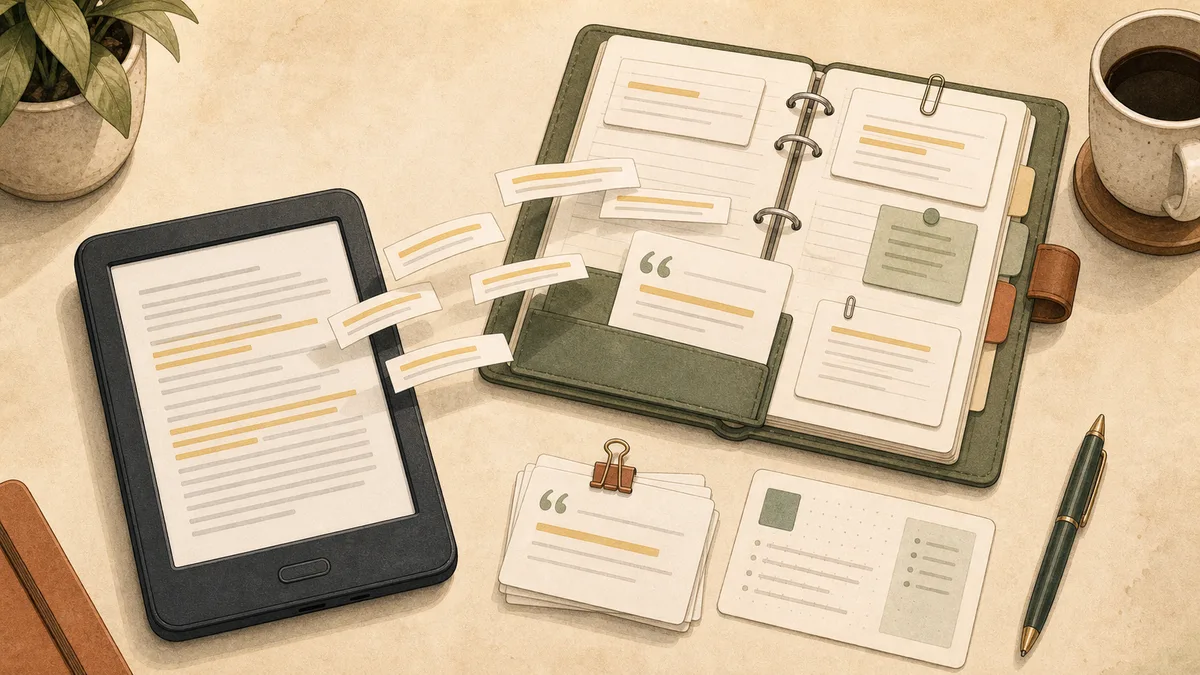
The Four Ways to Export Kindle Highlights
To export Kindle highlights and notes, use four methods: Amazon's web notebook, My Clippings.txt on a physical Kindle, Readwise sync, or full-page extraction. Amazon's notebook and Readwise exports can hit the publisher-set 10% clipping cap; My Clippings is device-local, and full-page extraction captures visible page context when export tools run out.
There are four methods worth knowing, each suited to a different situation:
| Method | Cost | What You Get | Best For |
|---|---|---|---|
| Kindle web notebook | Free | Up to 10% of each book's highlights | Quick exports, occasional use |
| My Clippings.txt | Free | Everything you've highlighted on that device | Full backup of device highlights |
| Readwise | From $5.59/month | Auto-sync to Notion, Obsidian, Anki, etc. | Active readers who use their highlights |
| Full-context extraction | Free–$9.99/month | Complete page text surrounding your highlights | When you need more than the quoted sentence |
There's one important limitation to understand before you choose a method: Amazon's 10% clipping limit. Publishers set a cap on how much text can be exported per book, typically 10% of total length. Once you hit it, Kindle may stop sending new highlights to Amazon's notebook export and sync tools. Your highlights still appear in the book, but they may not appear in cloud exports. My Clippings.txt is different: it is a device-local file, so it is useful as a Kindle backup, but it is not a full cloud history. Full-page extraction fills the gap when visible page text matters more than the export file.
Where Kindle Highlights Live Before You Export
Your Kindle highlights live in the book, Amazon's web notebook, and device-local clippings on physical Kindle e-readers. This export guide focuses on backup and file formats; for the canonical viewing guide, see where your Kindle highlights live and how to view them.
Method 1: Kindle's Web Notebook
The easiest free method is Amazon's own notebook tool at read.amazon.com/notebook. Every highlight you've made across all your Kindle books and apps is organized here by title.
To export from the web notebook:
- Go to read.amazon.com/notebook in any desktop browser
- Select a book from your library
- Click the export icon (top right of the book view)
- Choose your format: plain text, HTML, or CSV
The export gives you each highlight as a separate entry, with the location in the book and any notes you added. For most titles, this covers your full highlight history up to the 10% publisher cap.
One thing to know: Amazon restricted copying directly from the notebook app on mobile in late 2025. The desktop web export still works. If you're hitting Kindle's copy restrictions on mobile, the desktop notebook is your workaround.
Method 2: My Clippings.txt on Your Kindle Device
If you own a Kindle e-reader (not just the app), your device stores every highlight and note you've ever made in a single file called My Clippings.txt. This file doesn't have a publisher cap. It captures everything regardless of the 10% limit.
Here's where to find it:
- Connect your Kindle to your computer via USB
- Open the Kindle as a storage drive
- Find
documents/My Clippings.txtin the root folder - Copy it to your computer
The file is plain text. Each clipping looks like this:
The Design of Everyday Things (Donald A. Norman)
- Your Highlight on page 52 | location 792-794 | Added on Monday, March 15, 2026

"The designer has to know whether it is appropriate to give the user a powerful but complex design tool, or a simple, restricted one."
==========
Every highlight from every book, all in one place. The downside is that it only contains what was highlighted on that specific device. Highlights from the Kindle app on your phone or tablet won't appear here unless you also sync them to a physical device.
For anyone with an older Kindle that's losing store access in May 2026, copying My Clippings.txt before the cutoff is worth doing. The file itself isn't affected by Amazon's service changes, but it's good practice to back it up now.
Method 3: Readwise
Readwise costs $9.99/month billed annually ($12.99 month-to-month). A Lite plan at $5.59/month covers daily review only: no RSS, no PDFs. The full plan includes Readwise Reader, a built-in read-later app that replaces Pocket or Instapaper. It connects to your Amazon account and pulls all your Kindle highlights automatically, then re-sends them daily via email ("Daily Review") and syncs everything to Notion, Obsidian, Logseq, Anki, and other tools you might already use.
For readers who actually go back to their highlights (to review them, add to notes, or incorporate them into writing), Readwise is the best option by a significant margin. The automation removes all friction. Your highlights appear in Notion the same day you make them.
The limitation is the same 10% publisher cap that affects Amazon's own notebook. Readwise reads highlights through Amazon's own export, so the cap still applies; it just makes the highlights easier to use.
One other limitation worth knowing: Readwise only syncs highlights from Kindle Store purchases and borrows. Highlights from personal documents you've sent to your Kindle via Send to Kindle (PDFs, Word files, EPUB files) don't sync. Amazon doesn't expose those through the same cloud API. For personal documents, your only export option is My Clippings.txt on a physical device.
If you're primarily looking for a one-time backup rather than ongoing sync, the free methods above are enough. Readwise makes sense if you want your highlights woven into a note-taking system you use every day.
Export Kindle Highlights to Markdown, CSV, PDF, or Word
The export method matters more than the file extension. First get the highlights out of Kindle, then convert the file into the format you need.
| Format | Fastest Route | Best For |
|---|---|---|
| Markdown | Export plain text or copy My Clippings.txt, then clean it in Obsidian or another Markdown editor |
Obsidian vaults, personal notes, AI prompts |
| CSV | Use the Kindle web notebook CSV export when available | Sorting by book, location, date, or tag in a spreadsheet |
| Export text or HTML, clean the spacing, then print or save as PDF | Fixed archives, sharing a read-only copy | |
| Word | Open the text or HTML export in Word and save as .docx |
Papers, quote banks, editing workflows |
| Notion / Obsidian | Use Readwise for automatic sync, or import Markdown/CSV manually | Ongoing review systems |
If you only need a one-time PDF or Word document, you do not need a paid sync tool. Use the free export first, then save the cleaned file in your target format.
If you want whole-book text rather than just highlights, the format-specific extraction guides cover the full pipeline: Kindle to Markdown, Kindle to Notion, and Kindle to Obsidian.
When You Need More Than Just the Highlight
Here's a problem none of the standard export tools solve: the highlight is one sentence, but the meaning requires the surrounding paragraph.
You marked something interesting three years ago. Now you open the export and see the quote, but the context that made it meaningful is missing. Was this a claim the author was making, or refuting? What was the example that followed?
This is where full-page extraction becomes useful. Instead of exporting just the highlighted sentence, you extract the full text of the pages around it. Then you have the passage, the paragraph before, and the example after.
I built TextMuncher for exactly this kind of extraction. You open the book in Kindle Cloud Reader, go to the section you need, and the extension captures the full page text automatically. You get clean, copyable text rather than just the isolated quote.
It also works when you've hit the 10% highlight limit and can no longer export new highlights through Amazon's notebook. If the text is visible in Cloud Reader, TextMuncher can extract it, regardless of how many highlights you've already exported.
For the highlights-and-context workflow: export your highlights via the notebook to get the list of passages, then use TextMuncher to extract the full pages around the ones that need more context. You get the best of both: structured highlight history plus the surrounding material when you need it.
How to Use Your Kindle Highlights with AI
The most useful thing you can do with exported highlights in 2026 is feed them to an AI tool for synthesis, review, or study.
A few workflows that work well:
Book summary and synthesis: Export all highlights from a book, paste them into Claude or ChatGPT, and ask for a synthesis of the main themes. Faster than re-reading, and the AI connects dots across highlights you made months apart. See more on reading Kindle books with AI for the full workflow.
Active recall: Export highlights from a chapter, then ask the AI to quiz you on the material using only what you highlighted. This works better than trying to generate quiz questions yourself, since the AI surfaces gaps in what you actually marked.
Literature review: For researchers pulling quotes from multiple books, export highlights from several titles, combine them into one document, and ask the AI to find connections, contradictions, or supporting evidence for a specific argument.
Daily review with context: Readwise sends you highlights daily, but they're decontextualized. For the ones you want to actually understand, pull the surrounding pages with TextMuncher and re-read the section before responding to the daily email.
The raw highlight alone (a single sentence in a text file) isn't that useful on its own. Combined with an AI that can reason across multiple highlights, or with the full page context, it becomes a working research archive.
How to Export Your Kindle Notes
Your Amazon Kindle notes and highlights are worth keeping. The free methods (web notebook, My Clippings.txt) cover most use cases. Readwise is the right tool if you use your highlights actively and want them in Notion or Obsidian. And when you need the surrounding passage rather than just the quote, extracting full page text from Cloud Reader fills the gap.
The one thing to do now: back up your My Clippings.txt file. It's sitting on your Kindle device, unsynced to any cloud, and it contains every highlight you've made on that hardware. Copy it to your computer today.
FAQ
How do I export all my Kindle highlights at once?
Use My Clippings.txt if you need one file from a physical Kindle, or use read.amazon.com/notebook if you need cloud highlights book by book. The web notebook exports per title. My Clippings.txt combines highlights from that device, which makes it the closest free all-at-once backup.
Why are my Kindle highlights not exporting?
Kindle highlights usually stop exporting because you hit the publisher-set clipping limit, the highlight belongs to a personal document Amazon does not sync, or the highlight was made on another device. Check the book inside Kindle first. If the text is visible there, full-page extraction can still recover the surrounding passage.
Can you highlight on Kindle?
Yes. For the full walkthrough of highlighting, finding, and viewing Kindle highlights, see where your Kindle highlights live and how to view them. This guide covers exporting and backing them up once they exist.
Where are my Kindle highlights?
Your Kindle highlights are in the book, in Amazon's web notebook, and in documents/My Clippings.txt on a physical Kindle. For the full viewing map, see where your Kindle highlights live and how to view them.
What is clipping on Kindle?
On Kindle, a clipping is a saved highlight or note. Physical Kindle devices collect those clippings in My Clippings.txt, a plain-text file you can copy over USB. The term matters because many export tools, forum threads, and help pages use "clippings" when they mean Kindle highlights and notes.
Where is the My Clippings.txt file?
The My Clippings.txt file is in the documents folder on a physical Kindle. Connect the Kindle to your computer with USB, open it as a storage drive, and copy documents/My Clippings.txt. It is not available from the Kindle phone app or Kindle Cloud Reader.
Does My Clippings.txt include all my highlights?
My Clippings.txt includes highlights and notes stored on that physical Kindle, not your entire Amazon cloud history. It can be a strong device backup, but it will miss highlights made only in the Kindle app or Cloud Reader unless they were synced to that e-reader first.
How do I export Kindle highlights to PDF?
Export Kindle highlights to PDF by first exporting text, HTML, or CSV from Amazon's notebook, then saving or printing that file as a PDF. Amazon does not provide a perfect one-click PDF export for every book. For cleaner archives, export the text first, fix spacing, then create the PDF.
How do I export Kindle highlights to Markdown, CSV, or Word?
For CSV, use Amazon notebook's CSV export when it is available. For Markdown, export plain text or copy My Clippings.txt, then clean the separators in Obsidian or another editor. For Word, open the text or HTML export in Word and save it as a .docx file.
Can I export Kindle highlights to Notion or Obsidian?
Yes, Readwise is the easiest path for ongoing Notion or Obsidian sync, but it requires the full paid plan. For a free one-time export, use Amazon notebook text or CSV, then import that file manually. Obsidian works best with Markdown; Notion handles CSV imports cleanly. For full-book text in either app, the format-specific extraction guides cover the full pipeline.
How do I export highlights from sideloaded or non-Amazon Kindle books?
For sideloaded or non-Amazon books, use My Clippings.txt on a physical Kindle. Amazon's cloud notebook and Readwise usually rely on Kindle Store cloud data, so personal documents may not appear there. If the book is visible in Cloud Reader or another web reader, full-page extraction can capture the surrounding text.
What's the best way to use Kindle highlights with ChatGPT or Claude?
Export highlights as plain text, then ask ChatGPT or Claude for synthesis, themes, questions, or contradictions across the passages. Use the AI on your highlights first, then add full-page context for quotes that need surrounding paragraphs. The results are better when the model sees complete passages, not fragments.
Try TextMuncher free: 30 pages included, extract the full context around any highlight.