
Kindle Notebook Copy Limit: What Still Works (2026)
Amazon blocked copying from My Notebook in late 2025. Your highlights are still there. How to export them and get full text from any Kindle book.
• By Mike
For years, Kindle's "My Notebook" was the quiet workaround everyone relied on. Highlight text in your book, open Notebook, copy your highlights as plain text. It was still subject to the publisher's 10% clipping limit, but it was easy: no tools, no extensions, just copy and paste.
Then Amazon restricted it. As of late 2025, copying from My Notebook in the Kindle app is now blocked for many titles. The last friction-free way to get your own highlights out of Kindle just disappeared.
If you're here because your highlights suddenly won't copy, here's what happened and what still works.
What Changed With Kindle's My Notebook
Amazon has been steadily tightening text extraction from Kindle throughout 2025. The My Notebook restriction is part of a broader pattern:
- February 2025: Amazon removed the "Download & Transfer via USB" option, killing the Calibre + DeDRM workaround that power users had relied on for years
- Mid-2025: Kindle Cloud Reader began rendering more books as canvas images instead of selectable HTML text, blocking developer tools extraction
- Late 2025: Copying from My Notebook in the Kindle app became restricted for many titles. The publisher's copy limit now applies to Notebook exports too.
Previously, you could highlight freely and then bulk-copy from Notebook even after hitting the in-reader copy limit. That loophole is closed. The copy limit now follows your highlights everywhere.
Why Amazon Keeps Closing Workarounds
Every workaround that made Kindle text accessible got shut down because Amazon's DRM strategy is driven by publisher licensing agreements. Publishers set copy limits (typically 5-10% of a book) and Amazon enforces them across every surface.
The pattern is clear: any method that lets you extract more text than the publisher allows will eventually get patched. My Notebook was just the latest casualty. Amazon has systematically closed every loophole over the past year, from USB downloads to DOM-based extraction to Notebook copying.
This isn't a bug. It's the strategy.
What Still Works in 2026
With My Notebook locked down, here's what's actually left for getting text out of your Kindle books.
read.amazon.com/notebook (Limited)
Amazon's web-based Notebook at read.amazon.com/notebook still displays your highlights in a browser. For some books, you can still select and copy text from this interface. But it's inconsistent. Some titles block copying here too, and you're still bound by whatever clipping limit the publisher set.
Works well if you just need to grab a few quotes from books where web copying still works. Not reliable as a primary method.
Glasp Browser Extension (Highlights Only)
Glasp is a browser extension that can bulk-export your Kindle highlights from Kindle Cloud Reader as CSV, Markdown, or TXT. It reads the highlight data the web interface already renders, rather than copying from the app.
The catch: It only exports highlights you've already made, and it's still subject to the publisher's clipping limit. If you've hit 10%, Glasp can't get you past that wall either. It just makes exporting what you can access more convenient.
Skip this if you've already hit the copy limit. It's the right choice for organizing existing highlights in bulk, but it doesn't solve the underlying copy limit problem. If Glasp isn't a fit, there are other Glasp alternatives that pull highlights the same way.
Screenshot + OCR (Reads the Page, Not the File)
Screenshots capture exactly what's rendered on your screen. DRM protects the book file; it has no say over a picture of your own display. Run OCR on the screenshots and you get clean, copyable text.
The manual version (screenshotting each page one at a time) works but is brutally tedious for anything longer than a few pages. A 200-page textbook means 200 screenshots, 200 uploads, and a lot of patience.
The right choice when you only need a few pages and don't mind doing it by hand.
Automated Screenshot + OCR (What I Built)
Full disclosure: I built TextMuncher after getting frustrated with this exact problem. The Chrome extension automates page turning and screenshot capture in Kindle Cloud Reader. Upload the batch to textmuncher.com for OCR; processing time varies with the batch and device.
How it works:
- Open your book in Kindle Cloud Reader
- Click "Start" in the TextMuncher extension
- Let it handle page turning and screenshot capture hands-free. Long runs can stop early and may need restarting.
- Upload to textmuncher.com for high-accuracy OCR
- Copy your text
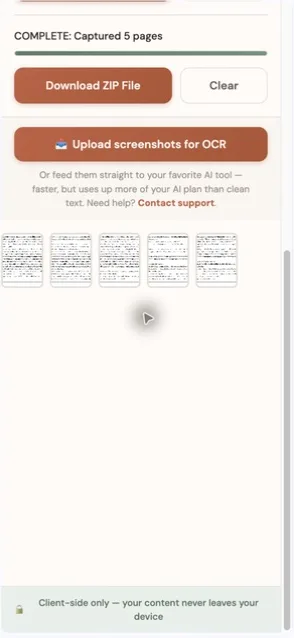
This route never touches the clipboard, so the publisher's copy counter never moves: you are photographing the page your browser already drew and reading the letters back out of the picture. The 10% limit governs copying text out of the book file, not what your own screen displays.
Pricing: 30 free pages to try, then $9.99/month for unlimited. If you're extracting more than a chapter, automation beats manual work every time.
Comparison: What Actually Works After the Notebook Lockdown?
| Method | What it reads | Subject to the copy limit? | Full Book? | Effort | Cost |
|---|---|---|---|---|---|
| My Notebook (app) | Your saved highlights | Yes, and restricted since late 2025 | No | — | Free |
| read.amazon.com/notebook | Your saved highlights | Yes, and inconsistent per title | No | Low | Free |
| Glasp | Your saved highlights | Yes | Highlights only | Low | Free |
| Manual screenshots + OCR | The page on your screen | No, the clipboard is never used | Yes | Very high | Free |
| TextMuncher | The page on your screen | No, the clipboard is never used | Yes | Low | $9.99/mo |
The honest answer: if you need more than what the publisher's clipping limit allows, screenshot-based extraction is the only method that consistently works in 2026. Everything else is either restricted, inconsistent, or already patched.
Is It Legal to Extract My Own Highlights?
TextMuncher captures visible Kindle pages and turns the screenshots into text with OCR; it does not decrypt ebook files. Don't redistribute or sell the extracted text, or post full chapters online. Check school, employer, and platform rules before uploading text to an AI service. For the workflow, see using Kindle books with ChatGPT and copying text from Kindle Cloud Reader. Read our copyright and fair-use guide. Whether a particular use is permitted depends on the jurisdiction, material, and use of the output; not legal advice.
FAQ
Can I still copy highlights from Kindle's My Notebook?
For many titles, no. Amazon restricted copying from My Notebook in the Kindle app in late 2025. Some older or DRM-free titles may still allow it, but most traditionally published books now enforce the publisher's copy limit in Notebook just like everywhere else.
What is the Kindle clipping limit?
Publishers set a copy limit, usually 5-10% of the book's total content. Once you've highlighted or copied that much text, Kindle blocks all further text selection. There's no way to reset it, and it applies across all Kindle surfaces including My Notebook, Cloud Reader, and the desktop app.
Does the copy limit apply to Kindle Unlimited books?
Yes. Kindle Unlimited books have the same publisher-set copy limits as purchased books. The subscription doesn't give you any additional extraction rights. However, screenshot-based methods like TextMuncher work regardless of whether you own or rent the book.
Why do some books have stricter limits than others?
Each publisher sets their own copy limit when uploading to Kindle Direct Publishing. Academic publishers tend to be stricter (sometimes as low as 1-2%), while indie authors often allow more generous limits or disable DRM entirely. There's no way to check a book's limit before buying.
What happened to the Calibre + DeDRM workaround?
Amazon removed the "Download & Transfer via USB" option in February 2025 and newer books use DRM that DeDRM can't crack. The method still works for older purchases, but it's effectively dead for recent books. For the full timeline, see our post on how Kindle loopholes changed in 2025-2026.
Frustrated with Kindle's copy restrictions? Try TextMuncher free: 30 pages included, no credit card required.