
Best Chrome Extension for Extracting Kindle Text (2026)
Need a Chrome extension to extract text from Kindle books? Compare the top options for 2026, including TextMuncher's automated page capture.
Published · Updated • By Mike
You bought a Kindle book. You want the text: for research, for notes, for feeding into ChatGPT. You figure there must be a Chrome extension for this. So you search the Chrome Web Store, find a handful of options, install one... and it either doesn't work, requests sketchy permissions, or breaks the next time Amazon updates Kindle Cloud Reader.
I've been through this cycle enough times that I built my own solution. But before I get to that, let me walk you through what's actually available in 2026, what works, what doesn't, and why extracting Kindle text from a browser is harder than it should be.
Why Most Kindle Text Extractor Extensions Don't Work
Amazon doesn't want you copying text from Kindle Cloud Reader. That's not a conspiracy. It's contractual. Publisher licensing agreements require DRM (Digital Rights Management) and copy limits, typically capping text selection at 5-10% of the book before blocking further copying entirely.
This creates a cat-and-mouse game with Chrome extensions. An extension finds a way to intercept text from the page. Amazon updates Kindle Cloud Reader. The extension breaks. The developer patches it. Amazon updates again. Eventually the developer gives up or gets pulled from the Chrome Web Store.
Here's what makes the problem even harder: Amazon now renders many books as canvas images rather than selectable HTML text. That means traditional text-extraction approaches (reading the DOM, intercepting network requests, overriding clipboard restrictions) simply don't work anymore. There's no text in the page to grab.
Chrome Extensions You'll Find (And Their Problems)
If you search the Chrome Web Store for "kindle text extractor" in 2026, you'll encounter a few categories:
Highlight/Note Exporters
Extensions like Clippings.io export your highlights and notes. They're legitimate, well-maintained tools, but they don't extract book text. They export what you've already highlighted, and they're still bound by Amazon's 10% copy limit. If you've already hit the copy limit, these won't help.
Best for: Organizing highlights you've already made. Not for extracting new text.
Generic Text Capture Extensions
Tools like BlackBox attempt to capture text from any webpage, including Kindle Cloud Reader.
The catch: These extensions request broad permissions: access to all your browsing data, ability to read page content on every site you visit. And when Amazon renders your book as canvas images rather than HTML text, these tools capture nothing useful.
Best for: Books that still render as HTML text (increasingly rare). Not reliable across your whole library.
CLI Tools (Not Actually Extensions)
You might find GitHub projects like kindle-ai-export that automate Kindle text extraction. These are powerful: kindle-ai-export uses headless Chrome to screenshot pages and feeds them through GPT-4.1 mini's vision model for transcription. But they're Node.js CLI tools, not Chrome extensions. They require an OpenAI API key, technical setup, and the LLM costs add up to several dollars per book.
Best for: Developers comfortable with command-line tools and API costs. Not practical for most users.
The Approach That Actually Works: Automated Screenshots + OCR
Here's the thing about Kindle DRM: it can prevent you from selecting text, but it can't prevent you from seeing the page. Whatever is rendered on your screen (text, images, canvas elements) can be captured as a screenshot. And modern OCR can convert those screenshots back into text with high accuracy.
This is the approach that's Amazon-proof. It doesn't exploit a vulnerability. It doesn't crack DRM. It captures exactly what your eyes see, then converts it to text. Amazon can change their rendering engine, update their DRM, or redesign Kindle Cloud Reader entirely. Screenshot capture still works.
The manual version of this is brutal. Screenshot a page. Turn the page. Screenshot again. Repeat 300 times. Upload everything to an OCR service. Users on Reddit describe giving up around page 200. That's not an exaggeration. I've been there.
The automated version is what I built.
How TextMuncher's Chrome Extension Works
TextMuncher is a Chrome extension (also available for Firefox) that automates the entire screenshot-and-capture workflow. Here's the actual process:
The Kindle for Web capture workflow gives the shorter product-focused version of these steps.
Step 1: Install the Extension
Grab the TextMuncher Chrome extension from the Chrome Web Store.
Step 2: Open Your Book
Open Kindle Cloud Reader and load whatever book you want to extract. TextMuncher works with any book that opens in Cloud Reader, owned or Kindle Unlimited.
Step 3: Click Start
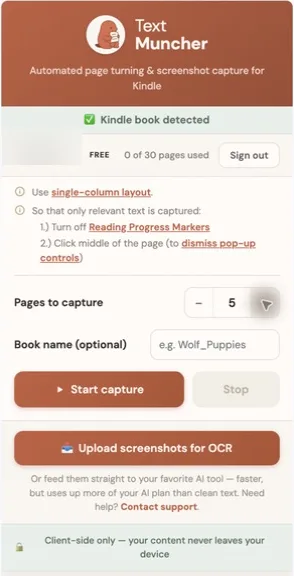
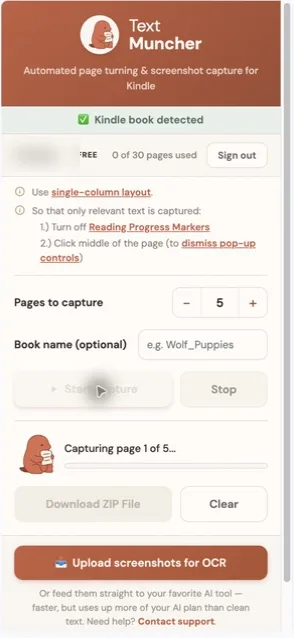
Open the TextMuncher extension popup and click "Start." The extension takes over from here:
- Automatic page turning: It advances through the book page by page, at a pace that ensures each page fully renders before capture
- Screenshot capture: Each page is captured as a high-resolution image
- Batch collection: All captures are collected and ready for upload
The extension handles page turning and screenshot capture hands-free; the walkthrough for how to screenshot an entire book automatically shows what a full run looks like. Capture time varies with page count and page rendering, and long runs can stop early and may need restarting.
Step 4: Upload for OCR Processing
Once capture is complete, upload the batch to textmuncher.com for OCR processing. The web app converts your page images into copyable text. Processing time varies with page count, page rendering, and device performance.
Step 5: Get Your Text
Download your extracted text. Review it, especially where wording must be exact, then paste it into ChatGPT or Claude, use it for research notes, or import it into any tool that accepts plain text.
The whole process varies with book length, page rendering, and device performance. The extension removes page-by-page capture work, while manual screenshotting can take hours and Calibre setup can take 30-60 minutes before it might not even work with newer books.
TextMuncher vs Other Chrome Extension Approaches
| Factor | Highlight Exporters | Generic Text Capture | CLI Tools (kindle-ai-export) | TextMuncher |
|---|---|---|---|---|
| Works in 2026? | Yes (limited) | Unreliable | Yes | Yes |
| Requires API key? | No | No | Yes (OpenAI) | No |
| Handles canvas-rendered books? | No | No | Yes | Yes |
| Respects copy limits? | Yes (bound by 10%) | Yes (bound by 10%) | No (screenshots) | No (screenshots) |
| Setup difficulty | Easy | Easy | Technical | Easy |
| Cost per book | Free | Free | $2-5 in API fees | $9.99/mo unlimited |
| Chrome extension? | Yes | Yes | No (CLI tool) | Yes |
The key differentiator is how each tool handles Amazon's defenses. Highlight exporters and generic capture tools work within Amazon's restrictions, which means they hit the same walls you hit manually. Screenshot-based tools (TextMuncher and CLI alternatives) read the rendered page as an image instead, so the copy limit never applies.
What About Calibre and DRM Removal?
If you've been in the Kindle text extraction space for a while, you've probably heard of Calibre with DeDRM. For years, it was the gold standard: download your ebook, strip the DRM, done.
In February 2025, Amazon removed the "Download & Transfer via USB" option, breaking the standard workflow. Amazon then blocked the old Kindle for PC route for new purchases in April 2025 and retired that app on June 30, 2026. A community fork of DeDRM still ships test releases, but they need Windows, TPM 2.0, and Amazon's Microsoft Store Kindle app, and each app update can break them.
Calibre remains the better choice if you want full ebook files for archiving or format conversion. But if you just need text (for notes, research, or AI), a Chrome extension approach is faster to set up and more reliable with recent purchases.
Who Uses a Kindle Text Extractor Chrome Extension?
From talking to TextMuncher users, the most common use cases are:
- Students who need to quote textbooks for papers and hit the copy limit within the first chapter
- Researchers building literature reviews who need searchable text from dozens of books
- Language learners who want to run entire chapters through translation tools
- AI enthusiasts who feed book content into ChatGPT or Claude for summarization, flashcards, and analysis
- Professionals who need to reference technical manuals or industry guides without retyping passages
The common thread: people who paid for their books and want to use the text in ways Amazon's restrictions don't accommodate.
For the research-specific path, the Kindle extraction guide for researchers covers working across several books while keeping source pages available for quote checks.
Pricing: What Does TextMuncher Cost?
TextMuncher offers 30 free pages to test the workflow with your specific books, no credit card required. After that, it's $9.99/month (or $48/year) for unlimited extraction.
For context: Readwise charges $12.99/month and still respects Amazon's copy limits. Paid DRM removal tools like Epubor break when Amazon updates their DRM. CLI tools like kindle-ai-export cost $2-5 per book in API fees with no cap.
The 30 free pages are enough to extract a full chapter and verify that the quality meets your needs before committing.
Getting Started
- Install the TextMuncher Chrome extension
- Open any Kindle book at read.amazon.com
- Click Start and let the extension capture your pages
- Upload to textmuncher.com and get your text
The whole process takes less time than searching the Chrome Web Store for an extension that might work. And unlike most alternatives, it'll still work next month when Amazon pushes their next update.
FAQ
Is TextMuncher available as a Firefox extension too?
Yes. TextMuncher works on both Chrome and Firefox. The Chrome extension is available on the Chrome Web Store, and the Firefox version is available on Mozilla Add-ons. Both versions work identically: automated page turning, screenshot capture, and OCR processing through the web app.
Will a Kindle text extractor Chrome extension get my Amazon account banned?
Screenshot-based extraction doesn't interact with Amazon's servers or modify their software. It automates the same action you perform manually: looking at a page and capturing what's on your screen. Users have been doing this for years without account issues. Extensions that attempt to crack DRM or manipulate Amazon's APIs carry more risk, which is why the screenshot approach is safer.
How accurate is the OCR text extraction?
TextMuncher's OCR achieves high accuracy on standard book text. Complex formatting (tables, equations, multi-column layouts) may require minor cleanup. For most use cases like research notes, AI analysis, or quoting passages, the extracted text is clean enough to use directly. If you're working with heavily formatted content, extracting text before using AI is still more efficient than feeding raw screenshots. How that accuracy is measured — a blinded page set, a human-adjudicated answer key, and a published per-page scoring file — is written up in the published OCR benchmark and its method.
Can I extract text from books in languages other than English?
Yes. The OCR language selector offers English, German, Spanish, French, Italian, Portuguese, Dutch and Japanese, but vertical-text Japanese books are not supported. Accented characters and diacritics come through in most cases. Very stylized scripts or mixed right-to-left text are the trickiest, so spot-check those pages.
What's the difference between a Chrome extension that extracts text and one that exports highlights?
Highlight exporters (like Clippings.io) only export passages you've already highlighted in your Kindle books. They're bound by Amazon's 10% copy limit. Once you hit that cap, you can't highlight (or export) any more text. A text extractor like TextMuncher captures the full page content regardless of copy limits, because it works through screenshots rather than Amazon's highlight system. If you need more than highlights, you need extraction.
Need to extract text from your Kindle books? Try TextMuncher free — 30 pages included, works with any book that opens in Kindle for Web.